Lesson 7 of 28
Assign requests to people and find them with the filters
What you will be able to do
Give each open request an owner, so that it appears in that person's My Actions list, and use the filters above the list to find requests by owner, by deadline and by where they came from.
Before you start
- Several requests are in the DSRs list. In this example there are seven, of every type, and one is past its deadline.
- You know who in the privacy team should handle each request.
Steps
- 1
Open DSRs and read the overdue warning
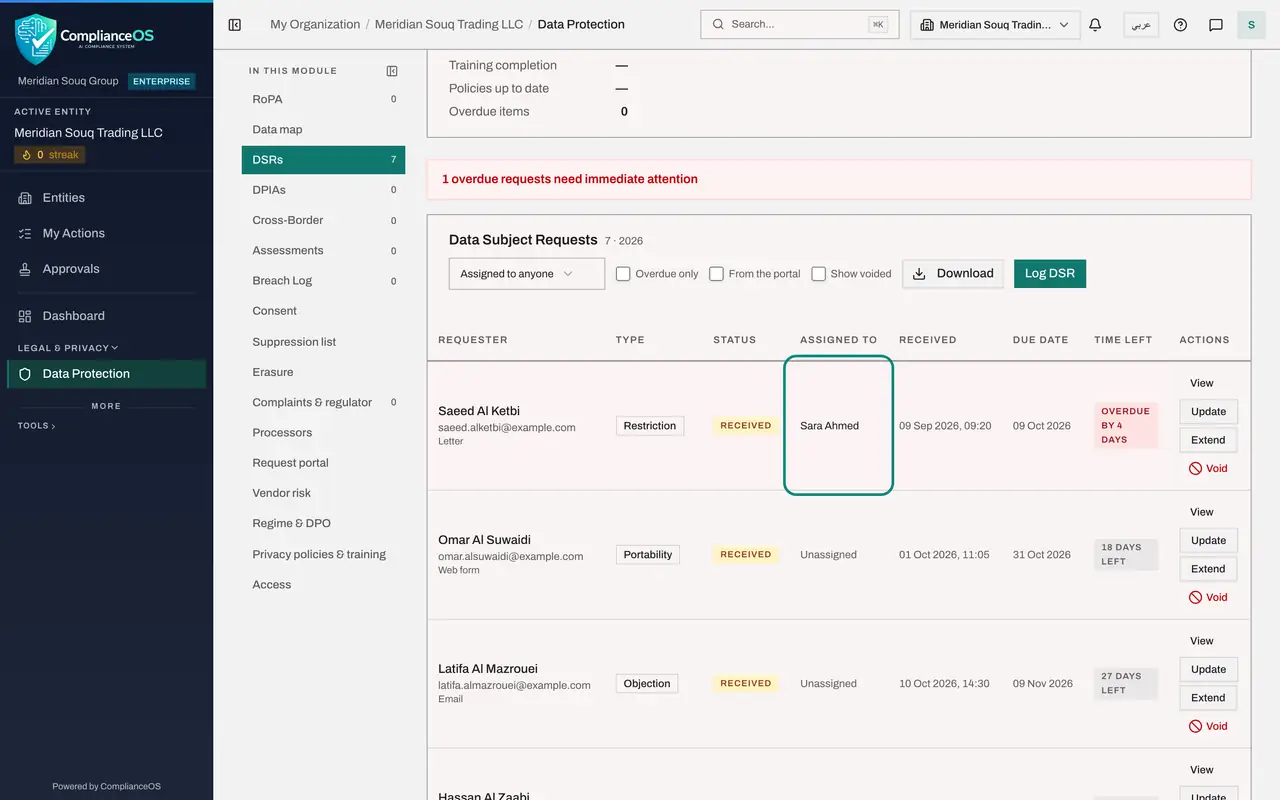
In Data Protection, select DSRs. A red banner above the list says how many requests are overdue and need immediate attention. The overdue request is shaded red in the list, and its Time left shows how many days it is over.
- Select DSRs
- 2
Select View on the access request
Find the access request from Tariq Al Nuaimi and select View. The record opens. The fourth line is Assigned to, and it shows Unassigned.
- Select View: Tariq Al Nuaimi
- 3
Open Assigned to
Open the Assigned to box. It lists everyone who has access to data subject requests for this entity. Unassigned, at the top, removes the owner.
- Select Assigned to
- 4
Choose Yusuf Rahman
Choose Yusuf Rahman, the second Data Protection Officer. The change is saved at once, and a message confirms Request assigned to Yusuf Rahman. There is no Save button for this box.
- Choose Yusuf Rahman
- 5
Assign the overdue request to yourself
Select View on the overdue request from Saeed Al Ketbi, open Assigned to and choose your own name, Sara Ahmed. Then select Close.
- Select View: Saeed Al Ketbi
- Select Assigned to
- Choose Sara Ahmed
- Select Close
- 6
Read the Assigned to column
The Assigned to column now shows Yusuf Rahman and Sara Ahmed on those two requests. The others still say Unassigned.
- 7
Filter to Assigned to me
Open the first filter box above the list, which reads Assigned to anyone, and choose Assigned to me. Only the requests you own are listed: here, the overdue one.
- Select Filter by assignee
- Choose Assigned to me
- 8
Filter to Unassigned
Open the same box and choose Unassigned. These are the requests nobody owns yet. Assign each one before you leave the list.
- Select Filter by assignee
- Choose Unassigned
- 9
Filter to one person
Open the box again and choose a colleague's name, Yusuf Rahman. The list shows only his requests. Use this to check a colleague's workload before you give them more.
- Select Filter by assignee
- Choose Yusuf Rahman
- 10
Go back to anyone and tick Overdue only
Set the box back to Assigned to anyone. Then tick Overdue only. The list shrinks to the requests that are past their due date.
- Select Filter by assignee
- Choose Assigned to anyone
- Select Overdue only
- 11
Untick it and tick From the portal
Untick Overdue only and tick From the portal. This shows only requests that people made themselves on the public page. None has been confirmed with a code yet, so the list is empty.
- Select Overdue only
- Select From the portal
- 12
Clear the filters
Untick From the portal so that every request is listed again. The last tick box, Show voided, brings back records that were voided as entered in error. A later lesson uses it.
- Select From the portal
How to check it worked
The Assigned to column shows Yusuf Rahman on the access request and your own name on the overdue request, and choosing Assigned to me above the list leaves only the overdue request.
Common mistakes
- Leaving requests Unassigned. Nobody sees an unassigned request in My Actions, so it is easy to miss until it is overdue.
- Trying to change the owner of a request that is completed, rejected or voided. The owner can only be changed while a request is Received or In progress.
- Forgetting a filter is still on. If the list looks short, check that the first box says Assigned to anyone and that Overdue only and From the portal are unticked.
Check your understanding
1. Where does a request appear for the person you assign it to?
- A.Only in an email
- B.In their My Actions list, with its due date
- C.In the audit log only
- D.Nowhere until they search for it
Show answer
Answer: B. In their My Actions list, with its due date
An assigned request is listed under Assigned to me in that person's My Actions, with its status, priority and due date.
2. Which filter shows requests that nobody owns yet?
- A.Overdue only
- B.From the portal
- C.Unassigned, in the first filter box
- D.Show voided
Show answer
Answer: C. Unassigned, in the first filter box
The first box filters by owner: anyone, you, Unassigned, or a named person.