Lesson 23 of 28
Log a regulator enquiry, track its deadline, void a duplicate and export the register
What you will be able to do
Record a letter from the data protection regulator with its reference and the deadline it sets, link it to the related request, move the deadline when the regulator changes it, remove a duplicate entry, and download the register.
Before you start
- You are signed in with the Data Protection Officer role for the entity.
- You have the regulator's letter: its reference, the date it arrived and the date a reply is due.
Steps
- 1
Open Complaints and regulator and select Log complaint
In Data Protection, select Complaints and regulator, then select Log complaint. The same form is used for complaints and for letters from the regulator, the public authority that enforces the data protection law.
- Select Complaints & regulator
- Select Log complaint
- 2
Set From to Regulator
Open From and choose Regulator. The Complainant box is replaced by Regulator reference.
- Select Data subject
- Choose Regulator
- 3
Enter when it arrived, the subject and the reference
The letter arrived two days ago, so set Received to then. In Subject, write one line that says what the regulator is asking about. In Regulator reference, enter the reference printed on the letter, so you can quote it in your reply.
- Type Received:
2026-10-11T10:00 - Type Subject *:
Regulator enquiry about loyalty programme marketing consent - Type Regulator reference:
DPO/ENQ/2026/0381
- Type Received:
- 4
Choose the channel and summarise the letter
In Channel choose Letter. In Details, summarise what the regulator asks for and what it wants you to send.
- Select Not recorded
- Choose Letter
- Type Details:
Regulator asks how consent for loyalty programme marketing is collecte…
- 5
Set the deadline the letter gives
In Response due, enter the date and time from the letter: here, two weeks from now at five in the afternoon. Do not rely on the default for a regulator deadline.
- Type Response due:
2026-10-27T17:00
- Type Response due:
- 6
Link the related request and select Log complaint
The letter mentions a customer whose request is in your list. Open Related data subject request and choose the request from Omar Al Suwaidi. Then select Log complaint.
- Select None
- Choose Omar Al Suwaidi · Portability · 01 Oct 2026
- Select Log complaint
- 7
Read the enquiry in the list and the tiles
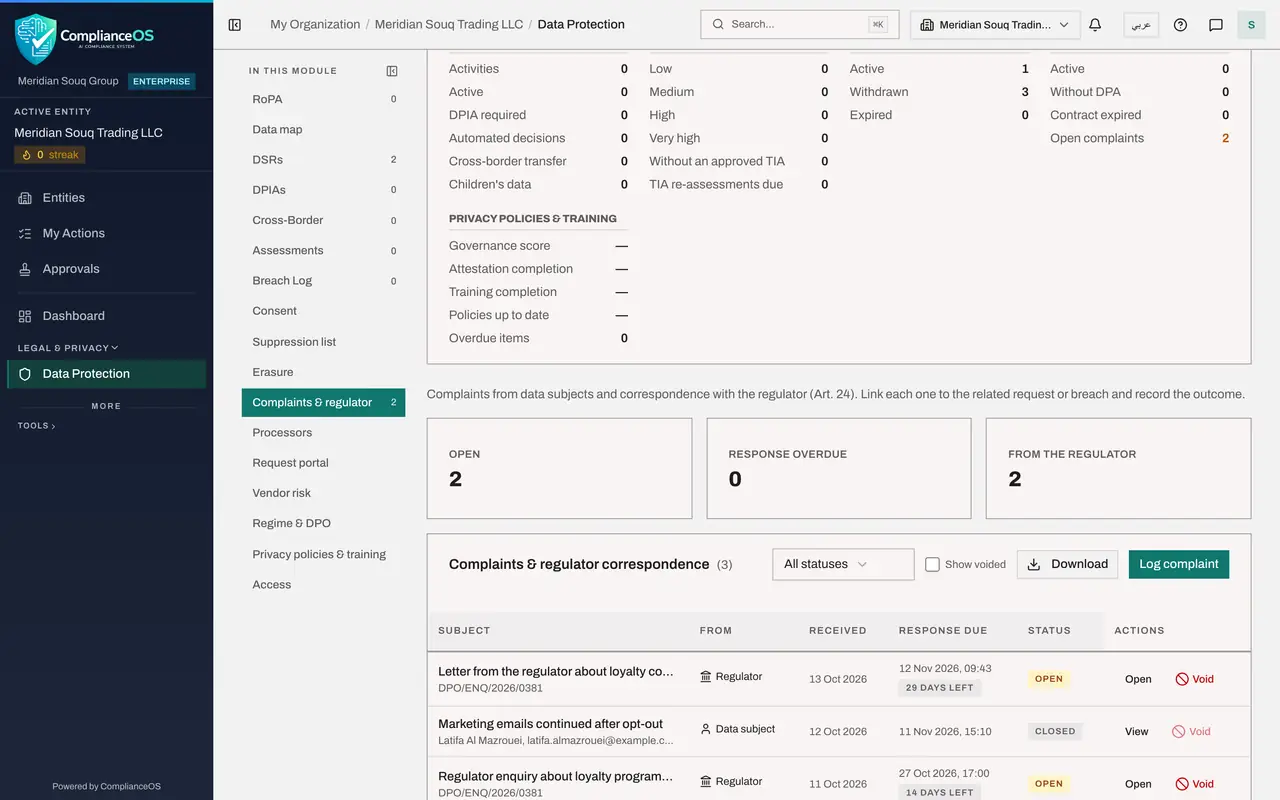
The enquiry is listed with Regulator in the From column, the reference under the subject, the due date and the days left. The tile From the regulator counts it. Check the tiles at the start of each week: Response overdue should stay at zero.
- 8
Select Open and move the deadline
The regulator writes again and gives you one more week. Select Open on the enquiry. Change Response due to the new date and select Save. The list and the days left follow the new date.
- Type Response due:
2026-11-03T17:00 - Select Save
- Type Response due:
- 9
Select Void on the duplicate entry
Colleagues logged the same letter again under another subject. Find that entry and select Void. As with requests, Void is only for a record entered in error: it stays in the audit trail but leaves the register, the exports and the figures.
- 10
Give the reason and select Void record
Type why the entry was made in error and select Void record. The duplicate leaves the list, and From the regulator counts one letter again.
- Type Why was it entered in error? *:
Same letter as the enquiry with reference 0381, logged twice. - Select Void record
- Type Why was it entered in error? *:
- 11
Tick Show voided
Tick Show voided above the list. Voided entries come back, greyed out, each with a Voided tag: the one you just voided, and any that colleagues voided earlier. Untick the box to hide them again.
- Select Show voided
- 12
Download the register
Untick Show voided, then select Download and choose CSV. The file holds every complaint and regulator letter with its dates, status and outcome. When you have replied to the regulator, open the enquiry, record the Response and outcome and select Mark responded, exactly as for a complaint.
- Select Show voided
- Select Download
- Select CSV (Excel, all rows)
How to check it worked
The enquiry is in the list marked as from the Regulator, with its reference under the subject, the Response due date from the letter and the days left. The tile From the regulator counts it, and the duplicate appears only when Show voided is ticked.
Common mistakes
- Leaving Response due empty for a regulator letter. The default is your internal complaint period; a regulator sets its own deadline, so enter the date from the letter.
- Putting the regulator's reference in Details only. Enter it in Regulator reference so it shows in the list and can be quoted in your reply.
- Leaving From as Data subject. The regulator tile only counts records marked Regulator.
Check your understanding
1. Where does the deadline for a regulator letter come from?
- A.It is always thirty days
- B.From the regulator's letter: enter it in Response due
- C.ComplianceOS asks the regulator
- D.It has no deadline
Show answer
Answer: B. From the regulator's letter: enter it in Response due
Set the deadline from the regulator's letter. The default applies only if you leave the box empty.
2. The regulator sends a second letter with a later deadline for the same enquiry. What do you do?
- A.Log a new entry and void the old one
- B.Open the enquiry, change Response due and select Save
- C.Nothing; deadlines cannot be changed
- D.Close the enquiry
Show answer
Answer: B. Open the enquiry, change Response due and select Save
While an enquiry is not closed you can open it and update the regulator reference, the response due date and the details.