Lesson 11 of 28
Prepare for erasure: record a system and set the erasure safeguards
What you will be able to do
Record a system that holds personal data on the Data map, then go through every safeguard on the Erasure section: the switch that pauses all erasure, the list of systems that may be erased with each system's settings, and the limits that stop a mistake from spreading.
Before you start
- You are signed in with the Data Protection Officer role for the entity.
- This company has no system connected with read access. The lesson records a system by hand, which is how you list paper files and supplier portals. Connecting a live database needs credentials from your IT team and is not covered here.
Steps
- 1
Open the Data map section
In Data Protection, select Data map. The data map lists the systems that hold personal data. A request to find or erase someone's records works from this list, so a system that is not here cannot be dealt with.
- Select Data map
- 2
Select Add system and choose Manual entry
Select Add system and open System type. Most types connect to a live database or cloud service. Manual entry, at the end of the list, is for systems ComplianceOS cannot connect to, such as paper files or a supplier's portal. Choose Manual entry.
- Select Add system
- Select Databricks
- Choose Manual entry
- 3
Describe the system and save
Give the system a name people will recognise, the two letter code of the country where it is kept, the region and a short description. Then select Save.
- Type Name:
Stores loyalty card file - Type Hosting country (ISO):
AE - Type Hosting region:
Dubai - Type Description:
Paper loyalty card application forms kept at the stores, and the sprea… - Select Save
- Type Name:
- 4
Open the system and select Add table or record
Select the system's name to open it. A system entered by hand starts empty. Select Add table or record to describe one set of records it holds.
- Select Stores loyalty card file
- Select Add table / record
- 5
Name the record set and list the data it holds
Type a name for the set of records and tick whose data it is. Under Data held, type each field and choose what kind of personal data it is. Select Add field for a second field.
- Type Name:
Loyalty card applications - Select Customers
- Type Name of field 1:
Email address - Select Category for field 1
- Choose Contact · Email address
- Select Add field
- Type Name of field 2:
Mobile number - Select Category for field 2
- Choose Contact · Phone number
- Type Name:
- 6
Save the record set
Select Save. The record set opens on its own page. The system is now on the data map with one set of records that holds personal data.
- Select Save
- 7
Select Erasure
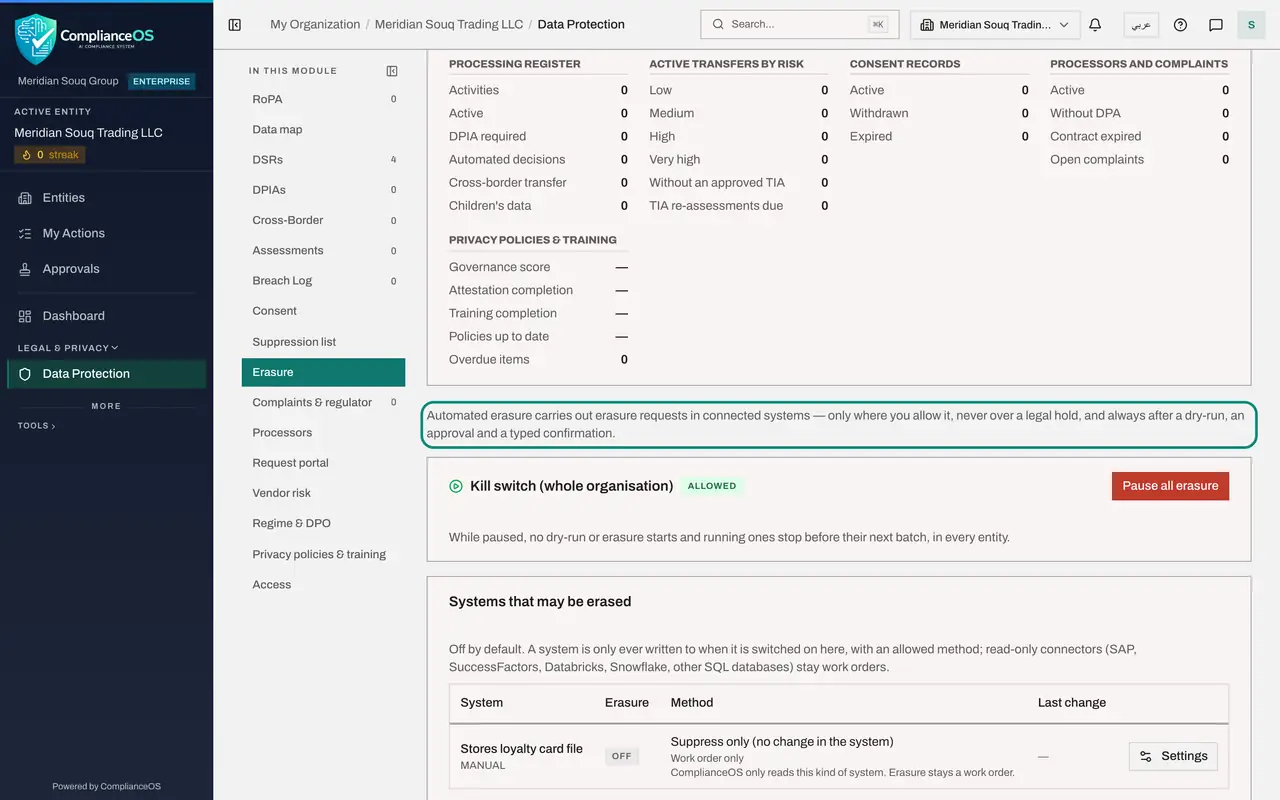
Go back to Data Protection and select Erasure. The line at the top states the rule: erasure is carried out only where you allow it, never over a legal hold, and always after a dry-run, an approval and a typed confirmation.
- Select Erasure
- 8
Know the kill switch
The first card is the Kill switch for the whole organisation, and it shows Allowed. Select Pause all erasure to see what it asks for: a reason of at least five characters, which is recorded in the audit log. While paused, no dry-run or erasure starts in any entity, and running ones stop before their next batch.
- Select Pause all erasure
- 9
Select Cancel
Select Cancel. Erasure stays Allowed.
- Select Cancel
- 10
Read Systems that may be erased
The second card lists every system on the data map. The system you just recorded is there. Erasure is Off, the method is Suppress only, and a note says Work order only: ComplianceOS only reads this kind of system, so erasure stays a job for its owner.
- 11
Select Settings on the system
Select Settings at the end of the row. This is where a connected system is switched on with Allow automated erasure and given a method: delete the rows, overwrite chosen columns, or suppress only. Below that you tick the tables that hold tax or accounting records, which are kept for the tax retention period. Every change needs a reason, recorded in the audit log.
- Select Settings
- 12
Select Cancel and find the limits
Nothing needs changing for a system kept by hand, so select Cancel. Below the systems is Limits for this entity, with four boxes: how many rows are erased in one batch, how many hours a dry-run stays valid, the most rows one table may match before it is refused as a likely wrong match, and the years tax records are kept.
- Select Cancel
- 13
Shorten the dry-run validity and select Save limits
Meridian Souq wants an approved plan to be carried out within two days. In Dry-run valid for, enter 48, then select Save limits. After that time a plan has to be dry-run and approved again before it can be executed.
- Type Dry-run valid for (hours):
48 - Select Save limits
- Type Dry-run valid for (hours):
How to check it worked
The system is listed under Systems that may be erased as Off and Work order only, and Limits for this entity shows the value you saved for how long a dry-run stays valid.
Common mistakes
- Expecting ComplianceOS to delete data in a system recorded by hand. It cannot reach such a system: the records are erased by their owner from a work order, and ComplianceOS records that it was done.
- Switching on erasure for a system with an account that can change every table. Use credentials that can only modify the tables that need it.
- Leaving the kill switch paused after an incident. While it is paused no dry-run or erasure starts in any entity, and requests go overdue.
Check your understanding
1. What is the starting position for every system under Systems that may be erased?
- A.On, with Delete rows
- B.Off: nothing is written to it until someone switches it on here
- C.Paused for thirty days
- D.Read-only for auditors
Show answer
Answer: B. Off: nothing is written to it until someone switches it on here
Erasure is off by default. A system is only ever written to when it is switched on here with an allowed method.
2. What does Pause all erasure do?
- A.It deletes all erasure plans
- B.It stops new dry-runs and erasures in every entity, and stops running ones before their next batch
- C.It only hides the Erasure section
- D.It extends every request by thirty days
Show answer
Answer: B. It stops new dry-runs and erasures in every entity, and stops running ones before their next batch
The kill switch covers the whole organisation. It is the emergency stop if an erasure is going wrong.