Lesson 8 of 28
Pick up a request assigned to you and record the identity check
What you will be able to do
Find a request a colleague assigned to you in My Actions, open it, and record that you have started work and how you confirmed who the requester is.
Before you start
- A colleague has assigned a request to you (see the lesson Assign requests to people and find them with the filters).
- You have confirmed the requester's identity outside ComplianceOS, for example by calling back on the number you hold and checking their Emirates ID.
Steps
- 1
Select My Actions
In the main menu on the left, select My Actions. It opens on Assigned to me: the open work that colleagues have given to you, across every module you use.
- Select My Actions
- 2
Read the request in your list
The request your colleague assigned is listed with the type DSR. The line shows that it comes from Data Protection, the kind of request, the entity, the status Received, the priority and the due date. Under the title it says Assigned to you.
- 3
Know the tiles and the two views
The tiles count your open, overdue and high priority items. A data subject request is always high priority, and critical once it is overdue. The button All I can see, beside Assigned to me, lists every open item you are allowed to see, whoever owns it.
- 4
Select Open on the request
Select Open at the end of the line. Data Protection opens on DSRs for the entity the request belongs to, with the full details of the request open in a window.
- Select Open
- 5
Close the window and filter to Assigned to me
Select Close. The request is in the DSRs list behind the window. To see only your own work, open the first filter box above the list and choose Assigned to me. Your request is the only one listed.
- Select Close
- Select Filter by assignee
- Choose Assigned to me
- 6
Select Update
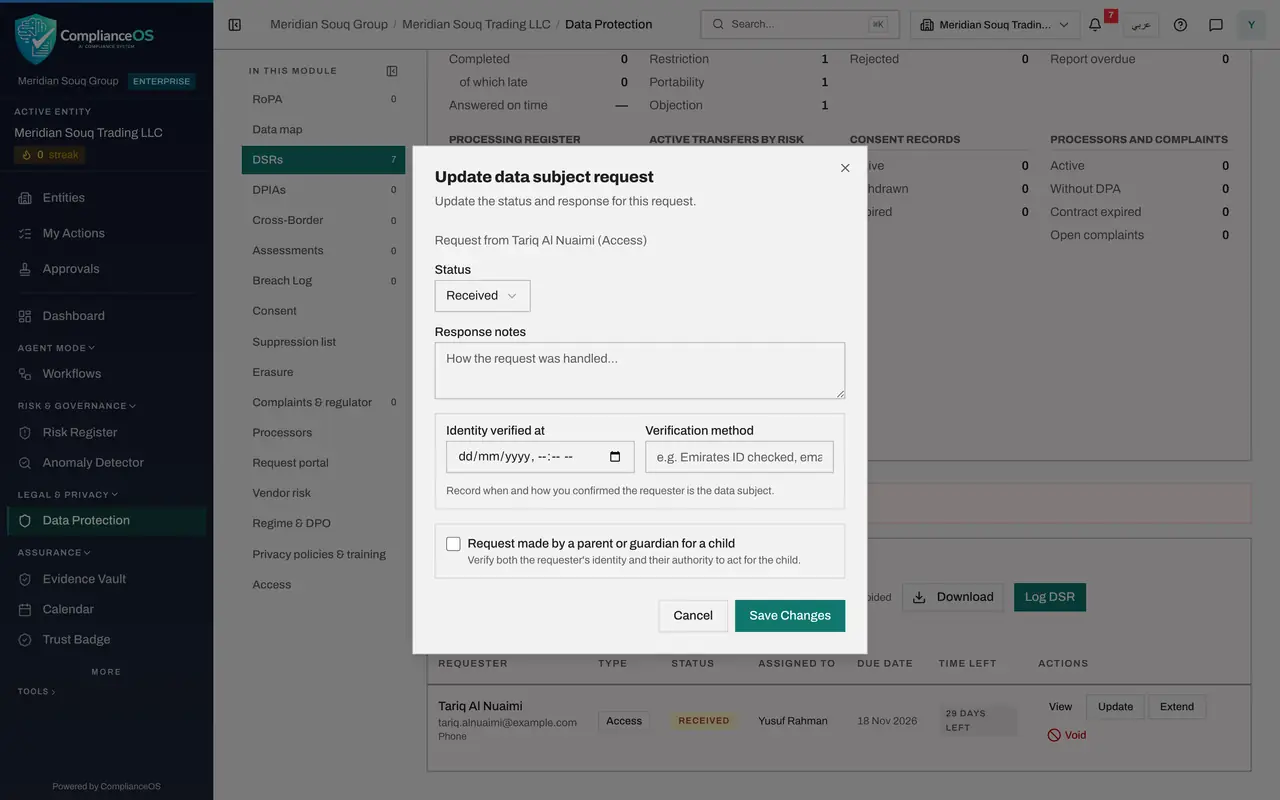
Select Update in the Actions column. A form opens with the status, your notes and the identity check.
- Select Update
- 7
Set the status to In progress
Open Status and choose In progress. This tells the team that someone has started work on the request.
- Select Received
- Choose In progress
- 8
Record the identity check
You called the customer back on his registered mobile number and checked his Emirates ID. In Identity verified at, enter when you did that. In Verification method, say how. Do this before you share any personal data.
- Type Identity verified at:
2026-10-20T11:19 - Type Verification method:
Called back on registered mobile and checked Emirates ID
- Type Identity verified at:
- 9
Select Save Changes
Select Save Changes. A message confirms Request updated, and the request now shows In progress in the list.
- Select Save Changes
- 10
Select View to confirm the identity check is on record
Select View. Beside Identity, the record shows Verified with the time, and your method underneath. Select Close.
- Select View: Tariq Al Nuaimi
- 11
Go back to My Actions
Select My Actions again. The request is still in your list, because it is still open, and its status now reads In progress. It leaves the list when the request is completed or rejected.
- Select My Actions
How to check it worked
The request shows In progress in the DSRs list and in My Actions, and opening View shows the identity check with its time and method.
Common mistakes
- Sending personal data before the identity check is recorded. Record when and how you confirmed who the person is first.
- Looking under All I can see and thinking every item is yours. Assigned to me lists your own work; All I can see lists every open item, whoever owns it.
- Looking for the request in the whole list. Open takes you straight to it, and Assigned to me on DSRs lists only the requests given to you.
Check your understanding
1. A request was assigned to you this morning. Where is the quickest place to see it with its due date?
- A.The audit log
- B.My Actions, under Assigned to me
- C.The Regime and DPO section
- D.The public request page
Show answer
Answer: B. My Actions, under Assigned to me
My Actions lists the open work assigned to you across modules, with status, priority and due date.
2. What do you record before you share any personal data with a requester?
- A.The rejection reason
- B.When and how you verified their identity
- C.A legal hold
- D.The consent wording
Show answer
Answer: B. When and how you verified their identity
Identity verified at and Verification method show that you confirmed the requester is the person the data is about.