Lesson 22 of 28
Log a privacy complaint, record your response and close it
What you will be able to do
Record a privacy complaint from a customer with every detail, link it to the request it is about, track when the response is due, update it when more information arrives, record what you replied, and close it.
Before you start
- You are signed in with the Data Protection Officer role for the entity.
- You know who complained, about what, and when and how the complaint arrived.
Steps
- 1
Open Data Protection and select Complaints and regulator
In Data Protection, select Complaints and regulator. This register holds complaints from data subjects, the people your data is about, and letters from the regulator. The three tiles count what is open, what has a response overdue and what came from the regulator.
- Select Complaints & regulator
- 2
Select Log complaint and choose who it is from
Select Log complaint. The first box, From, has two choices: Data subject, for a complaint from a person, and Regulator, for a letter from the authority. This one is from a customer, so keep Data subject.
- Select Log complaint
- Select Data subject
- Choose Data subject
- 3
Set when it was received and write the subject
Received is filled with the current time. The complaint arrived yesterday afternoon, so change it. In Subject, which is required, write one line that sums up the complaint.
- Type Received:
2026-10-12T15:10 - Type Subject *:
Marketing emails continued after opt-out
- Type Received:
- 4
Enter who complained and how
In Complainant, enter the person's name or contact. In Channel, choose how the complaint reached you: here, Email.
- Type Complainant:
Latifa Al Mazrouei, latifa.almazrouei@example.com - Select Not recorded
- Choose Email
- Type Complainant:
- 5
Describe the complaint
In Details, write what the person says happened, in their terms, with dates.
- Type Details:
Customer says she objected to marketing on 10 October but received ano…
- Type Details:
- 6
Check the response deadline
Leave Response due empty to use your entity's default. The line under the box shows the number of days and the exact date that will be used, counted from Received. Enter a date only when your policy or the complainant's letter sets a different one.
- 7
Link the related request
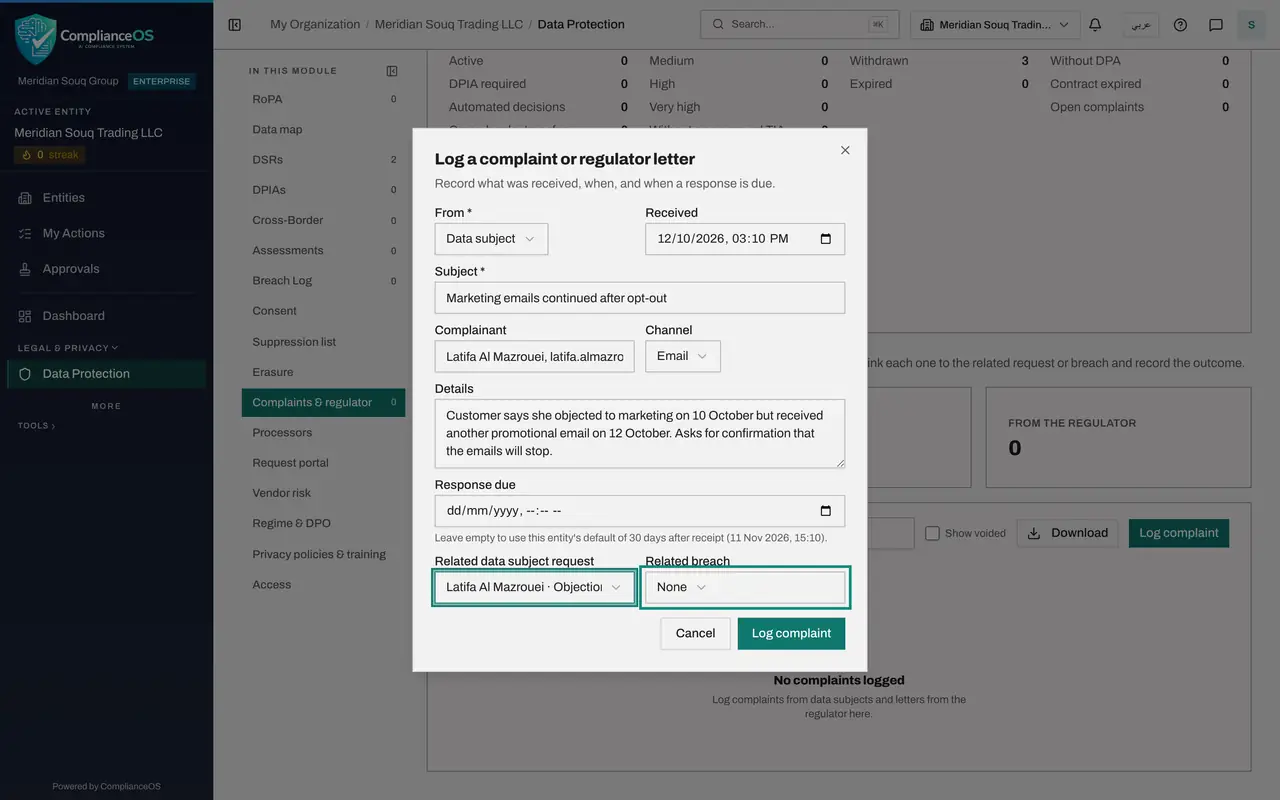
Open Related data subject request. Each request is listed with the person's name, the type in words and the date it was received. Choose the objection from Latifa Al Mazrouei, so the complaint and the request stay together. Related breach works the same way, and stays None here.
- Select None
- Choose Latifa Al Mazrouei · Objection · 10 Oct 2026
- 8
Select Log complaint to save
Select Log complaint at the bottom of the form. A message confirms Complaint logged. The complaint is listed with the status Open, its Response due date and the days left, and the Open tile counts it.
- Select Log complaint
- 9
Select Open on the complaint
Select Open at the end of the row. The record shows the status, who it is from, when it was received, the channel and the due date, with the related request. Below, you can still change the Response due date and the Details while the complaint is not closed.
- Select View: Marketing emails continued after opt-out
- 10
Add new information and select Save
The customer forwards the email she received. Add that to Details and select Save. A message confirms Complaint updated. Use Save whenever facts change before you reply.
- Type Details:
Customer says she objected to marketing on 10 October but received ano… - Select Save
- Type Details:
- 11
Record your response
When you have replied to the customer, write in Response and outcome what you replied and what was done to fix the problem. Mark responded and Close complaint are greyed out until this box is filled.
- Type Response / outcome:
Replied by email with an apology. Her address was still on the store w…
- Type Response / outcome:
- 12
Select Mark responded
Select Mark responded. The status changes to Responded and the time is recorded. If the customer comes back, Reopen returns the complaint to Open.
- Select Mark responded
- 13
Select Close complaint, then Confirm close
When nothing more is expected, select Close complaint. A warning reminds you that a closed complaint cannot be changed. Check the outcome, then select Confirm close.
- Select Close complaint
- Select Confirm close
- 14
Find the closed complaint in the list
The complaint now shows Closed, and the Open tile has gone back down. It stays in the register as your record of the complaint and how it was resolved. The box above the list filters by status: Open, Responded or Closed.
How to check it worked
The complaint is in the Complaints and regulator correspondence list with the status Closed, and opening it shows your response and when you responded.
Common mistakes
- Closing a complaint before checking the outcome text. A closed complaint cannot be changed.
- Leaving Response and outcome empty. Mark responded and Close complaint stay greyed out until the outcome is recorded.
- Logging the complaint days late with the current time. Response due is counted from Received, so enter when it really arrived.
Check your understanding
1. You leave Response due empty when logging a complaint. What deadline is used?
- A.None; the complaint has no deadline
- B.The entity's default number of days after the complaint was received
- C.The end of the year
- D.The same day
Show answer
Answer: B. The entity's default number of days after the complaint was received
The line under the field says so, and shows the date that will be used: the entity's default number of days after receipt.
2. What is the difference between Mark responded and Close complaint?
- A.There is none
- B.Responded records that you replied and can still be reopened; Closed is final and cannot be changed
- C.Responded deletes the complaint
- D.Closed sends the reply to the customer
Show answer
Answer: B. Responded records that you replied and can still be reopened; Closed is final and cannot be changed
A responded complaint can be reopened if the person comes back. Closing asks you to confirm because the record is then locked.