Lesson 25 of 28
How this connects, part 1: what one request sets in motion
What you will be able to do
Follow one request through the rest of ComplianceOS: the owner you give it, the warnings on the Data Protection overview and the dashboard, the approval record of an erasure plan, and the suppression entries and complaint that point back to requests.
Before you start
- You have worked through the earlier lessons of this course, so the registers hold requests, consents, suppression entries and complaints.
- The portability request from Omar Al Suwaidi is still open, with an extended deadline.
Steps
- 1
Give the open request an owner
In Data Protection, select DSRs. The portability request from Omar Al Suwaidi is still open, so select View, open Assigned to and choose Yusuf Rahman. From this moment the request is in his My Actions list, as the next lesson shows from his side.
- Select DSRs
- Select View: Omar Al Suwaidi
- Select Assigned to
- Choose Yusuf Rahman
- 2
Read the open requests on the Data Protection overview
Scroll to the top of Data Protection. The strip counts the open requests, and under it each open request has its own line, DSR needs response, with the person's name, the type and when it was received. The tile Active DSRs turns red when one is overdue.
- 3
Read the request figures
In Programme metrics, the Data subject requests block now tells the story of this course: how many requests were received, how many are open, completed and completed late, and the share answered on time. Requests by type breaks them down. Consent records and Open complaints, further right, come from the other registers you filled.
- 4
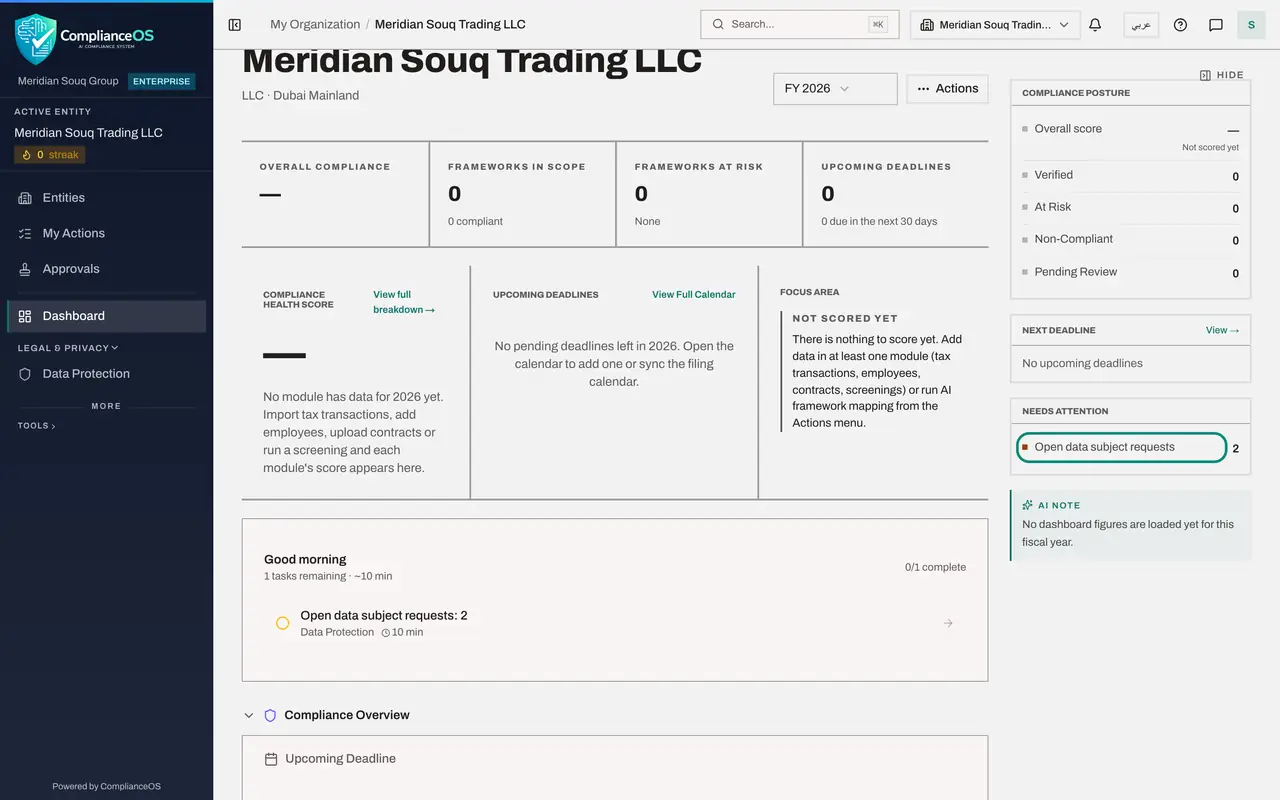
Select Dashboard
Select Dashboard in the main menu. This is the entity's overview, seen by everyone who works on this entity. Under Needs attention it counts Open data subject requests, and the task list links straight back to Data Protection.
- Select Dashboard
- 5
Select Approvals and My requests
Select Approvals in the main menu, then My requests. The erasure plan you sent for approval is listed with its outcome and who decided each step. Every approval in ComplianceOS leaves this record, whichever module it started in.
- Select Approvals
- Select My requests
- 6
Open Suppression list and filter to Erased
Go back to Data Protection and select Suppression list. Open the Source box and choose Erased. These entries were written by the erasure of the request from Reem Al Falasi: one for each identifier that was searched.
- Select Suppression list
- Select Any source
- Choose Erased
- 7
Filter to Consent withdrawn
Open Source again and choose Consent withdrawn. These entries were written when you withdrew consents in the Consent register, one for the purpose and one for direct marketing for each person. Nobody typed them.
- Select Erased
- Choose Consent withdrawn
- 8
Open the complaint that is linked to a request
Select Complaints and regulator and select View on the closed complaint. The record names the Related data subject request: the objection it was about. A complaint, a request and a suppression entry about the same person can always be traced to each other.
- Select Complaints & regulator
- Select View: Marketing emails continued after opt-out
How to check it worked
You can point to the same request in four places: the DSRs list with its owner, the open requests on the Data Protection overview, Needs attention on the dashboard, and the complaint or suppression entry linked to it.
Common mistakes
- Treating each register as separate. A withdrawal, an upheld objection and an erasure all write to the suppression list; a complaint can link to a request; an erasure plan goes through Approvals.
- Ignoring Needs attention on the dashboard. It counts open requests for everyone who can see the entity, not only the privacy team.
- Looking for the reason behind a suppression entry in the wrong place. Open View on the entry: the source says which kind of record created it.
Check your understanding
1. Which three events add a person to the suppression list without anyone typing the entry?
- A.A new request, a new complaint and a new consent
- B.A withdrawn consent, an upheld objection and a completed erasure
- C.An extension, a void and a download
- D.A sign-in, a search and an export
Show answer
Answer: B. A withdrawn consent, an upheld objection and a completed erasure
The Source column names them: Consent withdrawn, Objection upheld and Erased. Added manually covers the rest.
2. Where can you see what happened to an erasure plan you sent for approval?
- A.Only by asking the approver
- B.On the Approvals page, under My requests, and on the request itself
- C.In the consent register
- D.It is not recorded
Show answer
Answer: B. On the Approvals page, under My requests, and on the request itself
My requests lists what you submitted with each step's outcome. The plan on the request shows the same decision in its evidence.