Lesson 5 of 28
Log a request received by phone or email: every field
What you will be able to do
Record a data subject request that did not come through the portal, field by field, so the response deadline starts counting from the moment the request really arrived.
Before you start
- You are signed in with the Data Protection Officer role for the entity.
- You know who made the request, what they asked for, and when and how it arrived.
Steps
- 1
Open Data Protection and select DSRs
In Data Protection, select DSRs. DSR is short for data subject request: a person asking to see, correct, delete, move or limit the use of their personal data. This list holds every request, however it arrived. It is empty for now.
- Select DSRs
- 2
Select Log DSR
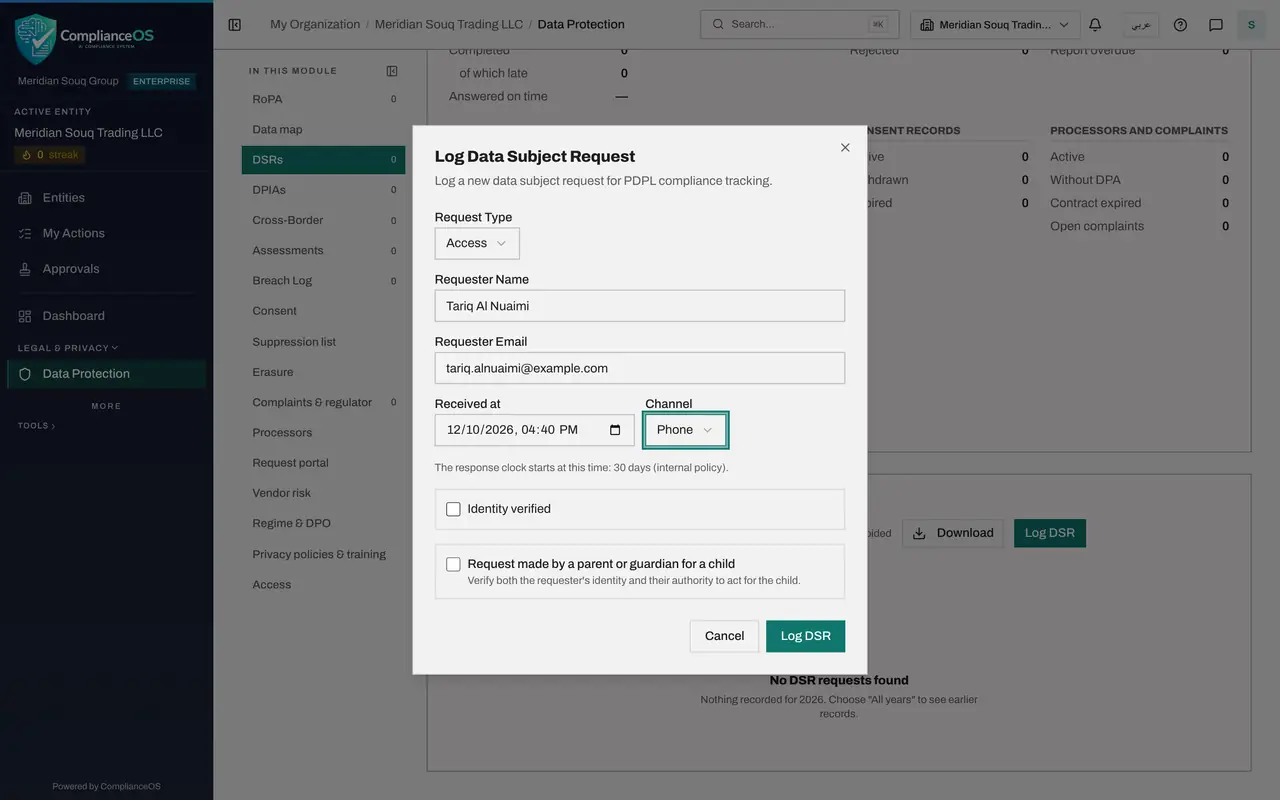
Select Log DSR. A form opens for one request. Work down it from the top.
- Select Log DSR
- 3
Open Request Type and read the six choices
Open Request Type. Access means the person wants to know what you hold and get a copy; Rectification means correcting it; Erasure means deleting it. Restriction means limiting its use, Portability means receiving it in a form they can take elsewhere, and Objection means asking you to stop a use, such as marketing.
- Select Select request type
- 4
Choose Access
This customer phoned to ask what the company holds about him. Choose Access. The request type is required: the form cannot be saved without it.
- Choose Access
- 5
Enter the requester's name and email
Type the person's full name in Requester Name. This is the other required field. Then type their email address in Requester Email. The email is used to send them a notice when the request is completed, rejected or extended, and to search your systems for their records.
- Type Requester Name:
Tariq Al Nuaimi - Type Requester Email:
tariq.alnuaimi@example.com
- Type Requester Name:
- 6
Set Received at to when the request arrived
Received at is filled with the current time. This call came in yesterday afternoon, so change the date and time to then. It cannot be set in the future.
- Type Received at:
2026-10-12T16:40
- Type Received at:
- 7
Choose the channel
Open Channel and choose how the request reached you: Email, Web form, Phone, Letter, In person or Other. Choose Phone. If you leave it as Not recorded, nothing is shown under the requester's name in the list.
- Select Not recorded
- Choose Phone
- 8
Read the line about the response clock
The line under these fields tells you how many days you have to respond, counted from Received at, and whether that period comes from the law or from your own policy. Here it is thirty days, set under Regime and DPO.
- 9
Leave Identity verified unticked for now
Tick Identity verified only if you have already confirmed the caller is who they say they are. Ticking it opens two more boxes, for when and how you checked. Here the check has not been done, so leave it unticked. It is recorded later, when the request is worked.
- 10
Know the box for a request made for a child
The last box, Request made by a parent or guardian for a child, is for a request about a child's data. Ticking it asks for the requester's relationship to the child. This caller is an adult asking about himself, so leave it unticked. The next lesson logs a request for a child.
- 11
Select Log DSR to save
Select Log DSR at the bottom of the form. A message confirms Data subject request logged, the form closes and the request is added to the list.
- Select Log DSR
- 12
Read the request in the list
The request is listed with the channel Phone under the name and email, the type Access and the status Received. Assigned to shows Unassigned. Received and Due Date are thirty days apart, and Time left counts down the days. The Actions column has View, Update, Extend and Void.
- 13
See the figures at the top change
Scroll to the top of Data Protection. The tile Active DSRs and the Data subject requests figures now count this request: one received and one open, none overdue. A yellow line above the tiles also names each open request that needs a response.
How to check it worked
The request appears in the Data Subject Requests list with the status Received, the channel Phone under the name, a due date thirty days after it was received and the number of days left. The Data subject requests figures at the top of Data Protection have gone up by one.
Common mistakes
- Leaving Received at as the time you typed the record when the call came in days earlier. The deadline is counted from Received at, so set it to when the request actually arrived.
- Ticking Identity verified before you have checked who the person is. Leave it unticked and record the check when you have done it.
- Skipping the email address. Without it the requester cannot be emailed when the request is completed, rejected or extended, and the search for their records has nothing to search with.
Check your understanding
1. A customer phoned on Monday and you log the request on Wednesday. What should Received at show?
- A.Wednesday, when you logged it
- B.Monday, when the customer phoned
- C.The date you expect to reply
- D.It does not matter
Show answer
Answer: B. Monday, when the customer phoned
The response clock starts at Received at. Using the real date keeps the due date honest.
2. Which two fields must be filled before a request can be logged?
- A.Request Type and Requester Name
- B.Requester Email and Channel
- C.Identity verified and Verification method
- D.Received at and Channel
Show answer
Answer: A. Request Type and Requester Name
Request type and requester name are required. The rest are optional but make the record far more useful.