Lesson 28 of 28
How this connects, part 4: the audit-log trail and read-only access
What you will be able to do
Read the trail that every action in this course left in the audit log, filter it to one kind of record, open the details of an event, and see what the request list looks like to someone who may view but not change it.
Before you start
- You are signed in with the Auditor role. The Data Protection Officer's role does not include the audit log.
- The privacy team has worked requests, erasure plans, consents and complaints, as in the earlier lessons.
Steps
- 1
Select Audit log
Open the entity, then select Audit log in the main menu. It is the complete history of actions taken in your account. Each line has the time, the action, the type of record, the entity, who did it and the record's reference.
- Select Audit log
- 2
Open the record type filter
Open the box that reads All Resource Types. It lists the kinds of record that have events. For this course they include data subject requests, erasure plans, legal holds, consent purposes and records, suppression entries, complaints and the portal settings.
- Select Resource Type
- 3
Choose Data subject request
Choose Data subject request. The list now shows only events on requests: each one logged, each assignment, each update and each search for a person's data, with the name of the person who did it.
- Choose Data subject request
- 4
Select Details on an event
Find an event with the action Data subject request: Assigned and select Details. The line opens to show what changed: here, who the request was assigned to. Show raw gives the full record of the event for a technical reader.
- Select Details
- 5
Filter to the erasure plan
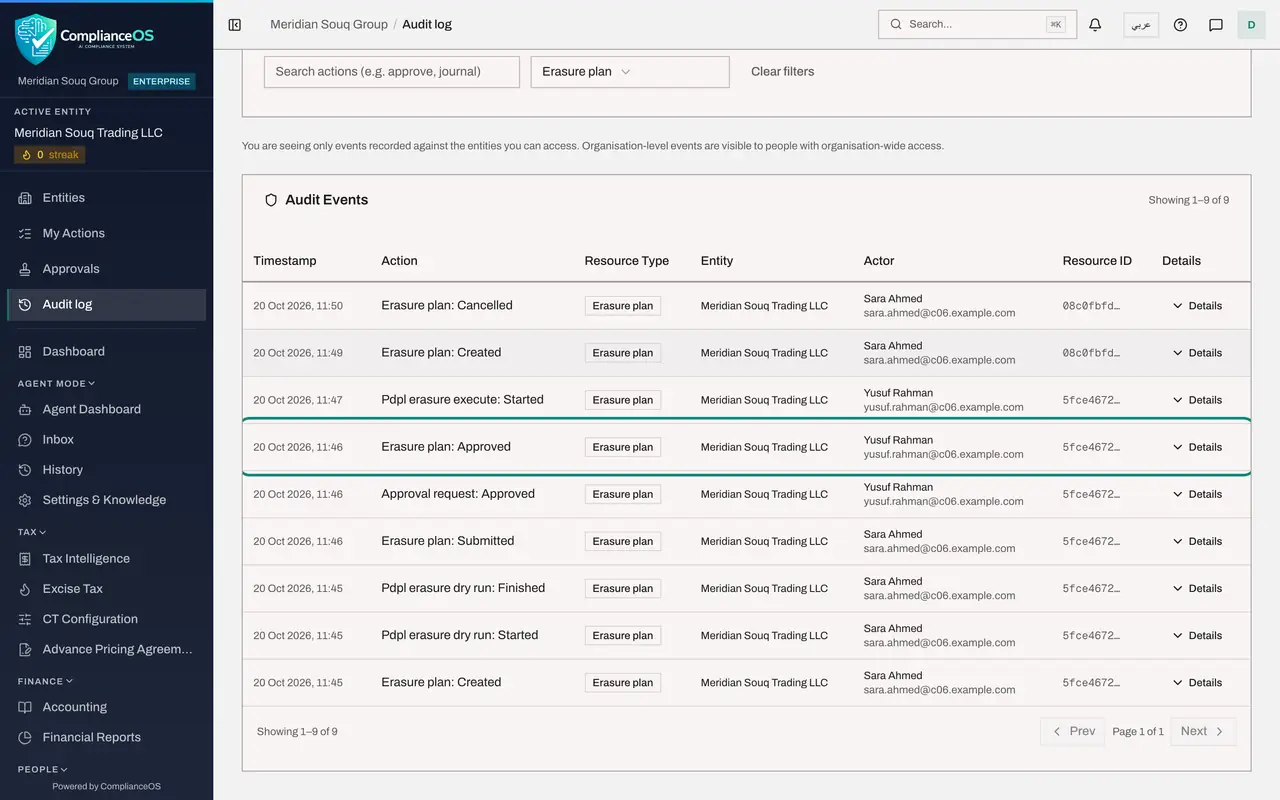
Open the filter again and choose Erasure plan. This is the trail of the erasure in this course, newest first: the plan was created, dry-run, submitted, approved and executed. The actor column shows that the person who approved it is not the person who prepared it.
- Select Resource Type
- Choose Erasure plan
- 6
Filter to the suppression entries
Choose Suppression list entry in the filter. Entries that were added by hand and entries that were lifted are listed with who did it. The same goes for consent records, legal holds and complaints: every register in this course writes to this log.
- Select Resource Type
- Choose Suppression list entry
- 7
Open Data Protection as an auditor
Now see what read-only access looks like. Open the entity, select Data Protection in the main menu and then DSRs. The auditor sees the same list, filters and Download button as the privacy team, but there is no Log DSR button.
- Select Data Protection
- Select DSRs2 (2)
- 8
Read the Actions column
Each row has only a View button. Update, Extend and Void are not shown, because the auditor's role may view requests but not change them.
- 9
Select View on a request
Select View. The whole record can be read, with its search, its notices and, for an erasure, its plan and evidence. Assigned to is plain text instead of a box, and there is no Update button at the bottom. An auditor can check everything and change nothing.
- Select View: Omar Al Suwaidi
How to check it worked
Filtering the audit log to Data subject request shows who logged, assigned and updated each request and when, and the DSRs list shows you only a View button on each row.
Common mistakes
- Looking for personal details in the audit log. It records who did what to which record and when, with a short summary; the person's data stays in the register.
- Filtering by only one of two similar names. Some record types appear twice in the filter, in the singular and the plural; check both when you need the full trail of a request or a complaint.
- Asking the privacy team to edit a record for you because you have no Update button. Read-only access is deliberate for an auditor: ask them to make the change and it will appear in the log.
Check your understanding
1. An erasure was approved by one person and executed by the same person. Where do you confirm that the plan was prepared by someone else?
- A.In the consent register
- B.In the audit log, filtered to the erasure plan: the events show who created, submitted, approved and executed it
- C.On the public request page
- D.It cannot be confirmed
Show answer
Answer: B. In the audit log, filtered to the erasure plan: the events show who created, submitted, approved and executed it
Each step of the plan is an event with its actor and time. The plan's own evidence trail on the request shows the same sequence.
2. What does an auditor see in the Actions column of the DSRs list?
- A.View only
- B.View, Update and Extend
- C.Void only
- D.Nothing
Show answer
Answer: A. View only
The auditor's role can view requests but not log, update, extend or void them, so those buttons are not shown.