Lesson 27 of 28
How this connects, part 3: request deadlines in the calendar, on the dashboard and in the evidence vault
What you will be able to do
See where the privacy team's request deadlines appear for the rest of the organisation: in the compliance calendar after a sync, among the dashboard's upcoming deadlines, and as sealed evidence in the evidence vault when a request is closed.
Before you start
- You are signed in with the Compliance officer role for the entity. The Data Protection Officer's role does not include the compliance calendar.
- The privacy team has open data subject requests with due dates.
Steps
- 1
Open the Compliance Calendar
In the main menu, under Assurance, select Calendar. The compliance calendar brings the deadlines of every module into one place. The four figures at the top count deadlines due this month, overdue, due in the next thirty days and completed.
- Select Calendar
- 2
Select Sync Deadlines
Select Sync Deadlines. The calendar collects due dates from the entity's modules, including the response dates of data subject requests. A message says how many were found. The same sync runs by itself in the background in a live system.
- Select Sync Deadlines
- 3
Find the request deadlines under Upcoming Deadlines
Under Upcoming Deadlines, each open request has a line named DSR Response with the kind of request, the day it is due, how many days are left and the status Pending. The requester's name is not shown here. A closed request shows Completed in the month it was due, whether it was answered or rejected, and a voided request shows Waived, so only open requests count as due or overdue.
- 4
Select a deadline to see its details
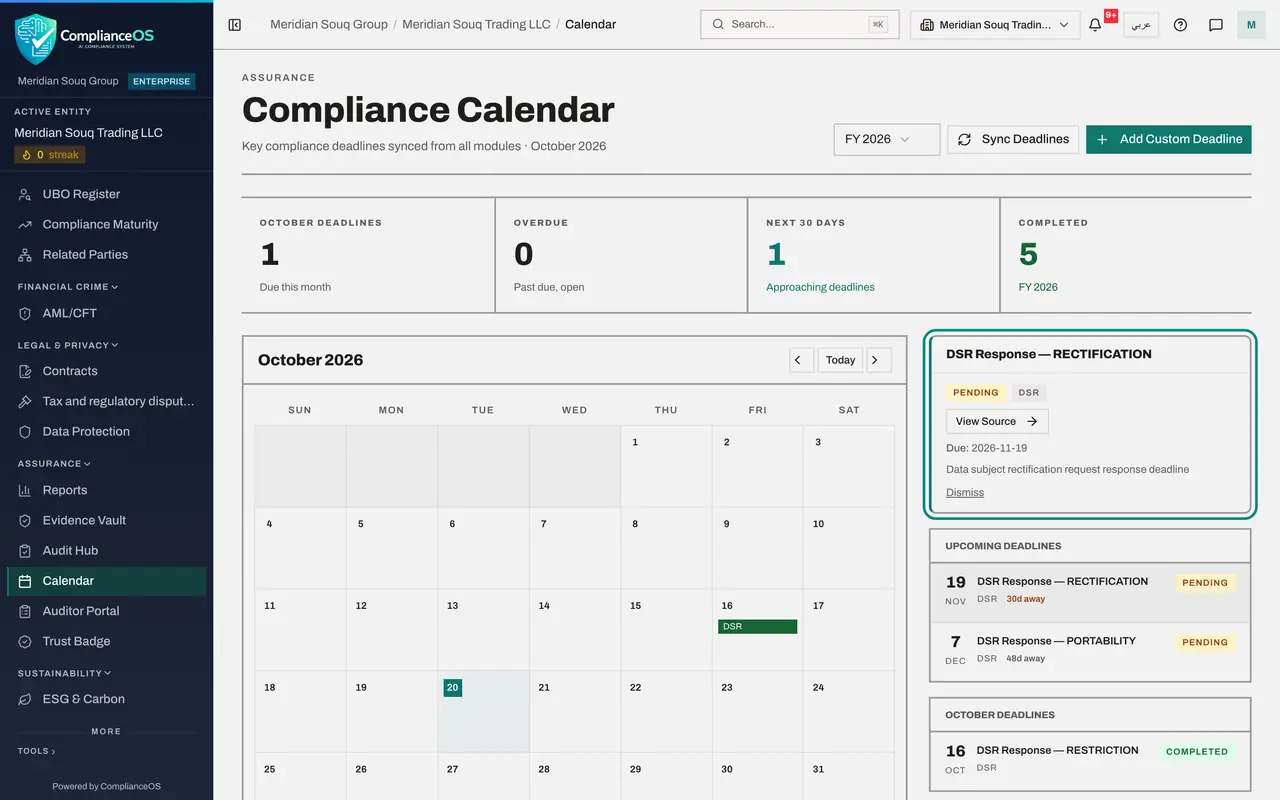
Select one of the DSR Response lines. A panel opens with its status, its source and the due date. A deadline that comes from a module cannot be edited here. View Source takes you to Data Protection, where the privacy team changes it with Extend.
- Select DSR Response — RECTIFICATION
- 5
Move to the month the requests are due
Select the right arrow beside Today to move to next month. The days on which requests are due carry a DSR label, so anyone planning the month can see the privacy team's load.
- Select Next month
- 6
Select Dashboard
Select Dashboard in the main menu. Upcoming deadlines counts the request deadlines with everything else that is due, and lists them under UAE Data Protection with their dates. Data Protection also has its own line in the Compliance health score.
- Select Dashboard
- 7
Open the Evidence Vault
In the main menu, under Assurance, select Evidence Vault. Each request that was completed or rejected in this course left a record here by itself, with the source DSR Response. It is marked Sealed, carries a fingerprint that shows it has not been altered, and is kept for the retention period shown.
- Select Evidence Vault
How to check it worked
The compliance calendar lists entries named DSR Response on the due dates of the open requests, the dashboard's Upcoming deadlines shows them under UAE Data Protection, and the evidence vault holds a sealed DSR Response record for each completed or rejected request.
Common mistakes
- Expecting a new request to be in the calendar the moment it is logged. The calendar collects deadlines when it syncs: select Sync Deadlines, or wait for the background sync.
- Trying to change a request's deadline in the calendar. A synced deadline is read-only there; select View Source and change it on the request, with Extend.
- Reading Completed in the calendar as answered. A rejected request also shows Completed there; open the request itself to see how it was closed.
Check your understanding
1. How does a data subject request's due date reach the compliance calendar?
- A.Someone retypes it
- B.The calendar sync reads the due dates of the entity's modules, including data subject requests
- C.The requester adds it
- D.It never does
Show answer
Answer: B. The calendar sync reads the due dates of the entity's modules, including data subject requests
Sync Deadlines collects due dates from the modules. The same sync also runs in the background.
2. What is kept in the evidence vault when a request is completed or rejected?
- A.A copy of the person's data
- B.A sealed record of the outcome, with a fingerprint that shows it has not been altered
- C.The requester's password
- D.Nothing
Show answer
Answer: B. A sealed record of the outcome, with a fingerprint that shows it has not been altered
Each closed request leaves a DSR Response record in the vault. It is sealed and kept for the retention period.