Lesson 14 of 28
After the erasure: the confirmation letter, the evidence, the suppression entry and closing the request
What you will be able to do
Finish an erasure request properly: read the confirmation prepared for the requester in English and Arabic, read the evidence trail of the plan, find the suppression entries the erasure created, and close the request.
Before you start
- The erasure plan for the request shows Completed (see the lesson Approve an erasure plan and execute it).
- The owners of any system kept by hand have confirmed to you that they removed the person's records.
Steps
- 1
Open the erasure request
In Data Protection, select DSRs and select View on the request from Reem Al Falasi. Its status is now In progress, and the plan under Automated erasure shows Completed.
- Select DSRs4 (4)
- Select View: Reem Al Falasi
- 2
Select Requester confirmation
Select Requester confirmation. A letter opens that you can send to the person. It quotes the request reference and the right it answers. Its opening follows what the erasure did: here no connected system held data on the person, so it says that nothing was found and there was nothing to erase. When data is erased or kept, the letter lists it, with the legal basis for anything kept. It also tells them they were added to your suppression list.
- Select Requester confirmation
- 3
Select the Arabic tab
The letter is prepared in both languages. Select the Arabic tab to read the Arabic text. Copy puts the letter on your clipboard to paste into an email, and Download saves it as a file. Read it before you send it. If your staff removed the person's data by hand from a system that is not connected, add a line that says so.
- Select العربية
- 4
Select Show evidence
Select Show evidence under the plan. The trail lists each event with its time and who did it: the plan was created, it was approved, and the person was added to the suppression list. With a connected system there is also a line for each table, with the row counts before and after. This trail is what you show an auditor.
- Select Show evidence (3)
- 5
Select Update to close the request
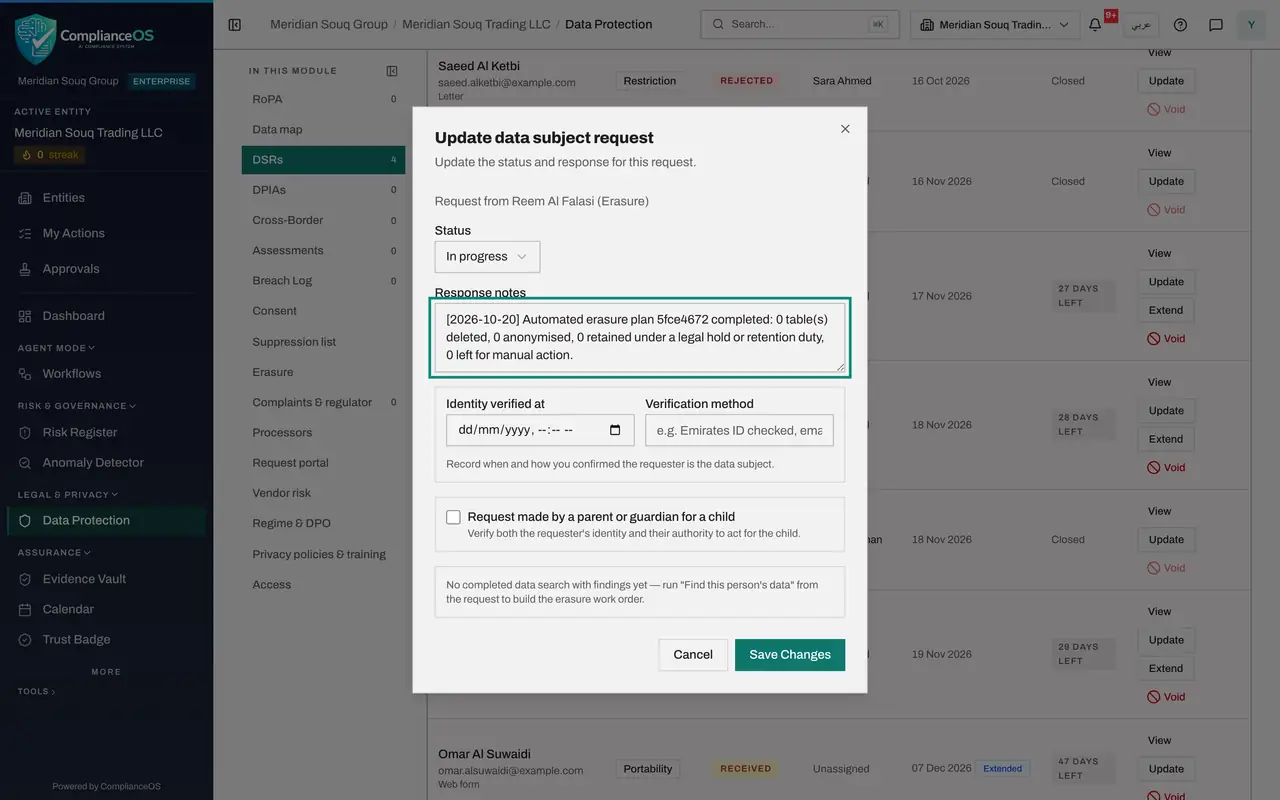
Select Update at the bottom of the record. Response notes already holds a line that the erasure wrote by itself, with the date and the counts of tables deleted, anonymised, retained and left for manual action.
- Select Update
- 6
Set the status to Completed and add your note
Open Status and choose Completed. Add your own line to the notes, saying what was removed by hand and when the confirmation was sent.
- Select In progress
- Choose Completed
- Type Response notes:
[2026-10-20] Automated erasure plan 5fce4672 completed: 0 table(s) del…
- 7
Select Save Changes
Select Save Changes. The request now shows Completed in the list, and its deadline no longer counts down.
- Select Save Changes
- 8
Select Suppression list
Select Suppression list in the In this module list. The erasure added two entries: one for the email address on the request and one for the phone number you searched with. Each has the scope All processing, the source Erased and the status Suppressed.
- Select Suppression list
- 9
Select View on the entry
Select View on the entry for the email address. The record says it was added automatically after the person's data was erased, so that it is not collected or imported again. Reason quotes the reference of the request, so you can trace the entry back to it.
- Select View
How to check it worked
The request shows Completed in the DSRs list, and the Suppression list has an entry for each identifier that was searched, with the scope All processing and the source Erased.
Common mistakes
- Sending the confirmation letter without reading it. It is built from the plan. When nothing was found in a connected system, it still says your data was erased from the systems listed, with no list. Add what the system owners erased by hand before you send it.
- Lifting the suppression entries that an erasure creates. They stop the person's data being collected or imported again; lift one only if the person signs up again.
- Leaving the request In progress after the plan is completed. The plan does not close the request: set it to Completed yourself, so the response date is recorded.
Check your understanding
1. Why is an erased person added to the suppression list?
- A.So marketing can contact them once more
- B.So their data is not collected or imported again after it was erased
- C.Because the law requires a public list
- D.To extend the deadline
Show answer
Answer: B. So their data is not collected or imported again after it was erased
The entry has the scope All processing and the source Erased. It is the reminder that this person's data must not come back.
2. The erasure plan shows Completed. What is the status of the request itself?
- A.Completed automatically
- B.Rejected
- C.In progress, until you complete it
- D.Voided
Show answer
Answer: C. In progress, until you complete it
Executing the plan moves the request to In progress and adds a line to its response notes. You complete the request yourself.