Lesson 3 of 28
Set the notices to requesters and preview the public page in English and Arabic
What you will be able to do
Set the emails a requester receives when a request is completed, rejected or extended, then open the public page as a visitor sees it, in English and in Arabic, and see how the setting Language the page opens in changes what a new visitor gets.
Before you start
- The public request portal is switched on and saved (see the lesson Set up the public request portal).
- You know whether people whose requests your staff log by hand should also be emailed when the request is closed.
Steps
- 1
Find the notices card on Request portal
In Data Protection, select Request portal and scroll down to the card Notices when a request is completed, rejected or extended. The requester gets one email, in English and Arabic, at each of these three moments.
- Select Request portal
- 2
Decide who is emailed for requests logged by hand
A request made on the portal always gets a notice. The switch Also email requesters of manually logged requests covers requests your staff log by hand. It is on as standard, so those people are emailed too, at the email address on the request. Switch it off only if your staff tell people the outcome another way.
- 3
Write your own subject for the Completed notice
The Completed tab is open. The grey text in each box is the built-in wording, used when the box is empty. Type your own subject in Subject, English, and in Subject, Arabic. Leave both messages empty to keep the built-in wording.
- Type Subject (English):
Meridian Souq has completed your privacy request {reference} - Type Subject (Arabic):
أكملت ميريديان سوق طلب الخصوصية الخاص بك {reference}
- Type Subject (English):
- 4
Select the Rejected tab
Select Rejected. This notice is sent when you refuse a request. Its built-in message includes the reason you give for rejecting, and tells the person how to complain to the regulator. Keep both of those if you write your own message.
- Select Rejected
- 5
Select the Extended tab
Select Extended. This notice is sent when you extend the response deadline. It gives the person the new due date and your reason. Leave the built-in wording.
- Select Extended
- 6
Select Save on the notices card
Select Save at the bottom of the notices card. A message confirms Notice settings saved. This Save button belongs to the notices only; the portal settings above have their own button.
- Select Save
- 7
Open the public page
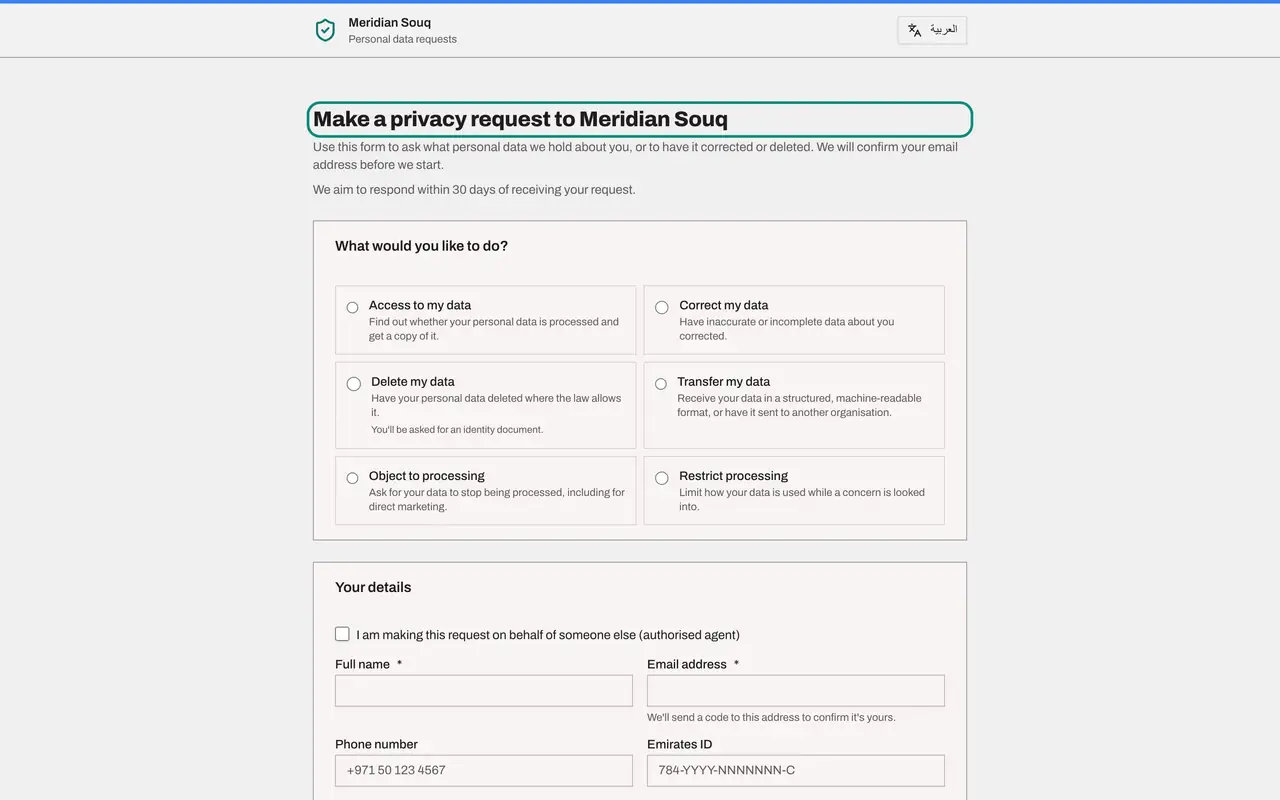
Scroll back to the Public request portal card and select the Open the public page button, the arrow beside the public link. The page opens in a new browser tab, exactly as a member of the public sees it. It shows your name, your introduction, how long you take to respond and the requests you offer. It is in English here because this browser is set to English.
- Select Open the public page
- 8
Check the privacy notice link at the bottom
Scroll to the bottom of the public page. The Privacy notice link you entered is there, below the Continue button. Nothing is sent from this page until a visitor fills it in and confirms their email.
- 9
Set the page to open in Arabic
Go back to the ComplianceOS tab. Under Page content and branding, open Language the page opens in and choose Arabic.
- Select The visitor's browser language
- Choose Arabic
- 10
Select Save portal settings
Scroll down and select Save portal settings. From now on a visitor who has not chosen a language sees the page in Arabic first.
- Select Save portal settings
- 11
Open the public page again
Select Open the public page once more. The same page now opens in Arabic, and reads from right to left. Your Arabic name and introduction are used.
- Select Open the public page
- 12
Switch language on the page
At the top of the page is the language button. On the Arabic page it reads English. Select it, and the whole page switches to English. A visitor can do this at any time, whatever you chose in the settings.
- Select تغيير اللغة
- 13
Set the language back and save
Meridian Souq serves customers in both languages, so set Language the page opens in back to The visitor's browser language, then select Save portal settings. Each visitor now gets the language of their own device first.
- Select Arabic
- Choose The visitor's browser language
- Select Save portal settings
How to check it worked
The public link opens a page headed Make a privacy request to Meridian Souq, with your introduction and the privacy notice link at the bottom, and the language button at the top switches the whole page between English and Arabic.
Common mistakes
- Writing a notice in English only. The requester gets one email in both languages; a field left blank uses the built-in text for that language, so the two halves can say different things.
- Switching off Also email requesters of manually logged requests without telling your staff. People who asked by phone or in person then hear nothing unless your staff tell them the outcome.
- Setting Language the page opens in to Arabic and assuming everyone then sees Arabic. It applies only to a visitor who has not chosen a language; a visitor who switched keeps their choice.
Check your understanding
1. A requester's browser is set to English, and Language the page opens in is set to Arabic. What do they see the first time they open the link?
- A.English
- B.Arabic
- C.A page asking them to choose
- D.An error
Show answer
Answer: B. Arabic
When a language is set for the portal, a visitor who has not chosen one sees that language. With The visitor's browser language, the page follows their browser instead.
2. Your staff log a request by hand and later complete it. When is that requester emailed a completion notice?
- A.Always
- B.Never
- C.Only when Also email requesters of manually logged requests is switched on and the request has an email address
- D.Only if the request came by letter
Show answer
Answer: C. Only when Also email requesters of manually logged requests is switched on and the request has an email address
Portal requests always get a notice. For requests logged by staff, the switch decides, and the request needs an email address.