Lesson 13 of 28
Approve an erasure plan and execute it
What you will be able to do
Find an erasure plan a colleague sent for approval, check it, approve it, and carry it out with the typed confirmation, so that you understand every safeguard between a request and the moment data is erased.
Before you start
- A colleague has submitted an erasure plan for approval (see the lesson Handle an erasure request).
- You did not create, dry-run or submit this plan yourself. The person who prepared a plan cannot approve it.
Steps
- 1
Select Approvals
In the main menu, select Approvals. The number beside it counts what is waiting for you. Under To decide there is one card: Approve an automated erasure plan, with the plan's reference, the entity and when it was submitted.
- Select Approvals
- 2
Read the approval card
The card shows the rows to erase and the number of systems, taken from the dry-run. The line below names the approval policy and says Strict maker checker, which means the person who prepared the plan cannot decide it. Step 1, Approval, is the current step.
- 3
Select Open record
Select Open record. Data Protection opens on the DSRs list. An erasure plan is decided on the request it belongs to, so that you see the search and the plan together.
- Select Open record
- 4
Select View on the erasure request
Select View on the request from Reem Al Falasi and scroll to Automated erasure. The plan shows Awaiting approval. Because you did not prepare it, you have two buttons that your colleague does not: Approve and Reject.
- Select View: Reem Al Falasi
- 5
Check the plan before you decide
Read the search result and the plan's figures: Tables, Rows selected by the dry-run, and Retained. When tables are listed, compare each table's action and its dry-run count with what the search found. To send the plan back, you would select Reject and give the reason. Here the figures agree with the search.
- 6
Select Approve and add a comment
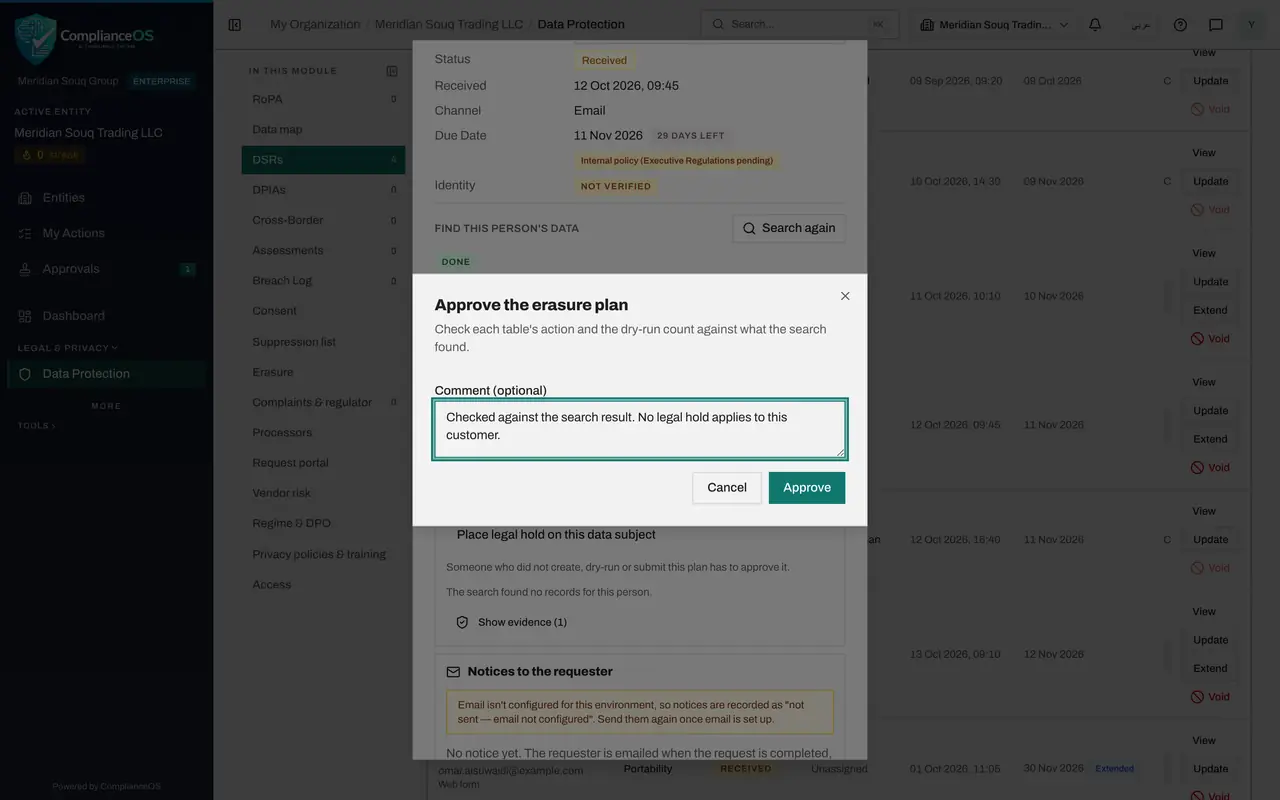
Select Approve. A box reminds you to check each table's action and the dry-run count against the search. The comment is optional, but a short note of what you checked helps anyone who reads the record later.
- Select Approve
- Type Comment (optional):
Checked against the search result. No legal hold applies to this custo…
- 7
Confirm the approval
Select Approve in the box. A message confirms Plan approved, the Approval stage is ticked, and a new button appears: Execute erasure.
- Select Approve
- 8
Select Execute erasure
Select Execute erasure. The box is the last safeguard. It states how many rows in how many tables will be deleted and anonymised, and warns that this cannot be undone. If any record changed since the dry-run, the plan stops and nothing more is written.
- Select Execute erasure…
- 9
Type the plan reference
Erase now stays greyed out until you type the plan's reference exactly as shown above the box. Type it. This proves you mean this plan and no other.
- Type Type DSR-72F5D3AB to confirm:
DSR-72F5D3AB
- Type Type DSR-72F5D3AB to confirm:
- 10
Select Erase now
Select Erase now. A message confirms Erasure started. The erasure runs in the background, table by table, and then ComplianceOS searches again to verify the result. When it has finished, the plan shows Completed and all five stages are ticked.
- Select Erase now
- 11
Read what was done
Rows changed is zero, because no connected system held this customer's records: ComplianceOS deleted nothing here, and the records kept by hand at the stores still have to be removed by their owner. With a connected system switched on for erasure, this is the point where the planned rows are deleted or anonymised, and the counts appear here. Three things happened even so: the result was verified, the customer was added to the suppression list, and a confirmation letter was prepared.
How to check it worked
The plan shows the status Completed with all five stages ticked: Plan, Dry-run, Approval, Execute and Verify.
Common mistakes
- Approving without comparing the dry-run counts with what the search found. A count that changed means the data moved since the search; reject the plan and ask for a new dry-run.
- Selecting Erase now without reading the summary. With a connected system, an executed erasure permanently changes data and cannot be undone.
- Waiting too long after approval. Once Valid until has passed, the plan must be dry-run and approved again before it can be executed.
Check your understanding
1. Why does the plan ask you to type its reference before erasing?
- A.To log you in again
- B.To make sure you are erasing the right plan on purpose, because it cannot be undone
- C.To email the requester
- D.To create a legal hold
Show answer
Answer: B. To make sure you are erasing the right plan on purpose, because it cannot be undone
Execution permanently deletes or anonymises data in connected systems. Typing the reference is a deliberate confirmation that you mean this plan.
2. Sara prepared and submitted the plan. Who can approve it?
- A.Sara
- B.Another person with the approval permission, such as Yusuf
- C.The requester
- D.Nobody; it approves itself after three days
Show answer
Answer: B. Another person with the approval permission, such as Yusuf
Someone who did not create, dry-run or submit the plan has to approve it. This two person check prevents one person erasing data alone.