Lesson 4 of 28
See what a member of the public does on the portal
What you will be able to do
Follow the public request page from the visitor's side, field by field, so you can explain it to customers and front-line staff, and know where an attempt that was never confirmed shows up in ComplianceOS.
Before you start
- The public request portal is switched on (see the lesson Set up the public request portal).
- You have the public link. The page needs no sign-in; anyone with the link can open it.
- The confirmation code goes to the requester's own inbox, which you never see. The lesson follows it up to that point, and the last step describes what follows.
Steps
- 1
Open the public link
This is the page a customer sees when they follow your public link. It is not part of the ComplianceOS menu and needs no sign-in. It shows your name, your introduction and how long you take to respond.
- 2
Choose what you would like to do
The visitor picks one request. This customer chooses Access to my data, which asks for a copy of the personal data held about them. The legal right behind the choice appears under the list. Delete my data carries a note that an identity document will be asked for, because you ticked that in the settings.
- Select Access to my data
- 3
See what an authorised agent fills in
Someone acting for another person ticks I am making this request on behalf of someone else. Extra boxes appear for the person they act for and for their authority to act, such as a power of attorney. They upload proof of that authority after confirming their email.
- 4
Untick the agent box and enter your name and email
This customer is asking for herself, so untick the agent box. Full name and Email address are required. The code that confirms the request is sent to the email address, so it must be one the visitor can open now.
- Type Full name *:
Huda Al Marri - Type Email address *:
huda.almarri@example.com
- Type Full name *:
- 5
Add a phone number
Phone number and Emirates ID are optional. They help you find more of the person's records. The customer types her mobile number and leaves Emirates ID empty.
- Type Phone number:
+971 50 555 0142
- Type Phone number:
- 6
Tick what to search with
Under Search our records using, Email is always ticked and cannot be changed. Tick Phone number so the number typed above is searched too. A number that is typed but not ticked is not used for the search.
- Select Phone number
- 7
Describe the request
In Details of your request the visitor can say which accounts or dates they mean. It is optional, but it saves your team a question later.
- Type Details of your request:
Please send me a copy of the data linked to my loyalty card and my onl…
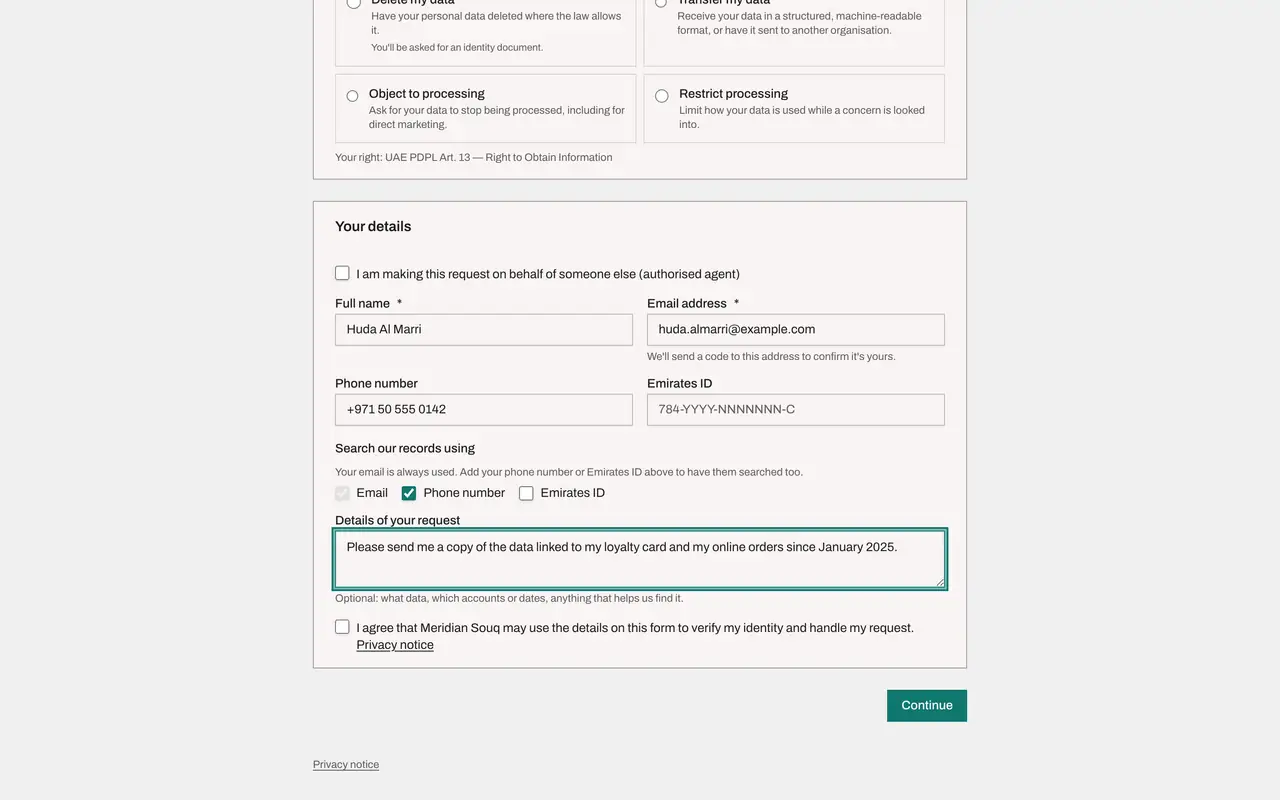
- Type Details of your request:
- 8
Agree to the use of your details and select Continue
The visitor ticks the box agreeing that Meridian Souq may use these details to check who they are and to handle the request, then selects Continue. Without the tick the form is not sent.
- Select Continue
- 9
Check your email for the six digit code
The page now asks for a Verification code. A six digit code has been emailed to the address on the form, and the page says how many minutes it is valid. The note under the box matters: the request is only sent once the code is entered. Send a new code is there if the email does not arrive.
- 10
See what a wrong code does
Type a wrong code and select Confirm. The page says the code is incorrect or has expired, and nothing is sent. After the number of wrong codes you set in the portal settings, the attempt is locked and the visitor has to start again.
- Type Verification code:
000000 - Select Confirm
- Type Verification code:
- 11
See the unconfirmed attempt in ComplianceOS
Back in ComplianceOS, open Data Protection, select Request portal and scroll to Recent portal activity. The attempt is listed with the state Waiting for code and no reference yet. The email address is partly hidden, and the Codes column shows one code sent and one wrong code. It is not in the DSRs list, because the code has not been entered.
- Select Request portal
- 12
Filter the activity by state
Open the filter at the top right of the card. An attempt can be Waiting for code, Waiting for documents, Logged as a request, Expired, or Locked after too many wrong codes. Use the filter when a customer calls to ask what happened to their request.
- Select Filter by state
- 13
Know what happens after the code is entered
The lesson stops here, because the code goes to the requester's own inbox. When the requester enters the right code logs the request in the DSRs list with a Portal badge, a reference and its due date, after asking for an identity document where one is needed. The visitor then sees Your request has been received, and is emailed a private status link where they can follow progress, read your messages and download files you release to them.
How to check it worked
After the form is sent, the page shows Check your email, and the attempt is listed under Recent portal activity on the Request portal section with the state Waiting for code.
Common mistakes
- Telling a customer their request is logged as soon as they send the form. It only reaches your team once they enter the six digit code from the email.
- Looking for an unconfirmed attempt in the DSRs list. It is not there; look under Recent portal activity instead.
- Asking customers to enter a phone number without ticking Phone number under Search our records using. The number is only used to find their records when the box is ticked.
Check your understanding
1. A customer says they filled in the form yesterday but heard nothing. Recent portal activity shows their attempt as Expired. What happened?
- A.Your team rejected the request
- B.They never entered the emailed code, so the request was not logged
- C.The request was completed
- D.The portal was switched off
Show answer
Answer: B. They never entered the emailed code, so the request was not logged
An attempt that is never confirmed with the code expires and is never logged as a request. Ask the customer to start again and enter the code.
2. Which detail on the form is always used to search your records for the person?
- A.Phone number
- B.Emirates ID
- C.Email address
- D.Full name
Show answer
Answer: C. Email address
Email is always used. Phone number and Emirates ID are searched only if the requester ticks them under Search our records using.