Lesson 2 of 28
Set up the public request portal: every setting
What you will be able to do
Open a public web page where customers and staff can ask to see, correct or delete their personal data. You will go through every setting on the Request portal section: the page address, the requests you offer, identity documents, agents, your wording in English and Arabic, the language the page opens in, the safety limits and the acknowledgement email.
Before you start
- You are signed in with the Data Protection Officer role for the entity.
- You have the name people know you by and a short introduction, in English and in Arabic, and the web address of your published privacy notice.
- You know how long your policy says identity documents may be kept after a request closes.
Steps
- 1
Open Data Protection and select Request portal
In Data Protection, select Request portal. The first card, Public request portal, controls a public page where people make a data subject request: a request from a person about the personal data you hold on them. The card shows Off.
- Select Request portal
- 2
Switch on Portal is open to the public
Select the switch Portal is open to the public. Nothing is public until you save at the end. A request only reaches your team after the person confirms their email address with a one-time code.
- Select Portal is open to the public
- 3
Check the page address and copy the public link
Page address is the last part of the public link. ComplianceOS suggests one from the entity name. Public link shows the full address. Select the Copy link button beside it to copy the link, ready to paste into your website or privacy notice.
- Select Copy link
- 4
Choose the requests you offer and which need ID
Under Requests offered, each row is a right people have under the law, with its legal basis. Leave Offered ticked for every request you accept online. Tick Needs ID document for Delete my data, so that anyone asking for deletion must upload a copy of their Emirates ID or passport.
- Select Needs ID document: Delete my data
- 5
Decide whether to accept requests from agents
Below the table is the switch Accept requests from authorised agents, which is on as standard. An agent is someone acting for the person, such as a lawyer or a family member, who must describe their authority and upload proof of it. Leave it on, or switch it off if you only deal with the person directly.
- 6
Enter the name shown in English and Arabic
Under Page content and branding, type the name people know you by in Name shown, English, and again in Name shown, Arabic. If you leave these empty the entity's registered name is used.
- Type Name shown (English):
Meridian Souq - Type Name shown (Arabic):
ميريديان سوق
- Type Name shown (English):
- 7
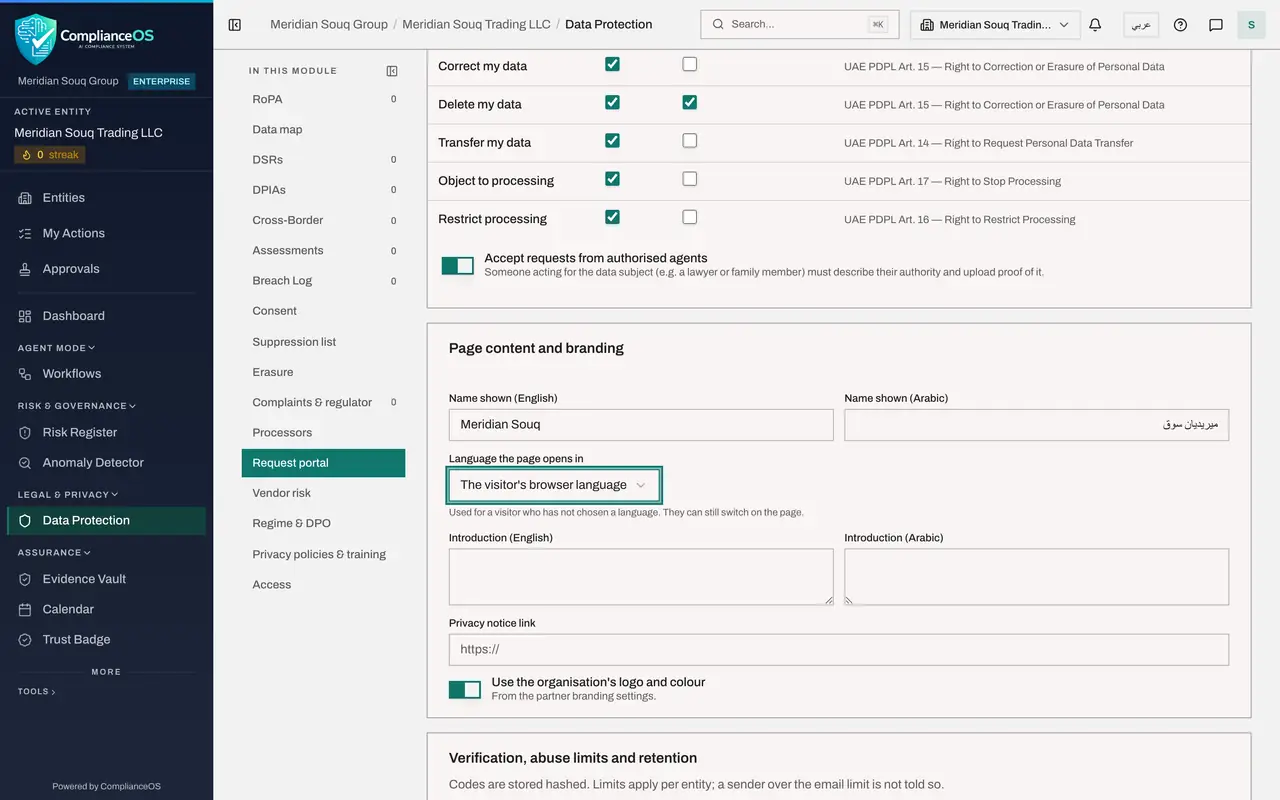
Choose the language the page opens in
Open Language the page opens in. There are three choices: The visitor's browser language, English and Arabic. Keep The visitor's browser language, so each visitor first sees the page in the language of their own phone or computer. A visitor can always switch on the page.
- Select The visitor's browser language
- Choose The visitor's browser language
- 8
Write the introduction in both languages
In Introduction, English, write two short sentences that tell people what the form is for. Write the same in Introduction, Arabic. The introduction appears under the page heading.
- Type Introduction (English):
Use this form to ask what personal data we hold about you, or to have… - Type Introduction (Arabic):
استخدم هذا النموذج لمعرفة البيانات الشخصية التي نحتفظ بها عنك أو لطلب…
- Type Introduction (English):
- 9
Add the privacy notice link and check the branding switch
In Privacy notice link, enter the web address of your published privacy notice. It must start with https. The switch below it, Use the organisation's logo and colour, puts your logo and colour from the branding settings on the public page. Leave it as it is.
- Type Privacy notice link:
https://www.meridiansouq.example/privacy
- Type Privacy notice link:
- 10
Review the verification and abuse limits
The first four boxes under Verification, abuse limits and retention protect the page from misuse. They set how many minutes the emailed code is valid, how many wrong codes lock an attempt, how many requests one network may send in an hour, and how many one email address may send in a day. The standard values suit most organisations.
- 11
Set how long uploaded documents are kept
The next four boxes deal with documents and downloads: the hours a requester has to upload a document, the days an uploaded document is kept after the request closes, the days a download link stays valid, and how many times a released file can be downloaded. In Delete documents after close, enter 90 to match a ninety day policy.
- Type Delete documents after close (days):
90
- Type Delete documents after close (days):
- 12
Set the acknowledgement email
Acknowledgement email is the message a requester receives, in both languages, once their request is logged. A field left empty uses the standard text shown in grey, and the words in curly brackets, such as reference and due date, are filled in for each request. Here, type your own subject in English and in Arabic and leave both messages on the standard text.
- Type Subject (English):
Meridian Souq has received your privacy request {reference} - Type Subject (Arabic):
استلمت ميريديان سوق طلب الخصوصية الخاص بك {reference}
- Type Subject (English):
- 13
Select Save portal settings
Select Save portal settings. A message confirms the settings are saved, and the card at the top now shows Live. The public link works from this moment.
- Select Save portal settings
How to check it worked
The Public request portal card shows Live, the settings you entered are still there after the page is saved, and the Public link is ready to copy.
Common mistakes
- Changing the Page address after the link has been shared. The old link stops working, so set the address once and leave it.
- Filling in only the English name and introduction. Visitors who read the page in Arabic then see the default text, so complete both languages.
- Entering a privacy notice link that starts with http. The link must start with https or the settings cannot be saved.
Check your understanding
1. What does ticking Needs ID document for a request type do?
- A.It hides that request type from the public page
- B.It makes the Data Protection Officer upload their own ID
- C.It asks the requester to upload an identity document before the request is logged
- D.It shortens the response deadline
Show answer
Answer: C. It asks the requester to upload an identity document before the request is logged
For the ticked types the requester must upload a copy of their Emirates ID or passport after confirming their email, so you can be sure who is asking.
2. You leave the Acknowledgement email fields empty. What is sent when a request is logged?
- A.Nothing
- B.The standard text, in both languages
- C.A blank email
- D.An email to the Data Protection Officer only
Show answer
Answer: B. The standard text, in both languages
An empty field means the standard text is used. The acknowledgement is always sent in English and Arabic once the request is logged.