Lesson 26 of 28
What a read-only person sees
What you will be able to do
This lesson is for auditors and anyone else given read-only access to ESG and Carbon. You will walk through the module and see what you can open, filter and download, and which controls are missing because you cannot change anything.
Before you start
- You are signed in with the Auditor role for the entity, which gives the right to view ESG records and nothing more.
- The sustainability team has entered the year's data and issued a report (the earlier lessons).
Steps
- 1
Open ESG and Carbon
Choose ESG and Carbon in the left menu. The Dashboard shows the same figures the sustainability team sees. Look at the ESG Configuration box: it has no Configure button, because you cannot change settings.
- 2
Open Emissions
Select Emissions. The list of records is there, but Upload Bill, Import CSV and Manual Entry are not. At the end of each line the Actions column shows a dash where others see a tick and a pencil.
- Select Emissions22 (22)
- 3
Filter the list
Filters work for everyone. Open All Scopes and choose Scope 1 (Direct) to see only the fuel and refrigerant records. Each line names the emission factor that was used, so you can check the calculation yourself.
- Select All Scopes
- Choose Scope 1 (Direct)
- 4
Open Social
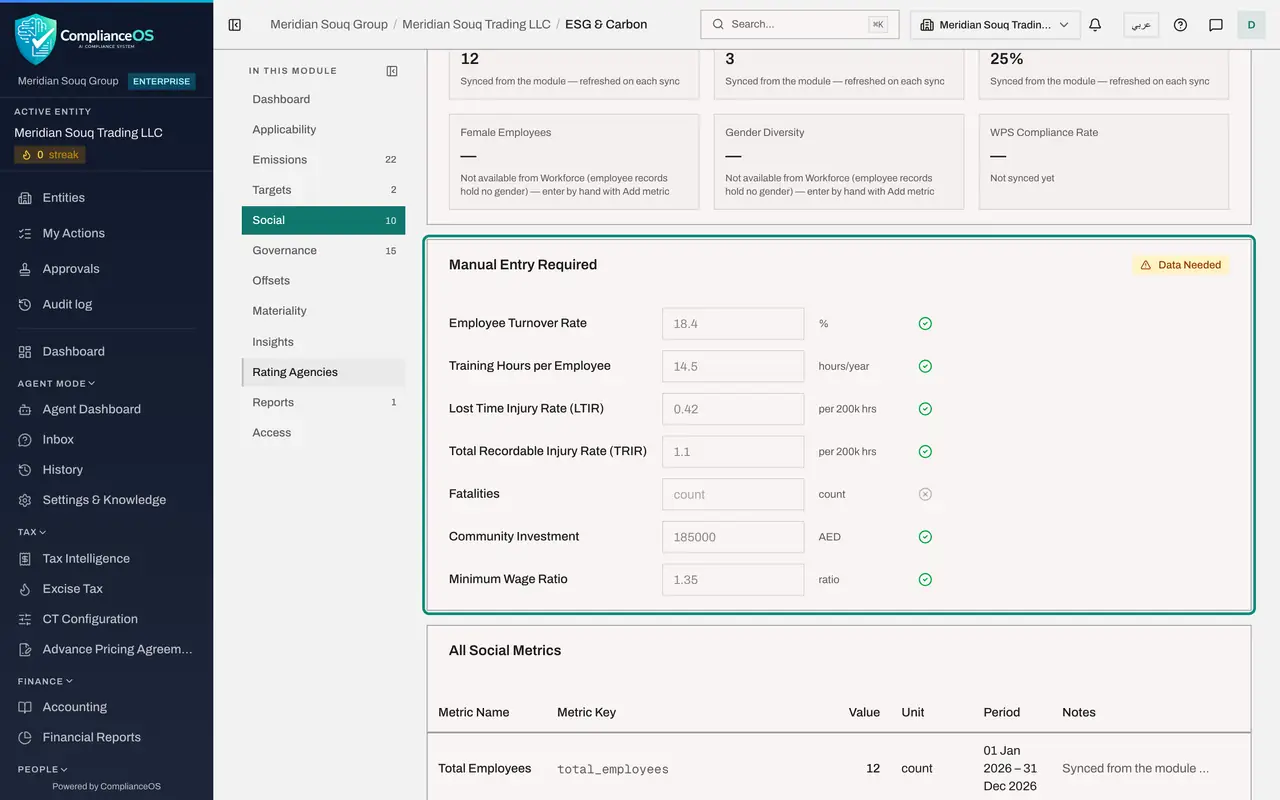
Select Social. The synced figures and the typed figures are all shown. The boxes under Manual Entry Required are greyed out: you can read the saved values but not type in them. There is no Add Social Metric button and no pencil in the list below.
- Select Social10 (10)
- 5
Open Materiality
Select Materiality. You see the approved assessment: its status and approval date, the matrix, each topic's scores and result, the method and the survey responses. Nothing here can be edited by anyone once it is approved.
- Select Materiality
- 6
Open Reports and select View
Select Reports and select View on the report. You can read the whole report, who approved it and when, and the date it was marked as submitted. There is no Generate Report button and no Edit beside the sections.
- Select Reports1 (1)
- Select View
- 7
Download the report
Select the download icon on the report's line. The PDF is saved to your computer, so you can keep a copy with your audit papers.
- Select Download
- 8
Open Access
Select Access. You see one sentence: only people who administer access can see who holds which rights here. If you need that view for your audit, ask the security administrator.
- Select Access
How to check it worked
You can open every section except Access, read every figure, and download the report, and you have found no button that adds, edits, verifies or approves.
Common mistakes
- Reporting a missing button as a fault. With read-only access, Manual Entry, Configure, Set Target and the pencil icons are hidden on purpose.
- Asking the preparer to change a figure for you without a record. Raise the point in writing so the correction and its reason reach the audit log.
- Assuming a greyed-out box is empty. In Social and Governance the boxes are greyed because you cannot type in them; the figures inside are still the saved values.
Check your understanding
1. You have read-only access. What do you see in the Actions column of the emission list?
- A.A tick and a pencil
- B.A dash
- C.A bin
- D.Nothing; the list is hidden
Show answer
Answer: B. A dash
The list and its filters work for you, but verifying and editing need the edit right, so the column shows a dash.
2. Which section does a read-only person not get to use?
- A.Emissions
- B.Reports
- C.Access
- D.Insights
Show answer
Answer: C. Access
Access shows who holds which rights and is for people who administer access. Everyone else sees a short note there.