Lesson 7 of 28
Approve the materiality assessment
What you will be able to do
This lesson is for the second person: someone who holds the right to approve ESG records and did not prepare the assessment. You will review the completed materiality assessment, approve it with a comment, and see what the approval changes elsewhere in ComplianceOS.
Before you start
- A colleague has completed the year's materiality assessment (lesson Record the ratings and complete the assessment). Its status is Completed.
- You did not create or edit the assessment. In the demo company the Compliance officer prepares it and an administrator, Layla Hassan, approves it.
Steps
- 1
Open the Approvals inbox
Choose Approvals near the top of the left menu. Under To decide you find what is waiting for you. The completed materiality assessment is listed, with the year, the version and the number of material topics, and Open record leads to it. Read the assessment itself before you decide.
- 2
Open ESG and Carbon and select Materiality
In ESG and Carbon select Materiality. The 2026 assessment shows the status Completed, which means its scores are frozen and it is waiting for you. As an administrator you also see a bin icon, which discards a version that has not been approved; leave it alone.
- Select ESG & Carbon
- Select Materiality
- 3
Review the matrix
Read the Materiality matrix. The line under the title says how many topics are material and the thresholds used. Ask yourself whether the topics at the top right are the ones you would expect for a retailer.
- 4
Check each topic's scores and result
Scroll to Topics. For each topic you see the Impact and Financial scores, how many responses each rests on, and the Result. Customer privacy and data protection carries the word override beside its financial score: it was set by hand rather than taken from the surveys.
- 5
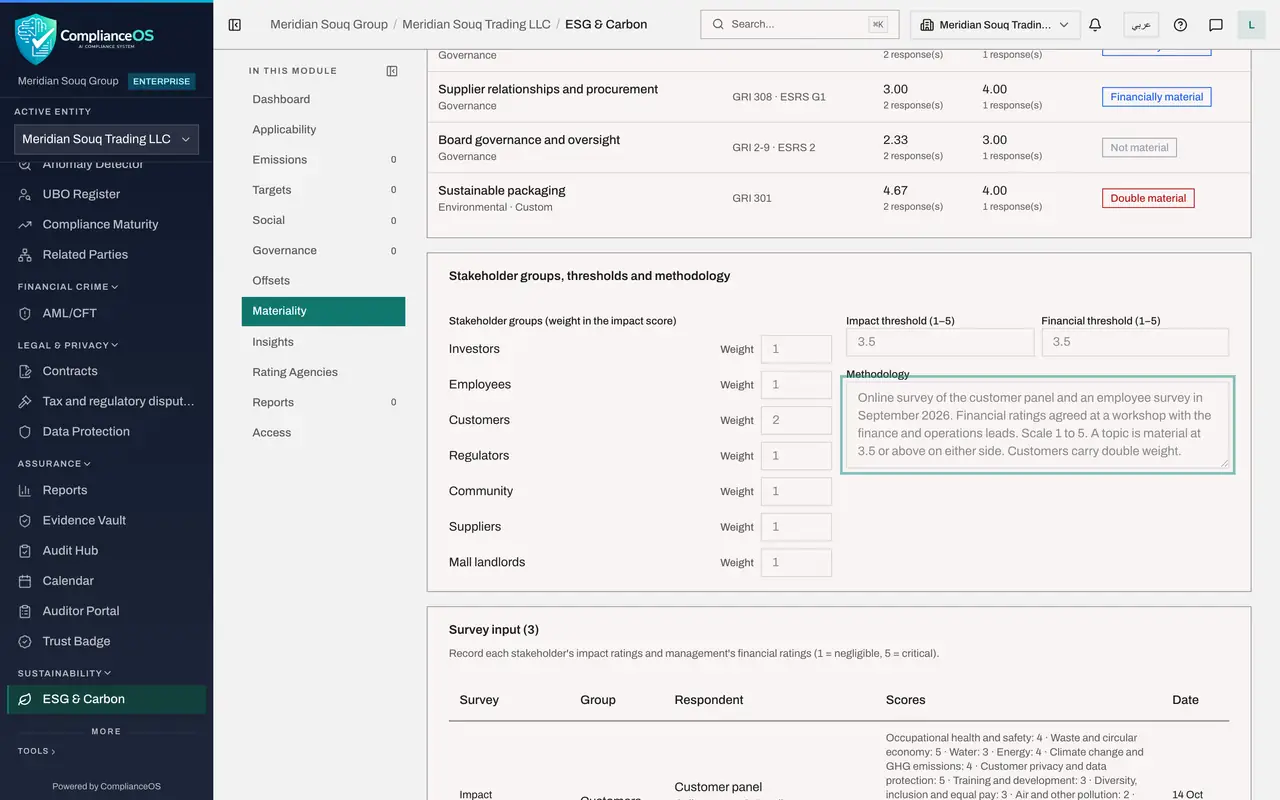
Read the methodology
Scroll to Stakeholder groups, thresholds and methodology. Check the groups and their weights, the two thresholds, and that the Methodology text explains how the ratings were collected, including the reason for any override.
- 6
Check the survey responses
Scroll to Survey input. There should be at least one stakeholder response and one management response behind the scores. Here there are three: customers, employees and management.
- 7
Select Approve and add a comment
Scroll back to the top and select Approve. The box names the year and version. In Comment say briefly what you checked. The comment is optional, and is kept with your decision in the audit trail.
- Select Approve
- Type Comment:
Reviewed the method, the two stakeholder surveys and the management ra…
- 8
Select Approve to sign off
Select Approve in the box. The status changes to Approved and the approval date is shown beside it. The assessment can no longer be edited. New version makes an editable copy if it ever needs changing.
- Select Approve
- 9
Open the Version list
Open the Version box. It lists every version for every year with its status. There is one so far. When a new version is made, the approved one stays here so you can always see what was signed off.
- Select Version
- 10
See the framework task it closed
Press Escape to close the list. Now choose Frameworks in the left menu and select Tasks. In the GRI block, the task GRI 3 Material Topics is no longer waiting for evidence: the approved assessment is its record, so ComplianceOS marked it as passed for you.
- Select Frameworks
- Select Tasks16 (16)
How to check it worked
Materiality shows the status Approved with the date, and in Frameworks, Tasks, the task GRI 3 Material Topics is no longer Pending.
Common mistakes
- Approving without reading the methodology. The approval says the method is sound, not only that the arithmetic is right.
- Ignoring a score marked override. An override was set by hand; ask the preparer for the reason before you sign.
- Selecting Reopen to fix a small thing yourself. If you edit the assessment you become one of its makers and can no longer approve it. Ask the preparer to reopen and correct it.
Check your understanding
1. After approval, how do you change the assessment?
- A.Edit the topics directly
- B.Select New version, which makes an editable copy and keeps the approved one as it was
- C.Delete it and start again
- D.It can never be changed
Show answer
Answer: B. Select New version, which makes an editable copy and keeps the approved one as it was
An approved version is locked. New version creates version 2 as a draft, so the history of what was signed off is kept.
2. What else changes when the assessment is approved?
- A.All emission records are verified
- B.The materiality task of each assigned ESG framework is marked as passed, citing the assessment
- C.A report is sent to the regulator
- D.Nothing
Show answer
Answer: B. The materiality task of each assigned ESG framework is marked as passed, citing the assessment
The frameworks each carry a materiality task. An approved assessment is that task's record, so ComplianceOS closes it for you.