Lesson 1 of 28
Tour of ESG and Carbon
What you will be able to do
This lesson is for anyone who will work on sustainability reporting. You will learn where everything is in ESG and Carbon before any data has been entered: the reporting year, the twelve sections of the module, the headline carbon figures, and the panel that summarises the year.
Before you start
- You are signed in with the Compliance officer role for the entity. In the demo company this role owns the ESG work; there is no separate sustainability role.
- The entity is open. Its name shows under Active Entity at the top of the left menu.
Steps
- 1
Choose ESG and Carbon in the left menu
In the left menu, scroll down to the Sustainability group and select ESG and Carbon. ESG stands for environmental, social and governance: how a company affects the environment, how it treats people, and how it is run. The module opens on its Dashboard.
- Select ESG & Carbon
- 2
Open the reporting year list
The box at the top right is the reporting year. Select it to see the years you can choose, from 2020 to 2027. Everything on the screen is for the year chosen here. It opens on the current year, 2026.
- Select 2026
- 3
Keep 2026 selected
Choose 2026 to close the list. To look back at an earlier year you would choose it here, and the dashboard, lists and reports would all change to that year.
- Choose 2026
- 4
Find your way with In this module
In this module lists the twelve sections. Applicability shows which rules apply. Emissions, Targets and Offsets hold the carbon data. Social and Governance hold the people and management figures. Materiality decides which topics matter. Insights and Rating Agencies show gaps. Reports holds the disclosure reports, and Access shows who may do what. The numbers beside some names count the records for the year; they are all zero for now.
- 5
Read the ESG Configuration box
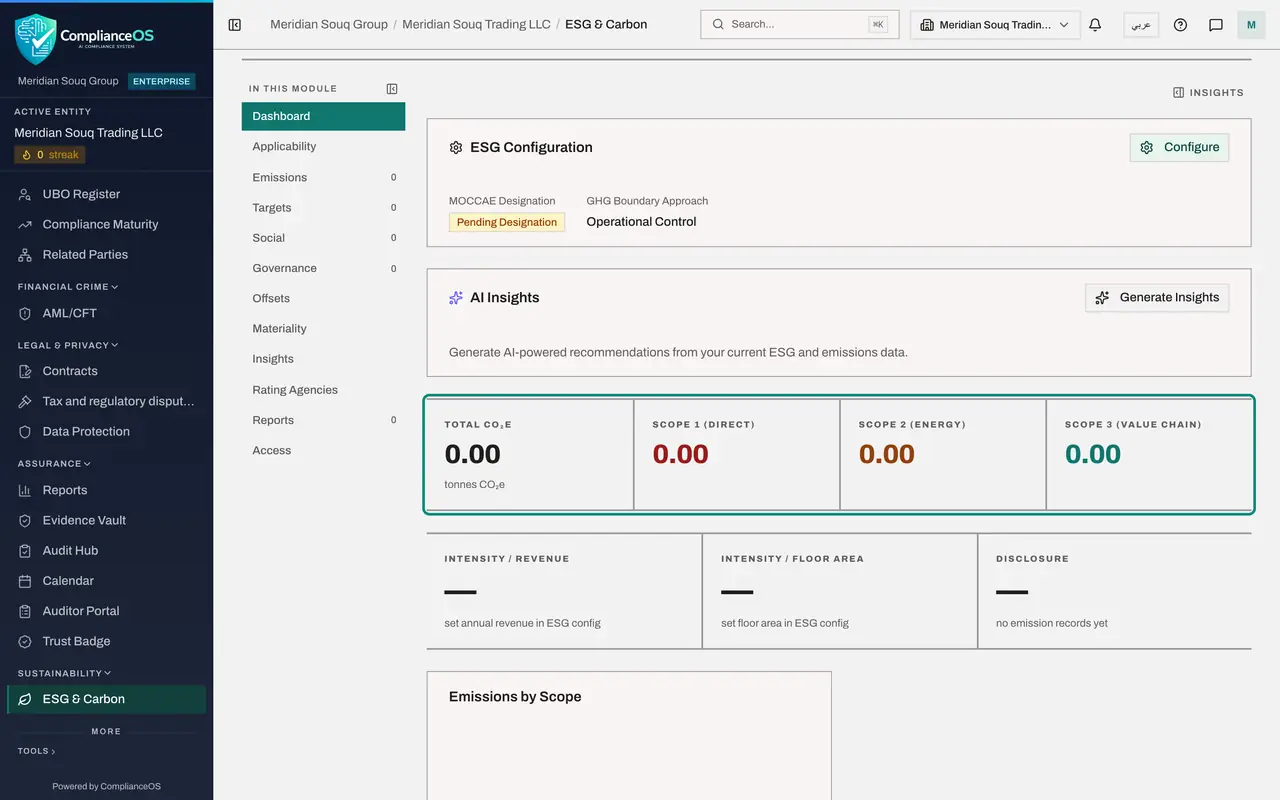
The first box on the Dashboard is ESG Configuration. It shows two settings that every new entity starts with: MOCCAE Designation, which is whether the Ministry of Climate Change and Environment has named the company as a reporting source, and GHG Boundary Approach, which is the rule for deciding whose greenhouse gas emissions count as yours. The Configure button changes them; the next lesson uses it.
- 6
Read the headline carbon figures
The four tiles show the year's emissions in tonnes of CO2e, carbon dioxide equivalent. Scope 1 is fuel and gases the company burns or releases itself. Scope 2 is energy it buys. Scope 3 is everything else in its value chain, such as water, waste and business travel. They read zero until records are entered.
- 7
Read intensity and disclosure
The next row shows emissions for each million dirhams of revenue and for each square metre of floor area, which let you compare years fairly. Both show a dash, with a hint to set revenue and floor area in the configuration. Disclosure is the share of emission records that a second person has checked and marked Verified.
- 8
See the chart and the industry benchmarks
Scroll down. Emissions by Scope will draw a bar for each month once there are records. UAE Industry Benchmarks lists typical emissions per employee for seven sectors, including Retail at 8.5 tonnes. The Your Entity column divides this entity's emissions by its declared headcount of 420, as the note under the table says; with no records yet it reads zero.
- 9
See how complete the data is
Scroll to Data Completeness at the bottom. It counts how many of the expected fields are filled for Environmental, Social and Governance, ten each, and names the critical ones still missing. On a new entity everything is at zero percent.
- 10
Open the Insights panel
Scroll back to the top and select Insights at the top right of the page. A panel opens on the right. Carbon footprint repeats the scope totals, Emissions intensity the ratios, and Readiness shows how many records are verified, how many reduction targets are active and how many reports are marked as submitted. The note at the bottom puts the same figures into a sentence.
- Select Show insights panel
- 11
Pin the panel, then hide it
Select Pin to fix the panel beside the page so it stays in view in every section. Select Hide when you need the full width for a wide table. The rest of this course keeps it hidden unless a step says otherwise.
- Select Pin insights panel to the page
- Select Hide insights panel
- 12
Open a section
Select Emissions in the In this module list. The list of emission records for the year opens. It is empty, and the line in the table tells you how to start: upload a utility bill or add a manual entry. The other sections open the same way; the rest of this course goes through them in turn.
- Select Emissions0 (0)
How to check it worked
You can point to the year selector, name the sections in the In this module list, and say what Total CO2e, Disclosure and Verified mean.
Common mistakes
- Working in the wrong year. Every figure on the screen is for the year chosen at the top right; records dated in another year do not show.
- Looking for the ESG frameworks inside ESG and Carbon. Frameworks are assigned, and their tasks are worked on, in Frameworks under Risk and Governance. ESG and Carbon reports on them in Insights.
- Reading the dashboard as final before anything is verified. Disclosure tells you what share of the emission records a second person has checked.
Check your understanding
1. What does CO2e stand for?
- A.Carbon dioxide emitted by electricity only
- B.Carbon dioxide equivalent: all greenhouse gases expressed as one figure
- C.The cost of carbon in dirhams
- D.Company output per employee
Show answer
Answer: B. Carbon dioxide equivalent: all greenhouse gases expressed as one figure
Different gases warm the planet by different amounts. CO2e converts them to the amount of carbon dioxide with the same effect, so they can be added up.
2. You want to see last year's figures. What do you change?
- A.The entity
- B.The year selector at the top right of ESG and Carbon
- C.The language
- D.Nothing; all years are shown together
Show answer
Answer: B. The year selector at the top right of ESG and Carbon
The year selector controls the dashboard, the emission list, the metrics, the insights and the rating agency exports.