Lesson 25 of 28
Settings: who can work on ESG, and the approval rules
What you will be able to do
This lesson is for administrators. The Access section of ESG and Carbon is the module's settings page: it shows who can view, create, edit and approve ESG records for the entity, lets you grant a person a role, and holds the rules that decide who must sign off a report, a materiality assessment and an emission record. You will read all of it and give a colleague read-only access for a limited time.
Before you start
- You are signed in as an administrator who manages access. In the demo company that is Layla Hassan.
- Other people see only a short note on this section telling them to ask a security administrator.
Steps
- 1
Open Access
In ESG and Carbon select Access. The heading names the module and the entity. The line under it says what this page is: who can view, create, edit and approve here, and the role grants behind it. The link Access control settings opens the organisation-wide screen with the same rules.
- Select Access
- 2
Read the table Who can act on ESG
The first table counts the people who can View, Create, Edit and Approve ESG records for this entity. Each number is a button. Select the number under View to list those people.
- Select 4 people can View: All record types
- 3
See who can approve
Select the number under Approve. The list underneath names each person, the role that gives them the right, where the role applies, how long it is valid and where it was granted. Here the two administrators hold it across the whole organisation and the Compliance officer holds it for this entity.
- Select 3 people can Approve: All record types
- 4
Read the role grants
Scroll to Role grants covering this entity. It lists every assignment that reaches this entity, with Edit and Revoke at the end of each line. The switch Only roles that include ESG is on; select it to see every role granted here, then select it again to return to the ESG ones.
- Select Only roles that include ESG
- Select Only roles that include ESG
- 5
Select Grant access for this module
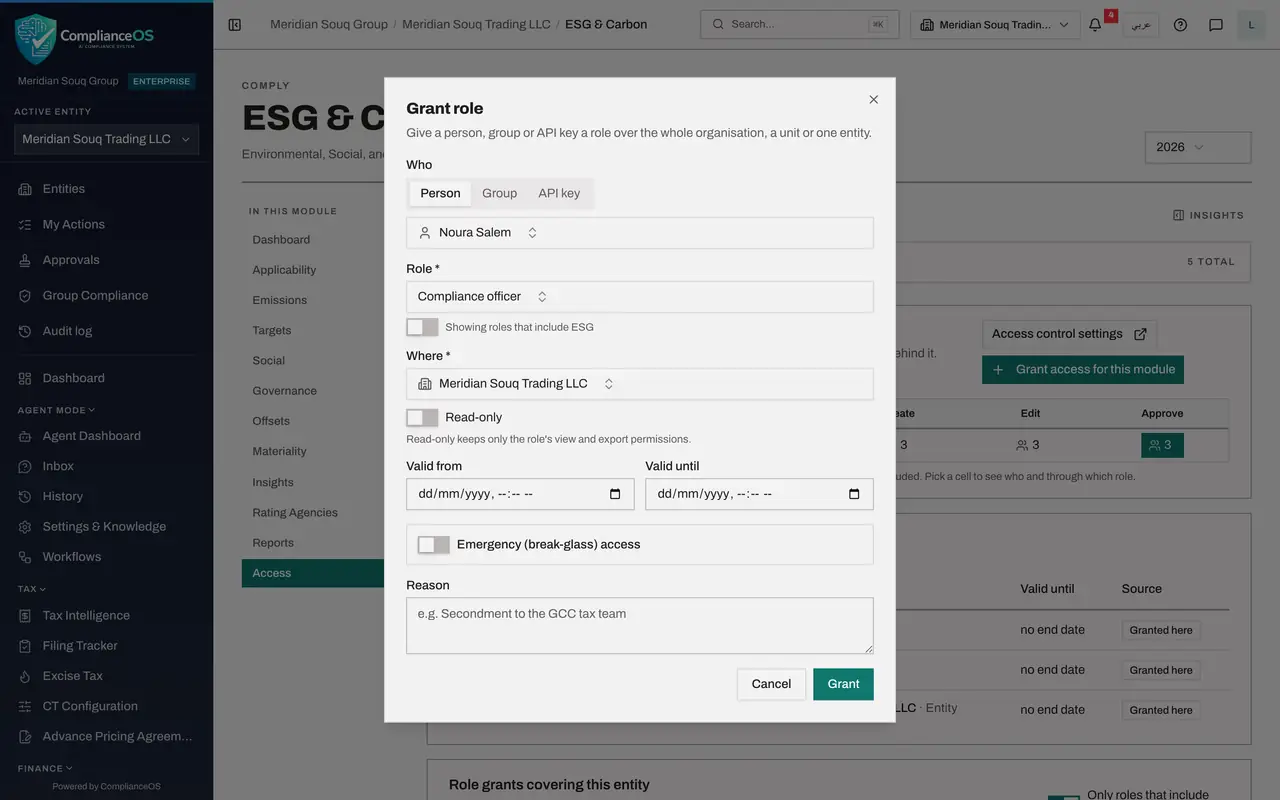
Scroll back up and select Grant access for this module. Grant role opens. Under Who you choose a Person, a Group or an API key, which is a sign-in for another computer system. Keep Person.
- Select Grant access for this module
- 6
Choose the person and the role
Open Person and choose Noura Salem, the legal counsel, who has been asked to read the sustainability report. Open Role. Only roles that include ESG are listed while the switch below it is on. Choose Compliance officer.
- Select Choose a person
- Select Choose a role
- 7
Check Where and switch on Read-only
Where is already set to this entity; a role can also be granted over a unit or the whole organisation. Switch on Read-only. The note explains that this keeps only the role's view and export permissions, so Noura can read and download but change nothing.
- Select Read-only
- 8
Set the end date and the reason
Leave Valid from empty to start now. In Valid until enter the day and time the access should end, here six in the evening on the thirty-first of December 2026. Leave Emergency access off; it is for urgent, short-lived access. In Reason say why the access is given.
- Type Valid until:
2026-12-31T18:00 - Type Reason:
Legal review of the 2026 sustainability report
- Type Valid until:
- 9
Select Grant
Select Grant. The grant is saved, or, if your organisation requires a second administrator for it, sent for that approval. The new line appears under Role grants covering this entity with its validity.
- Select Grant
- 10
Read the approvable actions
Scroll to Approval policies. It lists the three actions in this module that need a second person: Approve an ESG report, Approve an ESG materiality assessment, and Verify an emission record. Beside each is the right the approver must hold, and Default, which means no special rule has been saved.
- 11
Select Verify an emission record
Select Verify an emission record. The sentence under the heading states the rule in force: by default, one approver holding the ESG edit right on the same entity, with strict maker and checker. That is why the person who entered a record could not verify it.
- 12
Read the policy form without changing it
Below is the form an administrator uses to change the rule. Maker and checker can be strict, or allow self-approval with a written justification for small teams. Each approval step has a name, the right the approver needs, where they must hold it and how many approvals are needed, and Add step adds a second stage. Save policy would store a rule for this entity. Leave it as it is.
How to check it worked
The table Role grants covering this entity lists the new read-only grant with its end date, and you can say who may approve an ESG report and why the preparer cannot.
Common mistakes
- Granting a full role when the person only needs to read. Switch on Read-only, which keeps just the view and export rights of the role.
- Leaving a temporary grant open-ended. Fill Valid until, so the access ends by itself.
- Loosening maker and checker to get a report out faster. The rule that nobody approves what they prepared is what makes the approval mean something.
Check your understanding
1. By default, who can approve an ESG report?
- A.Whoever generated it
- B.One person who holds the right to approve ESG records on the same entity and did not prepare the report
- C.Any two employees
- D.Only the external auditor
Show answer
Answer: B. One person who holds the right to approve ESG records on the same entity and did not prepare the report
The default policy is one approver holding the ESG approve right on the same entity, with strict maker and checker.
2. What does the Read-only switch do when you grant a role?
- A.It hides the module
- B.It keeps only the role's view and export permissions
- C.It makes the grant permanent
- D.It lets the person approve but not edit
Show answer
Answer: B. It keeps only the role's view and export permissions
With Read-only on, the person can open and download but cannot create, change or approve anything.