Lesson 21 of 28
Generate and edit the disclosure report
What you will be able to do
This lesson is for the person who prepares the sustainability report. You will generate a draft report for a chosen framework, read what the AI assistant wrote from your data, correct one section by hand, redraft another with the AI assistant's help, clear any placeholders, download the draft as a PDF and send it for approval.
Before you start
- You are signed in with the Compliance officer role for the entity.
- The year's emission records, metrics, targets and materiality assessment are in place (the earlier lessons).
Steps
- 1
Open Reports and select Generate Report
In ESG and Carbon select Reports. This list holds every disclosure report produced for the entity; it is empty for now. Select Generate Report.
- Select Reports0 (0)
- Select Generate Report
- 2
Choose the report type
Open Report Type and choose the framework the report is written for. The choices are MOCCAE Climate Report, DFM ESG Disclosure, ADX ESG Disclosure, GRI Standards, ISSB, TCFD Report and Internal Report. Choose GRI Standards. Year is already filled with the reporting year, 2026.
- Select Report Type
- Choose GRI Standards
- 3
Select Generate and wait for the draft
Select Generate. ComplianceOS gathers the year's emissions, metrics and targets, and the AI assistant writes the report sections. This can take a minute or two. The box then closes and the report is listed with the status Draft.
- Select Generate
- 4
Select View to open the report
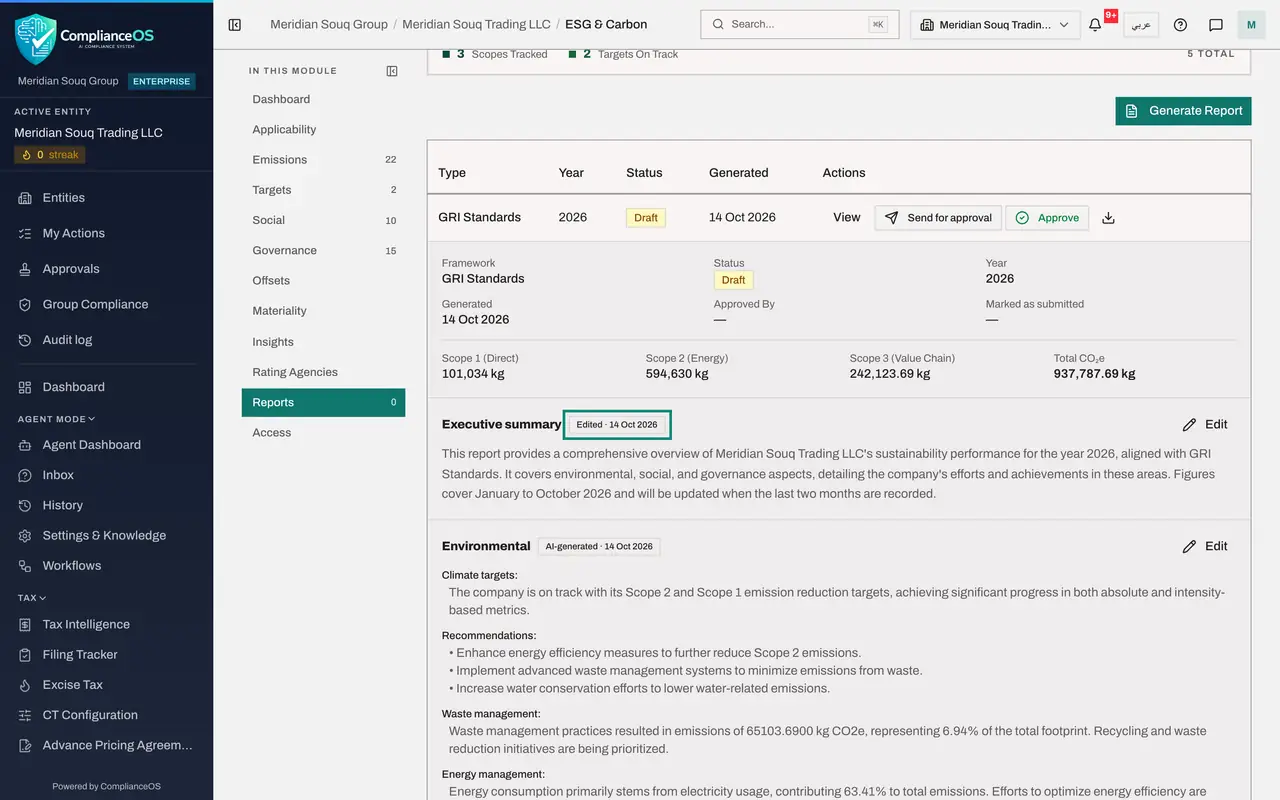
Select View on the report's line. The top of the report shows the framework, status, year and the date it was generated. Approved By and Marked as submitted are empty. Below are the totals for Scope 1, Scope 2 and Scope 3 in kilograms, taken from the emission records.
- Select View
- 5
Read each section
Scroll through the sections: Executive summary, Environmental, Social, Governance, UAE regulatory alignment, and Methodology and notes. Each carries a label saying where its text came from; AI-generated means nobody has edited it yet. Check every figure and claim against your data.
- 6
Select Edit on the Executive summary
Scroll back to Executive summary and select Edit beside its heading. The text opens in a box you can type in. Under it are a box for instructions to the AI assistant and three buttons: AI draft, Cancel and Save.
- Select Edit
- 7
Correct the text and select Save
Change or add what is needed. Here a sentence is added at the end to say which months the figures cover. Select Save. The section's label changes to Edited with today's date, so a reviewer can see which parts a person has worked on.
- Select Save
- 8
Ask the AI assistant to redraft a section
Scroll to Methodology and notes and select Edit. In Instructions for the AI draft, say what you want changed, then select AI draft. The button reads Working while the assistant writes.
- Select Edit
- Type Instructions for the AI draft (optional):
State that Scope 3 covers water, waste, recycling and business travel… - Select AI draft
- 9
Review the redraft and select Save
A message says the AI draft is loaded: review it, then save. The new text is in the box and nothing has changed in the report yet. Read it with care and correct it if needed, then select Save. The label becomes AI draft, reviewed.
- Select Save
- 10
Resolve any placeholders
Where the assistant lacked a figure it may leave words in square brackets, such as DATA NEEDED. If it did, an amber box above the sections lists each one and the section it is in, and the report cannot be sent for review, approved or submitted until every one is replaced. Select Edit on each section named, replace the bracketed words with the real figure or a plain statement, and select Save. The amber box then disappears.
- Select Edit
- Select Save
- 11
Download the draft as a PDF
On the report's line, select the download icon, the arrow pointing down. The report is saved to your computer as a PDF you can pass round for comment. Nothing is sent to anyone from this screen.
- Select Download
- 12
Select Send for approval
When the report is ready, select Send for approval on its line. The status changes to In review, and the report appears in the Approvals inbox of the people who may approve it. Editing a section from now on restarts that sign-off.
- Select Send for approval
- 13
Leave the approval to someone else
Approve still shows on the line. If you select it, the box that opens says you prepared this, so someone else has to approve it, and its own Approve button is greyed out, just as for the materiality assessment. The report is already in the approvers' inbox; the next lesson is that person's.
How to check it worked
Reports lists a GRI Standards report for the year with the status In review, the Executive summary is labelled Edited, no amber placeholder box is shown, and a PDF of the report is in your downloads folder.
Common mistakes
- Treating the AI text as finished. The assistant writes from your data but can state things too confidently; read every sentence and check every figure.
- Leaving a bracketed placeholder in the text. Words such as DATA NEEDED in square brackets block review, approval and submission until they are replaced.
- Generating a new report to fix a typing mistake. Edit the section instead; a second report for the same framework and year only causes confusion.
Check your understanding
1. A section is labelled AI-generated. What does that tell a reviewer?
- A.A person has checked it
- B.Nobody has changed the text since the draft was written
- C.It is locked
- D.It will be left out of the PDF
Show answer
Answer: B. Nobody has changed the text since the draft was written
The label changes to Edited when a person rewrites the section, and to AI draft, reviewed when a person saves a redraft made by the assistant.
2. What does the download icon on a report's line do?
- A.Sends the report to the regulator
- B.Saves the report to your computer as a PDF
- C.Deletes the draft
- D.Approves the report
Show answer
Answer: B. Saves the report to your computer as a PDF
Download only gives you a file. Nothing is sent to anyone from this screen.