Lesson 24 of 28
Check rating agency readiness and download the exports
What you will be able to do
This lesson is for the person who answers ESG questionnaires from rating agencies and customers. You will check how complete the data is for four common standards, jump from a gap to the screen where it is filled, download each standard's export file, and read the dashboard with a full year of data, including the AI assistant's recommendations.
Before you start
- You are signed in with the Compliance officer role for the entity.
- The year's emissions, social and governance figures are entered (the earlier lessons).
- The exports are files for you to review and send yourself. Nothing is submitted to any agency from ComplianceOS.
Steps
- 1
Open Rating Agencies
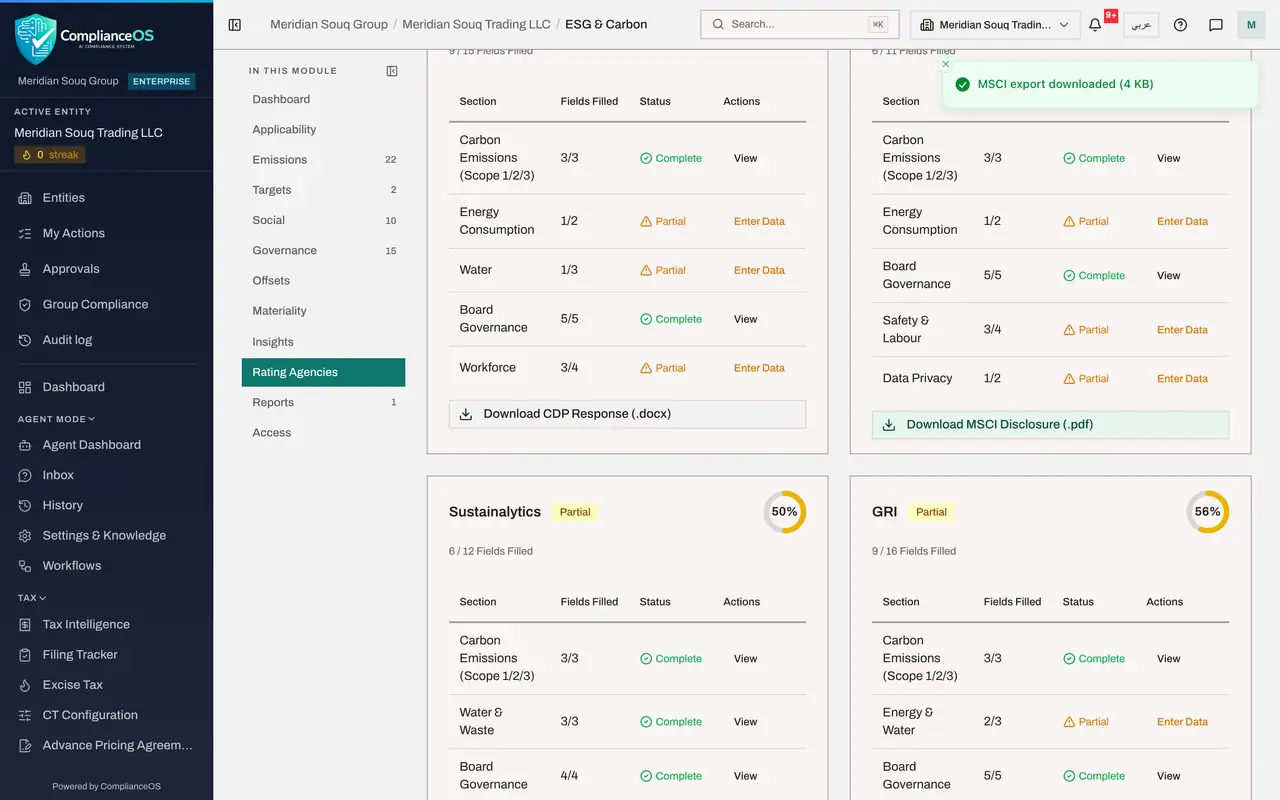
In ESG and Carbon select Rating Agencies. Overall Readiness is the share of the expected data that is on record. Each card below is one standard or ratings body: CDP, M S C I, Sustainalytics and GRI, each with a status and the number of fields filled.
- Select Rating Agencies
- 2
Read one card
Take the CDP card. CDP is a body that collects climate disclosures from companies. The table lists the sections it asks for, how many fields are filled in each, and a status: Complete, Partial or Missing. The last column offers View for a complete section and Enter Data for one with gaps.
- 3
Select Enter Data on a gap
On the GRI card, find a section that is not complete and select Enter Data at the end of its line. ComplianceOS opens the section where those figures are typed. Here Social and Labour takes you to Social.
- Select Enter Data
- 4
Return to Rating Agencies and download the CDP response
Select Rating Agencies again. At the bottom of the CDP card select Download CDP Response. A Word document is saved to your computer with your figures laid out as the CDP questionnaire asks, and a message confirms the download with the file size.
- Select Rating Agencies
- Select Download CDP Response (.docx)
- 5
Download the M S C I disclosure
On the M S C I card select Download M S C I Disclosure. It is written as four letters on screen, and is a firm that rates companies for investors. This export is a PDF.
- Select Download MSCI Disclosure (.pdf)
- 6
Download the Sustainalytics template
On the Sustainalytics card select Download Indicator Template. Sustainalytics is another ratings firm. This export is an Excel workbook with one line for each indicator.
- Select Download Indicator Template (.xlsx)
- 7
Download the GRI content index
On the GRI card select Download GRI Content Index. The content index is the table at the back of a GRI report that says where each disclosure can be found. This export is a PDF.
- Select Download GRI Content Index (.pdf)
- 8
Read Missing Data Alerts and the master list
Scroll down. Missing Data Alerts gathers the critical fields that no agency card could fill, grouped as Environmental, Social and Governance. Below it, Master ESG Metrics for 2026 is the single list of figures that all four exports draw on, so you can check a number once.
- 9
Open the Dashboard with a year of data
Select Dashboard. The tiles now carry the year's totals by scope, and the intensity tiles show tonnes for each million dirhams of revenue and for each square metre. Emissions by Scope draws a bar for each month, and UAE Industry Benchmarks sets your emissions for each employee beside typical figures for seven sectors. The Your Entity column divides by the declared headcount from the company profile, 420 employees, and says so; it is the same figure as the Peer benchmark in Insights.
- Select Dashboard
- 10
Select Generate Insights
Scroll back to the AI Insights box near the top and select Generate Insights. The AI assistant reads the year's emissions, targets and metrics and writes a headline with a confidence percentage, a list of insights each marked with a priority, some quick wins and any risk alerts. This can take a minute. Treat them as suggestions to weigh, not instructions.
- Select Generate Insights
How to check it worked
Rating Agencies shows a readiness percentage for each of CDP, M S C I, Sustainalytics and GRI, and four export files are in your downloads folder.
Common mistakes
- Sending an export without opening it. The file contains whatever is on record, gaps included; read it first.
- Chasing 100 percent on every standard. Fill the sections that apply to the business; a limited company with no listed shares will not have every board figure an agency expects.
- Reading AI Insights as instructions. They are suggestions drawn from your data; decide for yourself which to act on.
Check your understanding
1. On a rating agency card, a section says Partial. What should you do?
- A.Nothing; partial is complete
- B.Select Enter Data on that line to go to the section where the missing figures are typed
- C.Download the export
- D.Delete the card
Show answer
Answer: B. Select Enter Data on that line to go to the section where the missing figures are typed
Enter Data takes you to Emissions, Social or Governance, wherever that section's figures live.
2. What does Download CDP Response give you?
- A.A filing sent to CDP
- B.A Word document with your figures in the layout of the CDP questionnaire, for you to review and submit yourself
- C.A PDF of the dashboard
- D.A spreadsheet of emission factors
Show answer
Answer: B. A Word document with your figures in the layout of the CDP questionnaire, for you to review and submit yourself
Each export is a file in that standard's layout. You decide whether and how to send it.