Lesson 13 of 28
Work through the fifteen Scope 3 categories
What you will be able to do
This lesson is for the person who owns the carbon inventory. Scope 3, the emissions in the value chain, is divided by the Greenhouse Gas Protocol into fifteen categories. You will set the categories up for the year, let ComplianceOS estimate the ones it can from data already entered, and record a decision for three of them by hand.
Before you start
- You are signed in with the Compliance officer role for the entity.
- Emission records for the year are entered (the earlier lessons on Emissions).
Steps
- 1
Open Emissions and scroll to Scope 3
In ESG and Carbon select Emissions and scroll below the list to Scope 3 Value Chain Emissions. The Greenhouse Gas Protocol, the standard most companies follow, splits Scope 3 into fifteen categories. Nothing is set up for 2026 yet.
- Select Emissions22 (22)
- 2
Select Initialize Categories
Select Initialize Categories. The fifteen categories are created, from Purchased Goods and Services to Investments, each with the status Not Evaluated. The button is replaced by Auto-Estimate from Data.
- Select Initialize Categories
- 3
Select Auto-Estimate from Data
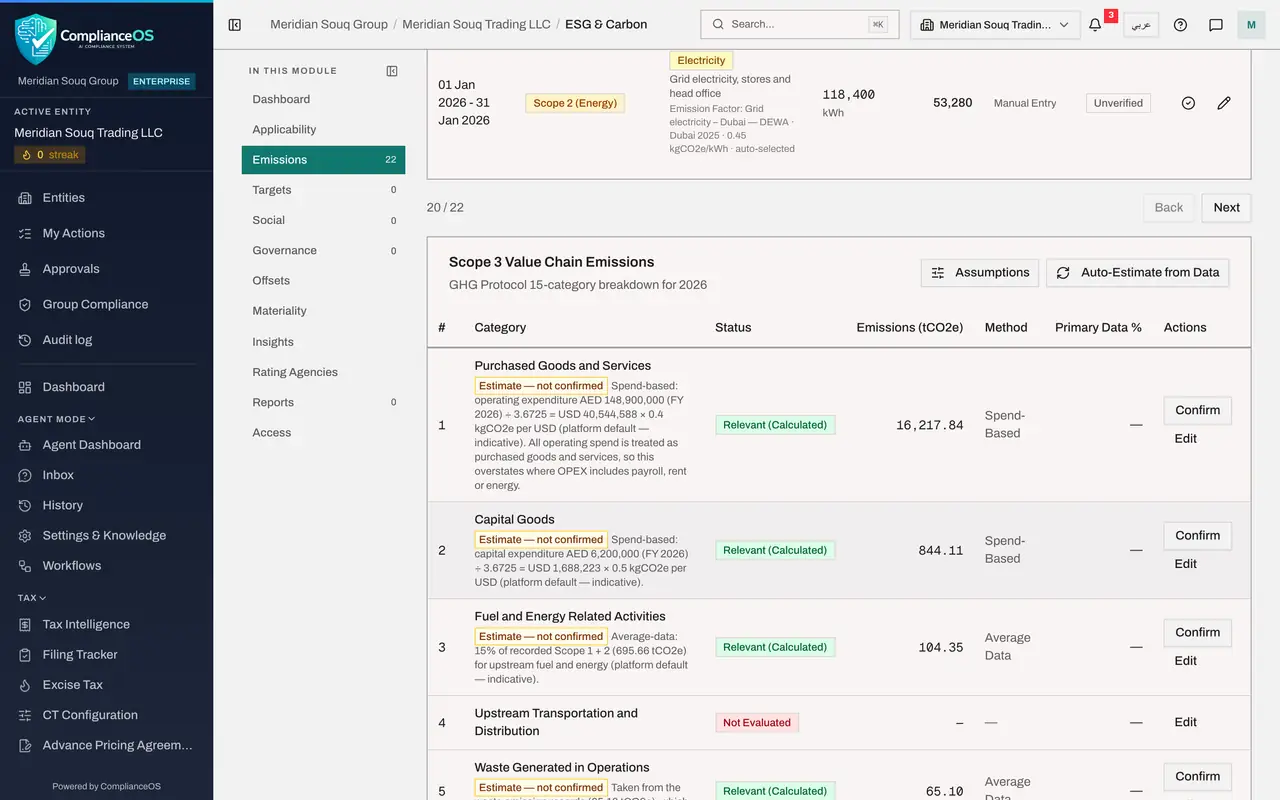
Select Auto-Estimate from Data. ComplianceOS fills in the categories it can work out from what is already entered, such as your waste records, your spending figures and the headcount. A message says how many categories it estimated, and that they stay unconfirmed estimates until you confirm each one.
- Select Auto-Estimate from Data
- 4
Read the table and the totals
Each line has the category number and name, its status, the emissions in tonnes, the method used and the share of primary data. Five lines are now Relevant (Calculated) and carry the label Estimate, not confirmed. Under the table, the totals keep figures entered or confirmed apart from unconfirmed estimates, and a note explains that Scope 3 category figures are not added to the emissions inventory or to reports.
- 5
Read how an estimate was made
Under each estimate a line shows its working. Purchased Goods and Services is spend-based: the operating spending from the configuration, converted from dirhams to US dollars, times a standard factor for each dollar. The line warns that this overstates where operating spending includes payroll or rent. Waste Generated in Operations is simply taken from the waste records already in the inventory.
- 6
Open Assumptions
Select Assumptions above the table. The box lists the rates Auto-Estimate uses for this entity: dirhams per US dollar, the factors for operating and capital spending, the uplift for upstream fuel and energy, and commuting per employee. Replace the indicative defaults with your own figures when you have them. Select Cancel to leave them as they are.
- Select Assumptions
- Select Cancel
- 7
Confirm the waste estimate
The waste figure comes straight from verified records, so it can be accepted. Select Confirm on line five, Waste Generated in Operations. A box asks you to confirm the tonnes; select Confirm. The label changes to Estimate, confirmed, the figure moves to the entered or confirmed total, and Auto-Estimate will no longer replace it.
- Select Confirm
- Select Confirm
- 8
Open Business Travel with Edit
Select Edit at the end of line six, Business Travel. The box is headed with the category number and name. Open Evaluation Status to see the four choices: Relevant (Calculated), Relevant (Not Calculated), Not Relevant and Not Evaluated. Choose Relevant (Calculated).
- Select Edit
- Select Evaluation Status
- Choose Relevant (Calculated)
- 9
Enter the emissions and the method
In Emissions type the figure in kilograms: 18400, from the travel agent's yearly flight report. Open Calculation Method. Supplier-Specific uses figures from the supplier, Average Data uses standard factors for each kilometre or night, Spend-Based estimates from money spent, and Hybrid mixes them. Choose Average Data.
- Type Emissions (kg CO2e):
18400 - Select Calculation Method
- Choose Average Data
- Type Emissions (kg CO2e):
- 10
Enter the primary data share and a note, then Save
Primary Data percent is the share of the figure that rests on real records rather than estimates: type 40. In Notes say where the number came from. Select Save. Line six now shows 18.4 tonnes.
- Type Primary Data %:
40 - Type Notes:
Flights and hotel nights from the travel agent's report for January to… - Select Save
- Type Primary Data %:
- 11
Mark Franchises as Not Relevant
Select Edit on line fourteen, Franchises. Meridian Souq runs all its own stores. Choose the status Not Relevant. An Exclusion Reason box appears, because every exclusion needs a justification. Type the reason and select Save.
- Select Edit
- Select Evaluation Status
- Choose Not Relevant
- Type Exclusion Reason:
The company operates all of its stores itself and has no franchise ope… - Select Save
- 12
Record a category that matters but is not measured yet
Select Edit on line nine, Downstream Transportation and Distribution: deliveries to customers by outside couriers. It matters, but there is no figure yet. Choose Relevant (Not Calculated), write the plan in Notes and select Save. The table shows a dash for its emissions.
- Select Edit
- Select Evaluation Status
- Choose Relevant (Not Calculated)
- Type Notes:
Courier partners asked for parcel and distance data; first figures exp… - Select Save
How to check it worked
The Scope 3 table lists fifteen categories, and the ones you edited show the status, method and figures you chose.
Common mistakes
- Confirming a spend-based estimate without checking it. Confirmed figures are no longer replaced by Auto-Estimate, so confirm only what you would defend; leave rough estimates unconfirmed or enter a better figure with Edit.
- Marking a category Not Relevant without a reason. The form asks for an Exclusion Reason because standards expect you to justify each exclusion.
- Typing tonnes into the emissions box. The box is in kilograms; the table then shows tonnes.
Check your understanding
1. A category applies to the business but you have no figure yet. Which status fits?
- A.Not Evaluated
- B.Relevant (Not Calculated)
- C.Not Relevant
- D.Relevant (Calculated)
Show answer
Answer: B. Relevant (Not Calculated)
Relevant (Not Calculated) says the category matters and the number is still to come. Add a note with the plan to measure it.
2. What does Primary Data percent tell a reader?
- A.The share of the figure that comes from real measured data rather than averages or estimates
- B.The share of suppliers who replied
- C.The share of the category in total emissions
- D.The discount on the factor
Show answer
Answer: A. The share of the figure that comes from real measured data rather than averages or estimates
A higher share of primary data means a more reliable figure. Spend-based estimates have little or none.