Lesson 20 of 28
Verify the emission records
What you will be able to do
This lesson is for the second person: someone who can edit ESG records and did not enter the ones being checked. You will compare emission records with their source documents and verify them one by one, so the year's carbon figures can be disclosed as checked.
Before you start
- A colleague has entered the year's emission records (the lessons on Emissions). Their status is Unverified.
- You did not enter or edit those records. Whoever did is refused when they try to verify them.
- You have the source documents to hand: the bills, the fuel statements and the contractor reports.
Steps
- 1
Open the Approvals inbox
Choose Approvals near the top of the left menu. Under To decide, every emission record waiting for a second person is listed, one card each, with its category, period, quantity and who entered it. You can decide here, or open the record; this lesson verifies them in ESG and Carbon, where the whole list can be compared with the documents.
- Select Approvals8
- 2
Open ESG and Carbon, then Emissions
Choose ESG and Carbon in the left menu. At the top, the line Unverified emission records says how many records still need checking. Select Emissions in the In this module list.
- Select ESG & Carbon
- Select Emissions22 (22)
- 3
Compare a record with its source document
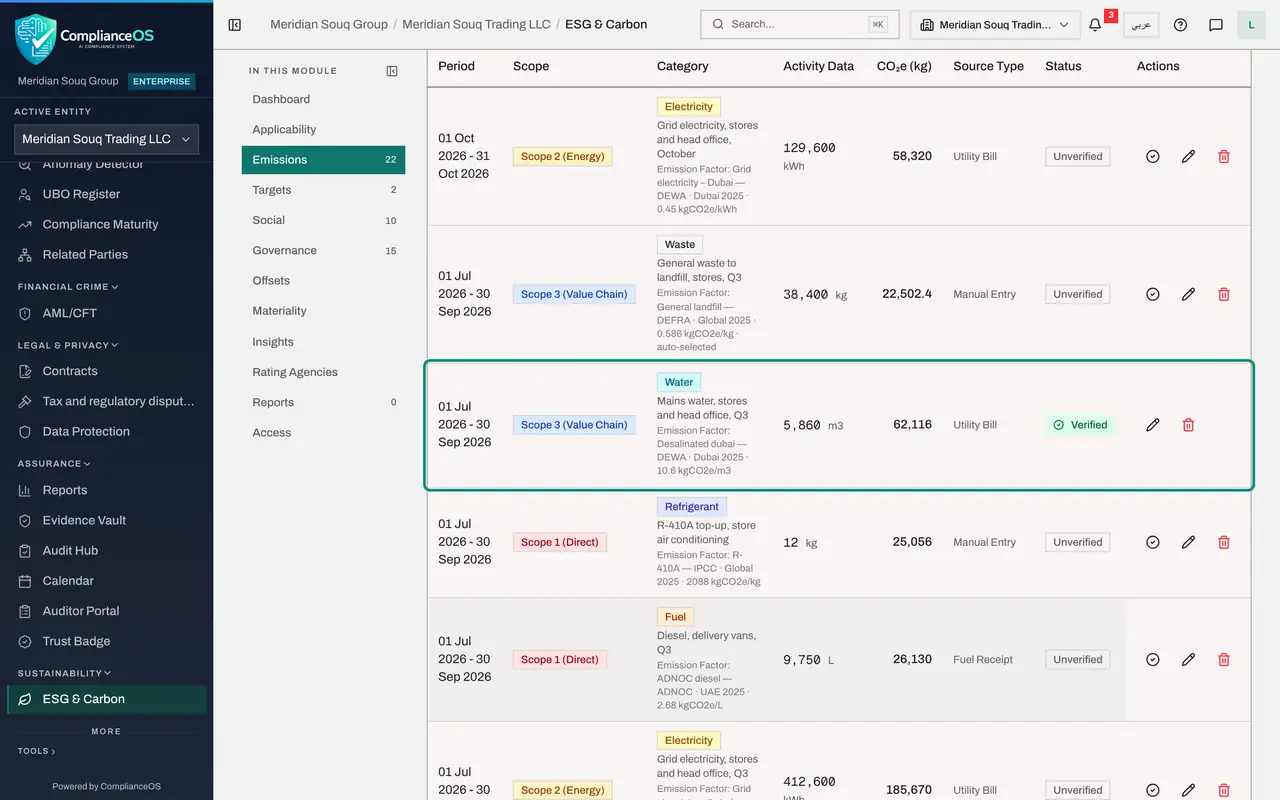
Take the water record for July to September. Check the period, the Activity Data and its unit against the bills, and check that the emission factor named under the category is the right one for the emirate. Status says Unverified.
- 4
Select the tick
When the record agrees with the bills, select the tick, Verify, under Actions. A box opens. It repeats the category, period, quantity and carbon figure, names the emission factor, and says who entered the record.
- 5
Add a comment and select Verify
In Comment say what you compared the record with. The comment is optional and is kept with your decision in the audit trail. Select Verify. The status changes to Verified.
- Type Comment:
Agrees with bills WA-2607 to WA-2609 and revised bill WA-2609R: 5,860… - Select Verify
- Type Comment:
- 6
Verify the waste record
Do the same for the landfill waste record: compare the kilograms with the contractor's collection reports, select the tick, add a comment and select Verify. A verified record no longer has a tick, only the pencil.
- Type Comment:
Agrees with the contractor reports for July to September: 38,400 kg. - Select Verify
- Type Comment:
- 7
Work down the rest of the first page
Carry on down the list in the same way: compare each record with its document, select its tick and select Verify. If a record is wrong, do not correct it yourself; ask the person who entered it to fix it, and verify it afterwards.
- Select Verify
- Select Verify
- Select Verify
- Select Verify
- Select Verify
- Select Verify
- Select Verify
- Select Verify
- Select Verify
- Select Verify
- Select Verify
- Select Verify
- Select Verify
- Select Verify
- Select Verify
- Select Verify
- Select Verify
- Select Verify
- 8
Check the next page
Scroll to the bottom of the table and select Next. The second page has two more records with a tick; verify them in the same way. When no tick is left on any page, every record for the year has been checked.
- Select Next
- Select Verify
- Select Verify
- 9
Open the Insights panel and read Readiness
Select Insights at the top right. Readiness shows every record verified, and Disclosure under Emissions intensity shows 100 percent. The reminder about unverified records has gone from the top of the page.
- Select Show insights panel
How to check it worked
Every record in Emissions shows the status Verified, the reminder about unverified records has gone, and the Insights panel shows Disclosure at 100 percent.
Common mistakes
- Verifying without the document in front of you. Verified means you compared the quantity, unit, period and factor with the source.
- Correcting a record yourself and then verifying it. If you edit a record you become one of its makers and can no longer verify it; ask the person who entered it to correct it.
- Stopping at the first page. The list shows twenty records at a time; use Next to reach the rest.
Check your understanding
1. Who can verify an emission record?
- A.Whoever entered it
- B.Anyone who can view ESG
- C.Someone with the right to edit ESG records who did not enter or edit that record
- D.Only the external auditor
Show answer
Answer: C. Someone with the right to edit ESG records who did not enter or edit that record
Verification is a second person check. The person who entered or edited the record is refused.
2. What does the Disclosure figure show?
- A.The share of emission records that are verified
- B.The share of reports that were published
- C.The share of frameworks assigned
- D.The share of employees trained
Show answer
Answer: A. The share of emission records that are verified
Disclosure is verified records divided by all records for the year. At 100 percent every figure has been checked by a second person.