Lesson 12 of 28
Upload a utility bill and let AI read it
What you will be able to do
This lesson is for whoever collects the environmental data. You will upload one electricity bill as a file, let the AI assistant read the quantity and period from it, check what it created against the bill, and complete the record.
Before you start
- You are signed in with the Compliance officer role for the entity.
- You have the bill as a PDF, PNG or JPG file. The lesson uses electricity-bill-october-2026.pdf from the course folder, an invented bill from an invented utility.
Steps
- 1
Open Emissions and select Upload Bill
In ESG and Carbon select Emissions, then Upload Bill. A small box opens and asks for a file. It accepts a PDF or a picture of the bill.
- Select Emissions21 (21)
- Select Upload Bill
- 2
Choose the bill
Under Select File, choose the file from your computer, here electricity-bill-october-2026.pdf. Its name and size appear under the box, and the Upload button becomes active.
- Upload Select File:
electricity-bill-october-2026.pdf
- Upload Select File:
- 3
Select Upload and wait
Select Upload. The AI assistant reads the bill, which can take up to a minute. When it finishes, the box turns green: Bill processed successfully, one record created. It names the supplier it found and shows what it read: electricity, 129,600 kilowatt hours, which comes to 58.32 tonnes of CO2e.
- Select Upload
- 4
Select Close and find the new record
Select Close. The record is already in the list, dated the first to the thirty-first of October, with the source type Utility Bill and the status Unverified. Compare the quantity, the unit and the period with the bill itself before you go on.
- Select Close
- 5
Open the record with the pencil
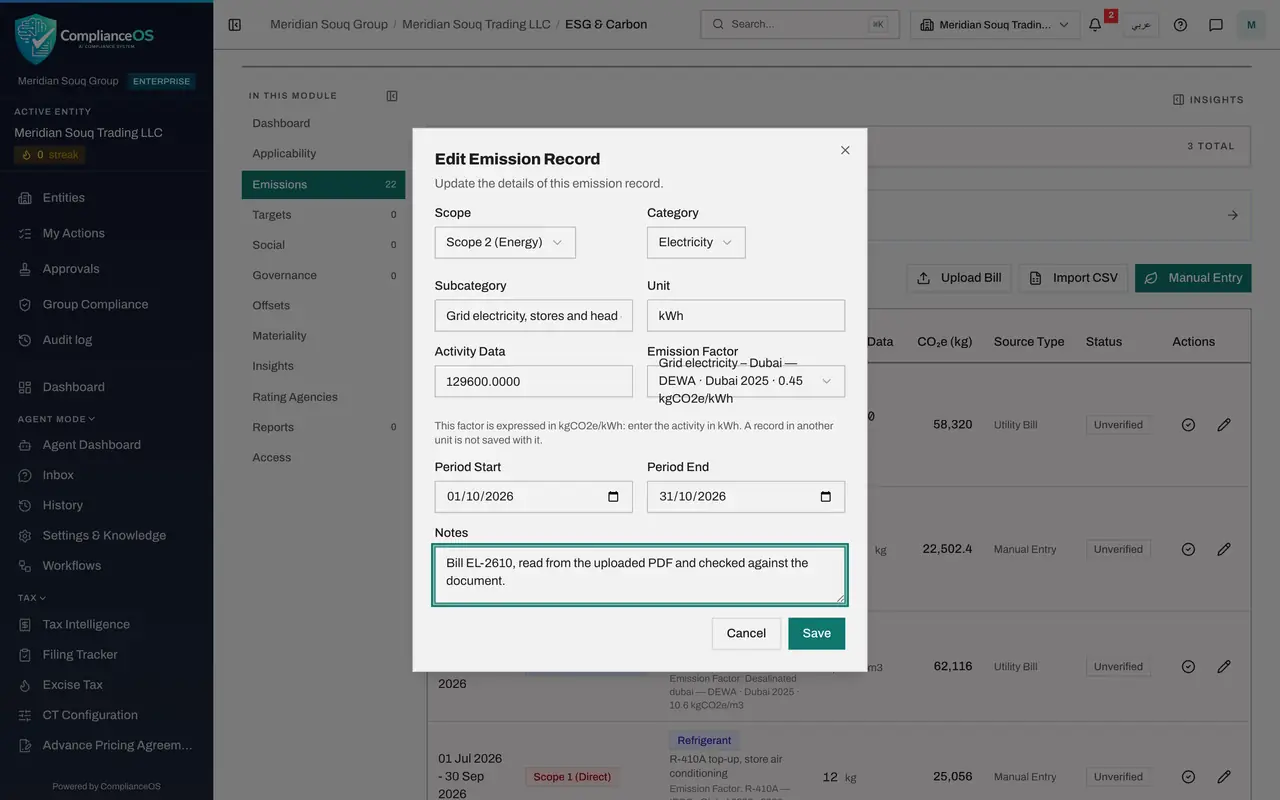
The AI filled in the scope, category, quantity, factor and dates. Select the pencil, Edit, on the record's line to complete the rest.
- 6
Complete the subcategory and the note
In Subcategory say what the bill covers, in the same words as your other electricity records, so the list reads consistently. In Notes add the bill number, so the person who verifies the record can find the document.
- Type Subcategory:
Grid electricity, stores and head office, October - Type Notes:
Bill EL-2610, read from the uploaded PDF and checked against the docum…
- Type Subcategory:
- 7
Select Save
Select Save. The record now carries your description. It stays Unverified until a second person checks it.
- Select Save
- 8
Try to upload the same bill again
Select Upload Bill once more, choose the same file and select Upload. ComplianceOS refuses, with a red message: this bill has already been uploaded. Each file is fingerprinted, so the same bill cannot be counted twice. Select Cancel.
- Select Upload Bill
- Upload Select File:
electricity-bill-october-2026.pdf - Select Upload
- 9
Select Cancel
Select Cancel to close the box. Nothing was added to the list.
- Select Cancel
- 10
Try the tick, to see the second person rule
Under Actions, the tick verifies a record. Select it on your own record. The box repeats the record, shows that its verification is waiting for one approval under strict maker and checker, and says you prepared this, so someone else has to approve it; it is already waiting in their Approvals inbox. The Verify button is greyed out.
- 11
Close the box with Cancel
Select Cancel to close the box. The record stays Unverified. A later lesson shows the second person verifying the year's records.
- Select Cancel
- 12
Open the notification bell
Select the bell at the top of the screen. It lists your newest notifications, including the one saying that the electricity bill from Gulf Demo Power and Water was processed and how many records it created. View all notifications opens the full list.
- Select 2 unread notifications
How to check it worked
Emissions lists an October electricity record of 129,600 kilowatt hours with the source type Utility Bill, and its subcategory and note are filled in.
Common mistakes
- Trusting the result without looking at the bill. AI reading can misjudge a figure or a date, so compare the quantity, the unit and the period with the document every time.
- Uploading a bill under a new file name to get round the duplicate check. ComplianceOS refuses a file it has already read; a renamed or rescanned copy would be read again and double the emissions.
- Uploading a photo that cannot be read. A sharp scan or the original PDF gives the best result; a dark or cropped photo may create nothing.
Check your understanding
1. What does Upload Bill create?
- A.A draft that someone must approve before it is saved
- B.One emission record for each kind of consumption it finds on the bill, saved at once as Unverified
- C.An evidence file only
- D.A report
Show answer
Answer: B. One emission record for each kind of consumption it finds on the bill, saved at once as Unverified
The records are saved straight away with the status Unverified, like any other record, and a second person verifies them later.
2. Which file types does Upload Bill accept?
- A.PDF, PNG and JPG
- B.CSV and Excel
- C.Word documents
- D.Any file
Show answer
Answer: A. PDF, PNG and JPG
It reads a PDF or a picture of the bill. Spreadsheets go through Import CSV instead.