Lesson 11 of 28
Import emission records from a spreadsheet
What you will be able to do
This lesson is for whoever collects the environmental data and has many records to load at once. You will import the first half of the year from a spreadsheet file, read what was imported and what was refused, fix the imported records that have no emission factor, and page through a list that is longer than one screen.
Before you start
- You are signed in with the Compliance officer role for the entity.
- You have the file meridian-souq-emissions-h1-2026.csv from the course folder. It has one line for each record and these columns: scope, category, subcategory, activity_data, activity_unit, period_start, period_end and notes.
- In the file, scope is written as SCOPE_1, SCOPE_2 or SCOPE_3, category in capitals such as ELECTRICITY, and dates as year, month, day.
Steps
- 1
Open Emissions and find Import CSV
In ESG and Carbon select Emissions. Import CSV loads many records from one file. CSV means comma separated values, a plain spreadsheet format; an Excel workbook is accepted too. The counter beside Emissions shows how many records there are before the import.
- Select Emissions5 (5)
- 2
Select Import CSV and choose the file
Select Import CSV. Your computer's file window opens; choose meridian-souq-emissions-h1-2026.csv. The import starts at once, and the button reads Importing while it runs. The file has seventeen lines: electricity for each month from January to June, and water, waste, recycling and diesel for the first two quarters. When it finishes, an Import result box opens.
- Select Import CSV
- Upload Choose a file:
meridian-souq-emissions-h1-2026.csv
- 3
Read the Import result
The box stays open until you close it. The line at the top says 16 of 17 rows were imported and one could not be read. Under Not imported, each refused row is listed with its number in the file and the reason: here row 18, because its unit is missing. Under Imported without an emission factor are the rows that count as zero until you choose a factor: the two diesel rows.
- 4
Close the box and filter to the fuel records
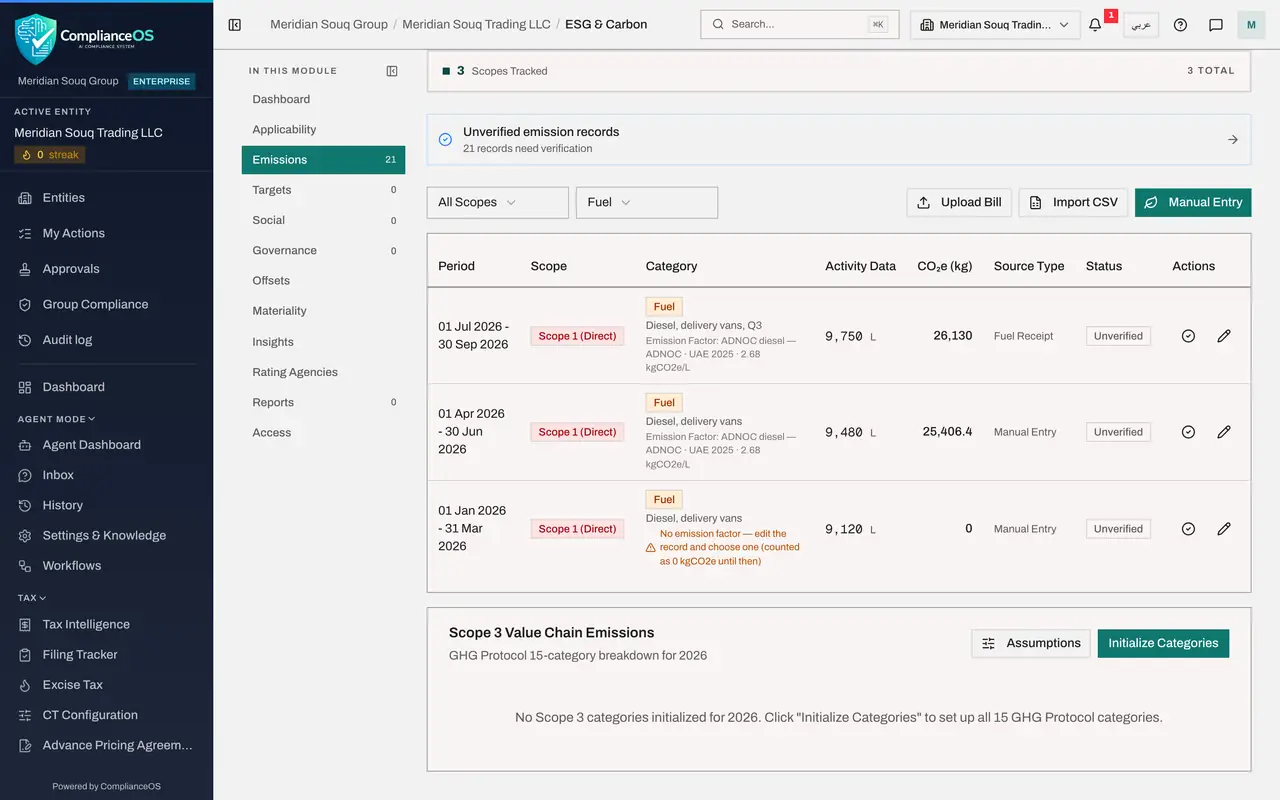
Select Close. The two rows without a factor are the diesel records, because several fuel factors could fit. Open All Categories and choose Fuel to find them. Each carries an amber warning under its category, and its CO2e figure is zero.
- Select Close
- Select All Categories
- Choose Fuel
- 5
Open the first one with the pencil
Select the pencil, Edit, at the end of the first warned line. Edit Emission Record opens. Under Emission Factor the amber note lists the candidate factors.
- 6
Choose the diesel factor and select Save
Select the button ADNOC diesel for the United Arab Emirates, 2025, the same factor as the diesel record you typed by hand, then select Save. The warning goes and the record now has a carbon figure.
- Select ADNOC diesel — ADNOC · UAE 2025 · 2.68 kgCO2e/L
- Select Save
- 7
Fix the second record the same way
One line still carries the warning. Select its pencil, choose ADNOC diesel for 2025 in the note, and select Save. No fuel record is left without a factor.
- Select ADNOC diesel — ADNOC · UAE 2025 · 2.68 kgCO2e/L
- Select Save
- 8
Show every category again and check the imported lines
Set the category box back to All Categories. Imported records look like the ones you typed: each has its period, scope, quantity, the factor that was auto-selected and the status Unverified. Their Source Type reads Manual Entry, and the notes column of your file is kept with each record.
- Select All Categories
- Choose All Categories
- 9
Go to the next page of the list
The list shows twenty records at a time. Scroll to the bottom of the table: the figures on the left say how many are shown out of the total, and Back and Next move between pages. Select Next.
- Select Next
- 10
Go back to the first page
Select Back to return to the first page. The refused line, district cooling for the head office, is not in the list. Correct the unit in your file and import that one line, or enter it with Manual Entry.
- Select Back
- 11
Import the same file again by mistake
Suppose someone selects Import CSV and chooses the same file again. Nothing is imported yet. A box headed Some rows are already recorded says how many rows match an existing record, with the same scope, category, activity, quantity, unit and period, lists them, and says how many are new.
- Select Import CSV
- Upload Choose a file:
meridian-souq-emissions-h1-2026.csv
- 12
Select Cancel import
The box offers three choices: Cancel import, Import all, including duplicates, and Import only the new rows. These rows are already in the list, so select Cancel import. Nothing is added.
- Select Cancel import
How to check it worked
Emissions shows the imported records for January to June, none of them carries the warning No emission factor, Back and Next appear under the list, and the second import of the same file added nothing.
Common mistakes
- Choosing Import all on the duplicates box. It adds every row again, doubling those emissions. Choose Cancel import, or import only the new rows.
- Closing the Import result without reading it. Rows listed under Imported without an emission factor count as zero kilograms until you edit each one and choose a factor.
- Leaving a required column empty. A line without scope, category, quantity or unit is refused; the Import result names each refused row and the reason, so correct those rows and import them again.
Check your understanding
1. An imported diesel record shows the warning No emission factor. What is its carbon figure until you fix it?
- A.An estimate
- B.Zero
- C.The same as the last diesel record
- D.It is not counted as a record
Show answer
Answer: B. Zero
ComplianceOS never guesses a factor. The record is imported with zero kilograms, and you choose the factor with the pencil.
2. The Import result lists one row under Not imported. What happened to it?
- A.It was imported with blanks
- B.It was skipped; correct it in the file and import that line, or enter it by hand
- C.The whole file was refused
- D.It is waiting in a queue
Show answer
Answer: B. It was skipped; correct it in the file and import that line, or enter it by hand
Good lines are imported and bad lines are left out. Here one line had no unit.