Lesson 10 of 28
Record water and waste, then filter and correct
What you will be able to do
This lesson is for whoever collects the environmental data. You will record the quarter's water and waste as Scope 3 records, see how the wording of the subcategory changes the emission factor that is chosen, filter the list by scope and by category, and correct a record you have already saved.
Before you start
- You are signed in with the Compliance officer role for the entity.
- You have the water bills in cubic metres and the waste contractor's collection reports in kilograms.
Steps
- 1
Start a water record
In ESG and Carbon select Emissions, then Manual Entry. In Scope choose Scope 3 (Value Chain) and in Category choose Water.
- Select Emissions3 (3)
- Select Manual Entry
- Select Scope
- Choose Scope 3 (Value Chain)
- Select Category
- Choose Water
- 2
Enter the cubic metres
In Subcategory describe the supply. In Unit type m3 for cubic metres, and in Activity Data type 5840, the total on the three water bills.
- Type Subcategory:
Mains water, stores and head office, Q3 - Type Unit:
m3 - Type Activity Data:
5840
- Type Subcategory:
- 3
Read the factor for water
The green note names the factor Auto-select will use: desalinated water for Dubai, at 10.6 kilograms of CO2e for each cubic metre. Most tap water in Dubai is desalinated seawater, which takes a lot of energy to make, so the factor is high.
- 4
Finish the water record and select Create
Set the period to July to September, choose Utility Bill as the Source Type, name the bills in Notes and select Create. 5,840 cubic metres at 10.6 gives 61,904 kilograms of CO2e.
- Type Period Start:
2026-07-01 - Type Period End:
2026-09-30 - Select Source Type
- Choose Utility Bill
- Type Notes:
Water bills July to September 2026. Bill references WA-2607 to WA-2609… - Select Create
- Type Period Start:
- 5
Start a waste record and read the note
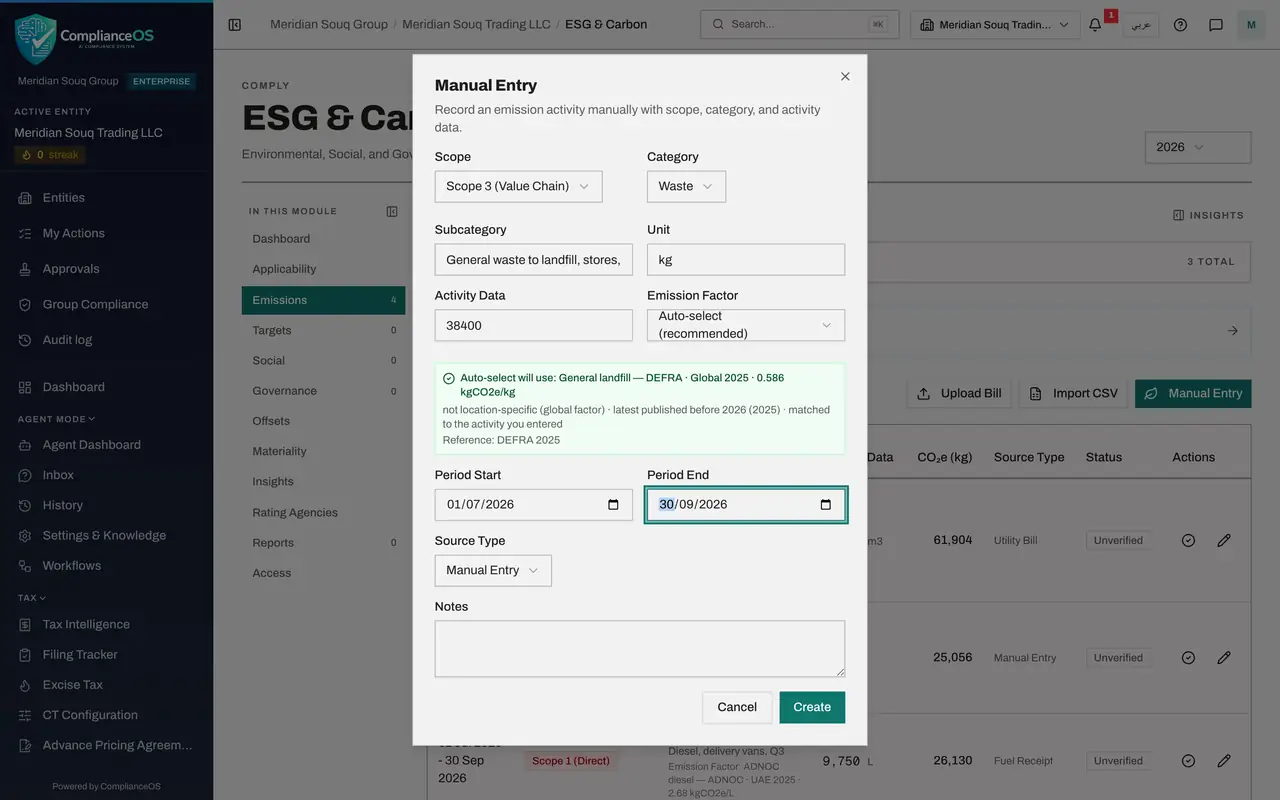
Select Manual Entry again. The form opens empty. Choose Scope 3 (Value Chain) and the category Waste. With Subcategory still empty the note is amber: several kinds of waste fit, from landfill to recycling, so the factor cannot be chosen automatically.
- Select Manual Entry
- Select Scope
- Choose Scope 3 (Value Chain)
- Select Category
- Choose Waste
- 6
Describe the waste, and watch the factor change
In Subcategory type General waste to landfill, with where and when, then move to the Unit box. The note turns green: Auto-select will now use General landfill at 0.586, and says it was matched to the activity you entered. The words you type in Subcategory steer the choice.
- Type Subcategory:
General waste to landfill, stores, Q3 - Type Unit:
kg
- Type Subcategory:
- 7
Enter the kilograms and the period
In Activity Data type 38400, the kilograms on the contractor's monthly collection reports. Set the period to July to September.
- Type Activity Data:
38400 - Type Period Start:
2026-07-01 - Type Period End:
2026-09-30
- Type Activity Data:
- 8
Set the source type, add a note and select Create
Source Type starts at Manual Entry, which is right for the contractor's reports. Name the reports in Notes and select Create. 38,400 kilograms at 0.586 gives 22,502.4 kilograms of CO2e.
- Type Notes:
Waste contractor monthly collection reports, July to September 2026. - Select Create
- Type Notes:
- 9
Filter the list by scope
To see one scope at a time, open All Scopes above the list and choose it. Choose Scope 3 (Value Chain): only the water and waste records remain.
- Select All Scopes
- Choose Scope 3 (Value Chain)
- 10
Filter by category as well
The second box filters by category. Open All Categories and choose Water. The two filters work together, so only the water record is left.
- Select All Categories
- Choose Water
- 11
Open the record with the pencil
A corrected water bill has arrived: the true total is 5,860 cubic metres. Select the pencil, Edit, at the end of the water record's line. Edit Emission Record opens with everything you entered. Every field can be changed while the record is unverified.
- 12
Correct the quantity and the note
Change Activity Data to 5860, and add to Notes why it changed, so the reviewer understands the correction.
- Type Activity Data:
5860 - Type Notes:
Water bills July to September 2026. Bill references WA-2607 to WA-2609…
- Type Activity Data:
- 13
Select Save
Select Save. The line now shows 5,860 cubic metres, and ComplianceOS has worked out the carbon figure again: 62,116 kilograms. The change is written to the audit log with the old and the new value.
- Select Save
- 14
Clear the filters
Set the two boxes back to All Scopes and All Categories so the whole list shows again. The counter beside Emissions in the In this module list gives the number of records for the year.
- Select All Scopes
- Choose All Scopes
- Select All Categories
- Choose All Categories
How to check it worked
Emissions lists a water record and a waste record under Scope 3 (Value Chain), the waste record names the factor General landfill, and the water record shows the corrected quantity.
Common mistakes
- Leaving Subcategory empty for waste. With nothing to go on, ComplianceOS cannot tell which waste factor applies and asks you to choose. Say what the waste is, and the right factor is found for you.
- Recording recycled waste and landfill waste together. They have very different factors, so enter each stream as its own record.
- Forgetting to clear a filter. If the list looks short, check that the two boxes above it say All Scopes and All Categories.
Check your understanding
1. Mains water and waste taken away by a contractor belong to which scope?
- A.Scope 1 (Direct)
- B.Scope 2 (Energy)
- C.Scope 3 (Value Chain)
- D.None
Show answer
Answer: C. Scope 3 (Value Chain)
The emissions happen at the water company and the landfill, not on your premises, so they are part of your value chain: Scope 3.
2. You saved a record with the wrong quantity and it has not been verified. How do you fix it?
- A.Delete it and enter it again
- B.Select the pencil on its line, change Activity Data and select Save
- C.Ask an administrator
- D.Enter a second record with the difference
Show answer
Answer: B. Select the pencil on its line, change Activity Data and select Save
The pencil opens Edit Emission Record. ComplianceOS works out the carbon figure again and writes the change to the audit log.