Lesson 28 of 28
How ESG connects to the rest of ComplianceOS
What you will be able to do
This lesson is for everyone who has followed the course. ESG and Carbon does not stand alone. You will follow its links through the rest of ComplianceOS: the employee records behind the social figures, the deadlines in the Calendar, the framework tasks and their evidence, the notifications and the audit log, and the places where a link you might expect does not exist.
Before you start
- You are signed in with the Compliance officer role for the entity.
- The earlier lessons are done: data entered, materiality approved, evidence attached, records verified and the report issued.
Steps
- 1
Workforce: where the headcount comes from
Choose Workforce in the left menu, under People. The figures at the top count the active employees and the Emiratization rate. The Compliance officer can look here but not change anything. Remember the number of active employees.
- Select Workforce
- 2
ESG Social: the same figure
Go back to ESG and Carbon and select Social. Total Employees in the box Auto-Synced from Workforce Module is the same count, and the line under it says it is synced from the module and refreshed on each sync. If people join or leave, change the employee records in Workforce, not this figure.
- Select ESG & Carbon
- Select Social10 (10)
- 3
Calendar: the ESG deadlines
Choose Calendar in the left menu, under Assurance. When ESG and Carbon was set up for the entity it added its deadlines here, each from its next date: the annual ESG report, the quarterly carbon footprint reviews and the yearly climate disclosure to the ministry. Upcoming Deadlines shows the next one, the fourth quarter carbon footprint review on the thirty-first of December, labelled ESG. The Completed tile already counts one deadline for 2026.
- Select Calendar
- 4
Go to December and open the annual report deadline
Select the arrow for the next month twice to reach December 2026. Both ESG deadlines for the month are on the thirty-first. Select ESG annual report. Its card shows the due date, a description and its status: it was closed automatically when the GRI report was marked as submitted, and that is the completed deadline counted above.
- Select Next month
- Select Next month
- 5
Frameworks: tasks closed by ESG work
Now choose Frameworks and select Tasks. Two GRI tasks show what the ESG work did. GRI 3 Material Topics reads Record Found, because the approved materiality assessment is its record. GRI 302 Energy reads Evidence Submitted, from the file you attached.
- Select Frameworks
- Select Tasks16 (16)
- 6
Evidence Vault
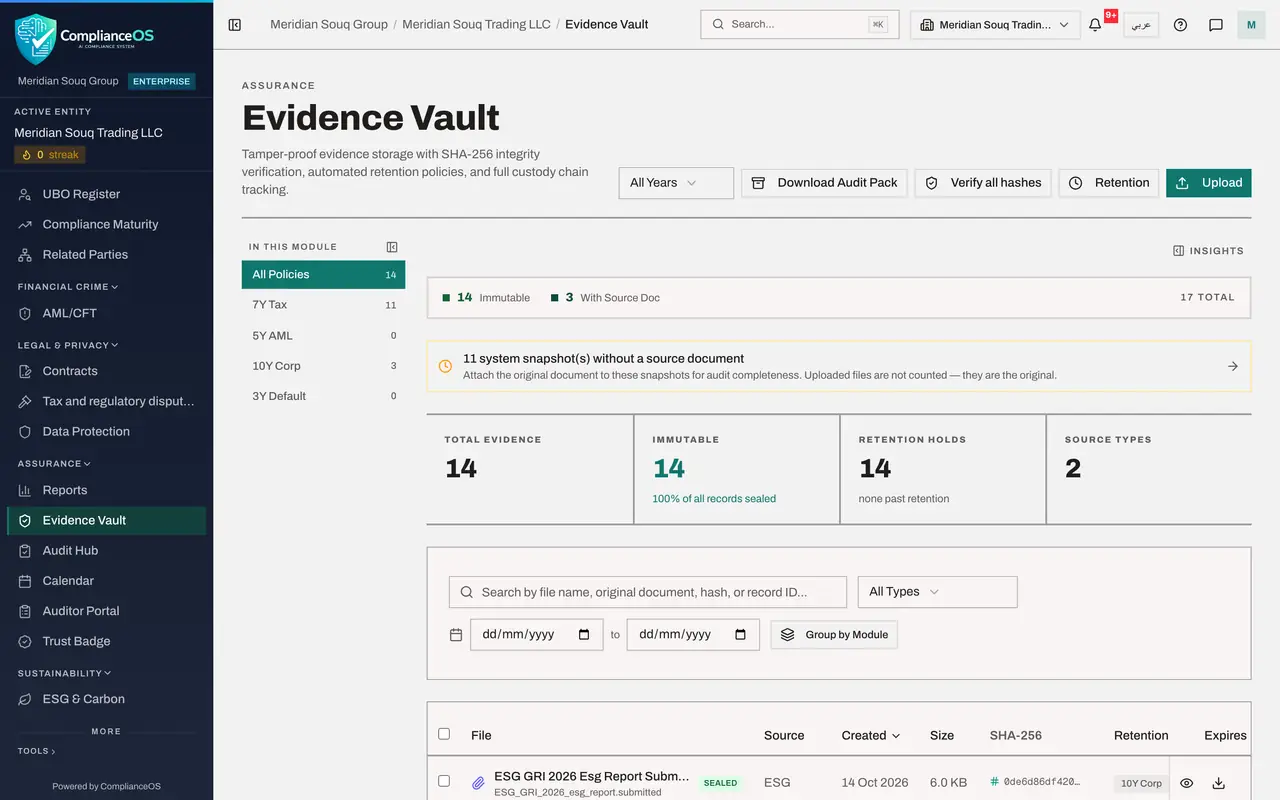
Choose Evidence Vault, under Assurance. The vault keeps sealed copies, each with a fingerprint, so nothing can be changed unnoticed. Its Source column shows where each came from. Besides the employee records from Workforce, ESG has sealed the evidence file attached to the GRI energy task and the approved and submitted report.
- Select Evidence Vault
- 7
Notifications
Select the bell at the top of the screen, then View all notifications. The list for this entity includes the ESG events: a bill that was read, Scope 3 categories estimated, figures imported from other modules, a report generated, and a notice each time the second person verified or approved one of your records, with their comment.
- Select 28 unread notifications
- Select View all notifications
- 8
Approvals: follow your own requests
Scroll the left menu to the top, choose Approvals, then select My requests. Every ESG record of yours that went to a second person is listed: the report, the materiality assessment and each emission record, with the rule that applied, who approved, when, and their comment. Open record takes you back to it. The approver saw the same items under To decide in their own inbox.
- Select Approvals
- Select My requests
- 9
Audit log: who did what
Choose Audit log near the top of the left menu. Open Resource Type and choose ESG. Every ESG action is listed with its time and the person: metrics created, records verified, the report approved. Details on a line shows what changed.
- Select Audit log
- Select Resource Type
- Choose ESG
- 10
Risk Register: no automatic link
Choose Risk Register, under Risk and Governance. The ESG risk score in Insights does not create risks here. If an ESG issue, such as a late climate disclosure, should be tracked as a risk, add it with Add Risk.
- Select Risk Register
- 11
Audit Hub: where an audit of ESG data starts
Choose Audit Hub, under Assurance, and select New Audit. An internal or external audit of the ESG data is set up here: you name the audit, choose its type, department and period, add the policies it tests against, and the hub sends evidence requests to the people responsible. Open Department to see the choices, then leave without saving. The Audit Hub course covers the rest.
- Select Audit Hub
- Select New Audit
- Select Department
- 12
Group Compliance: ESG is kept entity by entity
Press Escape, then choose Group Compliance near the top of the left menu. The group view scores each entity on a set of modules, and ESG and Carbon is not one of them. There is no group-wide ESG total: each entity has its own ESG and Carbon, with its own configuration, records and reports. The organisation's home page, under Entities, says the same in its ESG overview box and links to each entity's ESG and Carbon.
- Select Group Compliance
How to check it worked
You can say where the Total Employees figure comes from, where ESG deadlines appear, where the evidence for a GRI requirement is kept, and where to look to see who changed an ESG record.
Common mistakes
- Forgetting that the inbox holds decisions, not documents. The approver should open each record and read it, not approve from the card alone.
- Assuming a high ESG risk score creates a risk in the Risk Register. It does not; add the risk by hand if it should be tracked there.
- Looking for one ESG total for the whole group. ESG and Carbon is kept entity by entity; switch entity to see each one.
Check your understanding
1. Which module do the Total Employees and Emirati Employees figures in ESG come from?
- A.Accounting
- B.Workforce
- C.Data Protection
- D.They are typed by hand
Show answer
Answer: B. Workforce
They are counted from the active employee records in Workforce when the Social section is first opened for the year.
2. Where can you see who entered or changed an ESG record, and when?
- A.The Evidence Vault
- B.The Audit log
- C.The Calendar
- D.Rating Agencies
Show answer
Answer: B. The Audit log
Every create, edit, verification and approval in ESG is written to the Audit log with the person and the time.