Lesson 22 of 28
Approve the report and record that it was issued
What you will be able to do
This lesson is for the second person: someone who holds the right to approve ESG records and did not prepare the report. You will review the draft, approve it, download the final PDF, and mark the report as submitted once it has been issued.
Before you start
- A colleague has generated, edited and sent the report for approval (lesson Generate and edit the disclosure report). Its status is In review.
- You did not generate the report or edit any of its sections. Whoever did is refused when they try to approve it.
- Marking as submitted is a record only. ComplianceOS sends nothing to any regulator, exchange or portal.
Steps
- 1
Open the Approvals inbox
Choose Approvals near the top of the left menu. Under To decide, the GRI Standards report for 2026 is waiting for you: the preparer sent it for approval. Open the report itself and read it before you decide.
- Select Approvals1
- 2
Open Reports and select View on the report
Choose ESG and Carbon in the left menu and select Reports. Find the report with the status In review and select View to open it. As an administrator you also see a bin icon on the line, which deletes a report; leave it alone.
- Select ESG & Carbon
- Select Reports1 (1)
- Select View
- 3
Check the totals
The report's header gives the framework, status, year and generation date, then the totals for each scope in kilograms. Compare them with the Carbon footprint figures you know from the Insights panel: 1,000 kilograms is one tonne.
- 4
Read every section
Scroll through the sections. Those labelled Edited or AI draft, reviewed were worked on by a person; AI-generated ones have not been touched since the draft was written, so read those with most care. If something is wrong, ask the preparer to correct it before you approve.
- 5
Select Approve and add a comment
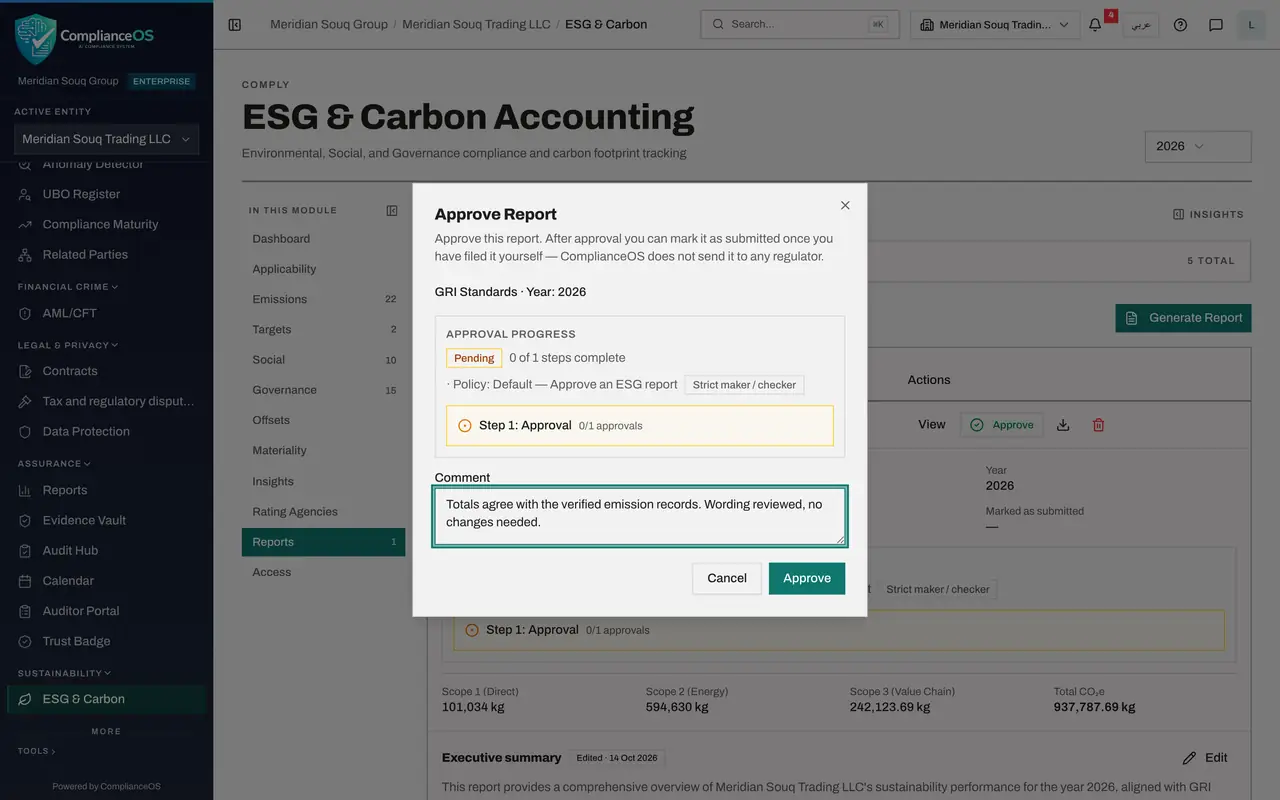
Scroll back to the report's line and select Approve. The box names the report and reminds you that ComplianceOS does not send it to any regulator. In Comment say what you reviewed.
- Select Approve
- Type Comment:
Totals agree with the verified emission records. Wording reviewed, no…
- 6
Select Approve to sign off
Select Approve in the box. The status changes to Approved, the Edit buttons disappear from the sections, and a new button, Mark as submitted, appears on the line.
- Select Approve
- 7
Download the approved report
Select the download icon to save the approved report as a PDF. This is the file you publish or send to whoever needs it. ComplianceOS does not send it for you.
- Select Download
- 8
Select Mark as submitted and read the warning
Meridian Souq has now published the report on its website. Select Mark as submitted. A box explains what this does: it records the date so the report shows as submitted. The amber warning says two things. ComplianceOS does not send this report to anyone. And this cannot be undone.
- Select Mark as submitted
- 9
Confirm that you have filed it
Select the button I have filed it, mark as submitted. The status changes to Submitted. The report can no longer be edited, approved again or returned to draft.
- Select I have filed it — mark as submitted
- 10
Check the details and the Readiness panel
In the report's details, Approved By shows your name with the approval date, and Marked as submitted shows today's date. Select Insights at the top right: under Readiness, Reports marked as submitted now counts one.
- Select Show insights panel
How to check it worked
The report shows the status Submitted, and its details show your name under Approved By with the date, and a date under Marked as submitted.
Common mistakes
- Thinking Mark as submitted sends the report somewhere. It only records in ComplianceOS that you issued the report yourself.
- Marking as submitted before the report has really been issued. It cannot be undone: a submitted report can no longer be edited, approved again or returned to draft.
- Approving after only reading the summary. Open the report with View and read every section; after approval the sections can no longer be edited.
Check your understanding
1. What does Mark as submitted do?
- A.Emails the report to the regulator
- B.Uploads it to a government portal
- C.Records the date in ComplianceOS and locks the report; nothing is sent
- D.Deletes the draft
Show answer
Answer: C. Records the date in ComplianceOS and locks the report; nothing is sent
You file or publish the report yourself, using the downloaded PDF. The button records that you did.
2. When does Mark as submitted appear on a report's line?
- A.As soon as the report is generated
- B.Only after the report has been approved
- C.Only for auditors
- D.After the PDF is downloaded
Show answer
Answer: B. Only after the report has been approved
A report must be approved by a second person before it can be marked as submitted.