Lesson 6 of 28
Record the ratings and complete the assessment
What you will be able to do
This lesson is for the person who runs the materiality assessment. You will record what two stakeholder groups and management said about each topic, read the matrix that results, set one score by hand with a reason, and mark the assessment complete so that a second person can approve it.
Before you start
- The year's materiality assessment is started and set up (lesson Start the materiality assessment).
- You have the survey results: an average rating from 1 to 5 for each topic from each group, and management's financial ratings.
Steps
- 1
Open Materiality and find Survey input
In ESG and Carbon select Materiality and scroll down to Survey input. This is where you record what each group said. The line under the title gives the scale: 1 is negligible and 5 is critical.
- Select Materiality
- 2
Choose the survey type and the group
Leave Survey on Impact (stakeholders). Open Group and choose Customers. In Respondent name who answered, and in Comment add anything a reviewer should know, such as the number of replies.
- Select Group
- Choose Customers
- Type Respondent:
Customer panel - Type Comment:
Online survey, 214 replies, average rating for each topic
- 3
Rate every topic for impact
Against each topic choose a rating from 1 to 5: how severe its effect on people and the environment is, in this group's view. The first three are shown slowly; carry on down the list until every topic has a rating.
- Select —
- Choose 4
- Select —
- Choose 4
- Select —
- Choose 3
- Select —
- Choose 2
- Select —
- Choose 5
- Select —
- Choose 4
- Select —
- Choose 4
- Select —
- Choose 3
- Select —
- Choose 3
- Select —
- Choose 4
- Select —
- Choose 3
- Select —
- Choose 5
- Select —
- Choose 3
- Select —
- Choose 2
- Choose 3
- Select —
- Choose 2
- Select —
- Choose 5
- 4
Save the response
The button counts the topics you rated. Select Save response. The response is listed underneath with the group, the respondent and every rating, and the Impact column in Topics now has a score for each topic.
- Select Save response (16 topics)
- 5
Record a second group
Do the same for the employee survey: choose the group Employees, name the respondent, rate every topic and select Save response. With two groups in, each impact score is the weighted average of the two, and customers count double.
- Select Group
- Choose Employees
- Type Respondent:
Employee survey - Type Comment:
Staff survey, 301 replies - Select —
- Choose 3
- Select —
- Choose 3
- Select —
- Choose 3
- Select —
- Choose 2
- Select —
- Choose 4
- Select —
- Choose 5
- Select —
- Choose 5
- Select —
- Choose 5
- Select —
- Choose 4
- Select —
- Choose 3
- Select —
- Choose 3
- Select —
- Choose 4
- Select —
- Choose 4
- Select —
- Choose 3
- Select —
- Choose 3
- Select —
- Choose 4
- Select Save response (16 topics)
- 6
Switch to the financial survey
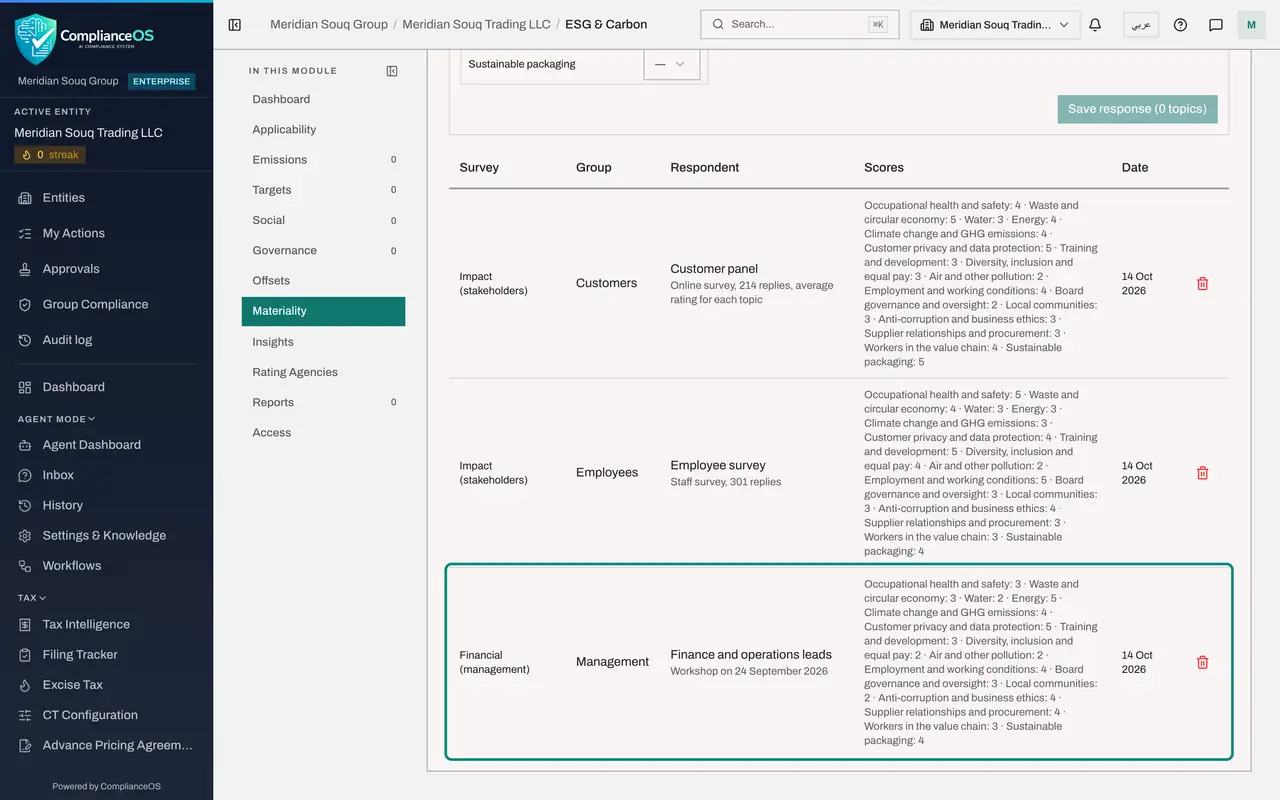
Now record management's view. Open Survey and choose Financial (management). The Group box is no longer needed, because the response is recorded as Management. Name the Respondent.
- Select Survey
- Choose Financial (management)
- Type Respondent:
Finance and operations leads - Type Comment:
Workshop on 24 September 2026
- 7
Rate every topic for financial effect and save
Rate each topic for how much it could cost or earn the company and how likely that is, then select Save response. The response is listed with the group shown as Management.
- Select —
- Choose 4
- Select —
- Choose 5
- Select —
- Choose 2
- Select —
- Choose 2
- Select —
- Choose 3
- Select —
- Choose 3
- Select —
- Choose 4
- Select —
- Choose 3
- Select —
- Choose 2
- Select —
- Choose 2
- Choose 3
- Select —
- Choose 2
- Select —
- Choose 5
- Select —
- Choose 4
- Select —
- Choose 4
- Select —
- Choose 3
- Select —
- Choose 4
- Select Save response (16 topics)
- 8
Read the Materiality matrix
Scroll up to Materiality matrix. Each dot is a topic: the further right, the bigger the financial effect; the higher, the bigger the impact. The dotted lines are the thresholds. The line under the title says how many topics are material. Red dots are double material, orange are impact material, blue are financially material and grey are not material.
- 9
Read the scores in Topics
Scroll to Topics. Impact and Financial now show each topic's score with the number of responses behind it, and Result names the outcome: Double material, Impact material, Financially material or Not material.
- 10
Set one score by hand
The box under each score reads Use surveys. It lets you replace the survey average with a figure of your own. Management rated Customer privacy and data protection at 4, but the legal team points to the size of data protection fines, so under Financial open the box on that line and choose Override: 5. The word Unsaved appears until you save.
- Select Use surveys
- Choose Override: 5
- 11
Save the override
Scroll to the top of the Topics box and select Save. The Financial score on that line changes to 5 and is marked override, so any reviewer can see it was set by hand.
- Select Save
- 12
Select Mark complete
Scroll to the top of the assessment and select Mark complete. A confirmation says the scores are frozen and ready for approval, and the status changes to Completed. Topics, groups and survey answers can no longer be changed.
- Select Mark complete
- 13
Select Approve to see the second person rule
Two buttons replace Mark complete. Reopen unfreezes the assessment if you find a mistake. Select Approve. The box shows the approval progress, one step waiting, and the rule in force, strict maker and checker. At the bottom it says you prepared this, so someone else has to approve it, and that it is waiting in their Approvals inbox. The Approve button in the box is greyed out.
- Select Approve
- 14
Select Cancel and hand over
Select Cancel to close the box. The status stays Completed. The assessment is already in the approver's inbox; tell them it is ready. The next lesson is that person's.
- Select Cancel
How to check it worked
The assessment shows the status Completed, the Materiality matrix plots every topic, and opening Approve yourself shows that a second person must approve it and that it is waiting in their inbox.
Common mistakes
- Entering financial ratings as an impact survey. Impact is what stakeholders say about the effect on people and the planet; Financial is management's view of the effect on the company. Check the Survey box before you rate.
- Using an override to get the answer you wanted. An override replaces the survey average and is marked on screen; use it only with a reason you can defend, and write that reason in Methodology.
- Expecting to approve your own assessment. The person who prepared it cannot sign it off; a colleague with the right to approve ESG records must do it.
Check your understanding
1. A topic scores 4.2 for impact and 2.0 for financial, with both thresholds at 3.5. What is its result?
- A.Not material
- B.Impact material
- C.Financially material
- D.Double material
Show answer
Answer: B. Impact material
It passes the impact threshold only, so it is Impact material. A topic needs to pass just one threshold to become a reporting priority.
2. After you select Mark complete, what can still change?
- A.Nothing, unless someone selects Reopen
- B.Scores keep updating as new survey answers arrive
- C.Anyone can edit the topics
- D.The assessment is deleted after thirty days
Show answer
Answer: A. Nothing, unless someone selects Reopen
Mark complete freezes the scores so the approver signs off exactly what you prepared. Reopen unfreezes it.