Lesson 17 of 28
Record the social figures
What you will be able to do
This lesson is for the person who gathers the people figures for the sustainability report. You will read the figures that arrive from Workforce, type the ones that only you can supply, add a figure of your own with a link to its evidence, correct a figure, and archive and restore one.
Before you start
- You are signed in with the Compliance officer role for the entity.
- The HR team has registered the employees in Workforce (lesson Where the workforce figures come from).
- You have the year's HR figures: staff turnover, training hours, injury rates, community spending and the pay ratio. The figures here are invented.
Steps
- 1
Open Social
In ESG and Carbon select Social. The first box, Auto-Synced from Workforce Module, holds figures counted from the employee records. When the section opens, ComplianceOS syncs them from Workforce; while it does, the button at the top right reads Loading. You do not type these figures.
- Select Social0 (0)
- 2
Read the synced figures and select Import from Modules
The figures have arrived: Total Employees 12, Emirati Employees 3, and an Emiratization Ratio of 25 percent, which is the share of UAE nationals. The line under each says where it came from: synced from the module, refreshed on each sync. WPS Compliance Rate, the share of salaries paid on time through the Wage Protection System, says Not synced yet, because no salary payments are recorded in Workforce. Female Employees and Gender Diversity say they are not available from Workforce, which holds no gender; enter them by hand if you have them. Select Import from Modules to sync again at any time; a figure someone has edited by hand is left as it is.
- Select Import from Modules
- 3
Enter the staff turnover rate
Under Manual Entry Required, click the box beside Employee Turnover Rate, type 18.4 and press the Tab key to leave the box. The figure is saved at once for the whole reporting year, and a green tick replaces the grey cross at the end of the line.
- Type Employee Turnover Rate (%):
18.4
- Type Employee Turnover Rate (%):
- 4
Enter training hours and the two injury rates
Do the same for Training Hours per Employee, 14.5 hours a year. Lost Time Injury Rate, or LTIR, is the injuries that kept someone off work for every 200,000 hours worked: type 0.42. Total Recordable Injury Rate, or TRIR, counts every injury that needed more than first aid: type 1.1.
- Type Training Hours per Employee (hours/year):
14.5 - Type Lost Time Injury Rate (LTIR) (per 200k hrs):
0.42 - Type Total Recordable Injury Rate (TRIR) (per 200k hrs):
1.1
- Type Training Hours per Employee (hours/year):
- 5
Enter community investment and the pay ratio
Community Investment is the money given to community causes in the year, in dirhams: type 185000. Minimum Wage Ratio compares the lowest wage the company pays with the local benchmark: type 1.35. Leave Fatalities empty for now; a box left empty keeps its grey cross and counts as not reported.
- Type Community Investment (AED):
185000 - Type Minimum Wage Ratio (ratio):
1.35
- Type Community Investment (AED):
- 6
Select Add Social Metric
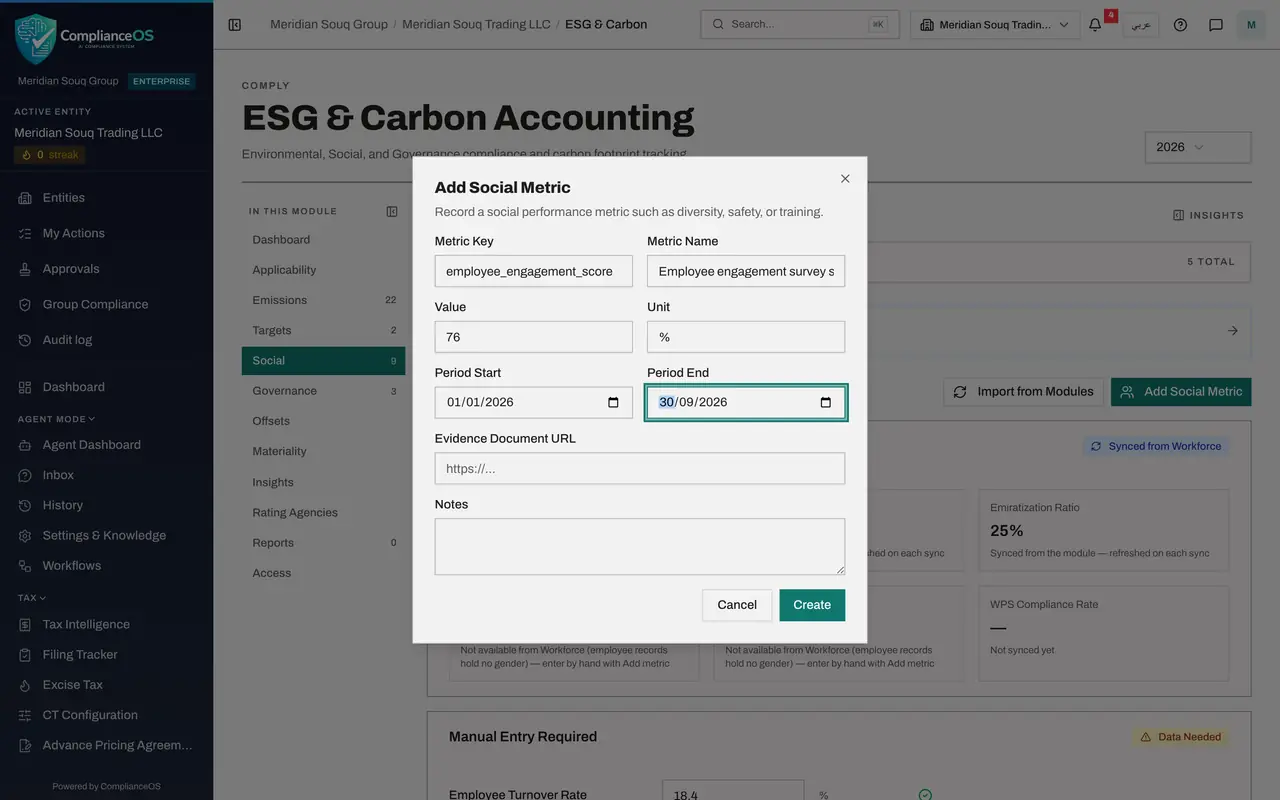
For a figure that is not in the list, select Add Social Metric at the top. Metric Key is a short code without spaces that stays the same every year. Metric Name is what people read.
- Select Add Social Metric
- Type Metric Key:
employee_engagement_score - Type Metric Name:
Employee engagement survey score
- 7
Enter the value, the unit and the period
Type the Value, 76, and its Unit, the percent sign. Period Start and Period End say what time the figure covers; this survey ran once and covers January to September.
- Type Value:
76 - Type Unit:
% - Type Period Start:
2026-01-01 - Type Period End:
2026-09-30
- Type Value:
- 8
Paste the evidence link and add a note
In Evidence Document URL paste the web address of the document that proves the figure, here the survey results on the intranet. Only the link is stored; the document stays where it is. Notes is for anything a reviewer should know.
- Type Evidence Document URL:
https://intranet.example.com/hr/engagement-survey-2026.pdf - Type Notes:
Annual engagement survey, 301 replies.
- Type Evidence Document URL:
- 9
Select Create and find the metric in the list
Select Create. The metric joins All Social Metrics at the bottom of the page with its value, unit and period, and an Evidence link under its name. The Notes column says where each figure came from: synced from the module, or entered by hand and not overwritten by the sync.
- Select Create
- 10
Correct a figure with the pencil
To change a saved figure, select the pencil at the end of its line. Edit metric shows the Name, the Numeric value, the Unit, a Text value for figures that are words, and the period. Change Numeric value from 76 to 77.
- Select Edit
- Type Numeric value:
77
- 11
Select Save
Select Save. The line shows 77. The note in the box told you what happens behind the scenes: every change is recorded in the audit log with the old and the new value.
- Select Save
- 12
Archive a figure with a reason
Suppose the pay ratio was worked out against the wrong benchmark. Select Archive at the end of the Minimum Wage Ratio line. The box says whether any reviewed report uses the figure. Type a Reason of at least three letters and select Archive. The Compliance officer can archive but not delete permanently.
- Select Archive
- Type Reason:
Calculated against the wrong benchmark; to be redone. - Select Archive
- 13
Find it under Archived metrics
The figure has left the list and the quick-entry box is empty again. Scroll to the bottom: a new box, Archived metrics, lists it with your reason and the date. Nothing is lost.
- 14
Select Restore
The benchmark turned out to be right after all. Select Restore on the archived line. The figure returns to All Social Metrics and to its quick-entry box, exactly as it was.
- Select Restore
How to check it worked
Social shows the synced headcount figures, a green tick beside each figure you typed, and your own metric in All Social Metrics with an Evidence link.
Common mistakes
- Typing a figure and clicking elsewhere on the same box. A quick-entry box saves when you leave it; press Tab and wait for the confirmation Metric saved.
- Changing the Metric Key from year to year. The key is how ComplianceOS matches this year's figure to last year's; keep it the same and change only the value.
- Typing over a synced figure to correct it. A figure edited by hand is kept and no longer follows Workforce. Correct the employee records in Workforce instead, then select Import from Modules.
Check your understanding
1. What is the Lost Time Injury Rate?
- A.The number of injuries that kept someone off work, for every 200,000 hours worked
- B.The number of sick days per employee
- C.The cost of injuries in dirhams
- D.The share of employees trained in first aid
Show answer
Answer: A. The number of injuries that kept someone off work, for every 200,000 hours worked
Two hundred thousand hours is roughly one year of work for a hundred people, so the rate reads as injuries for each hundred employees a year.
2. You entered a metric against the wrong year. You are a Compliance officer. What can you do?
- A.Delete it permanently
- B.Archive it with a reason; it can be restored later
- C.Nothing
- D.Ask the regulator
Show answer
Answer: B. Archive it with a reason; it can be restored later
Archiving keeps the record and takes it out of the figures. Deleting permanently needs the delete right, which the Compliance officer does not hold.