Lesson 18 of 29
Review the return before filing: the preparer's part
What you will be able to do
This lesson is for the tax manager, who prepared the return. After it has been submitted on the tax authority's portal, you open the full Corporate Tax Return page, check it once more, and see that Submit and Lock refuses the preparer: filing must be approved by a second person, which the next lesson shows.
Before you start
- You are signed in with the Tax manager role for Meridian Souq Trading LLC.
- You computed the 2025 return in lesson 17, and it has been submitted on EmaraTax, the Federal Tax Authority's portal. You have the acknowledgement as a PDF and its reference number.
- The organisation's approval policy for filing a return is the standard one: one approver, who must not be the person who prepared the return.
Steps
- 1
Open the CT Return tab and select Open CT return to review and file
In Tax Intelligence select Returns, then the CT Return tab. Fiscal Year shows 2025. Select Open CT return to review and file. The full Corporate Tax Return page opens and shows the saved computation for the year at once.
- Select Returns
- Select CT Return
- Select Open CT return to review & file
- 2
Read the notes at the top
The blue note reminds you that the figures are a draft computation and gives the rate: 9 percent on taxable income above 375,000 dirhams. The grey note says the corporate tax registration deadline cannot be shown until the entity's incorporation date, or its trade licence issue month, is entered; its link opens the entity's Edit page. It is a notice, not an error. The third note says the page is showing the computation saved for the year; Recompute Now refreshes the figures and the working notes.
- 3
Check the summary card
The card reads CT Return Draft, FY 2025, with tax of 942,750 dirhams, the period, the due date of 30 September 2026 and the status Draft. Check the amount against the return that was submitted on the portal. Beside the status are Submit and Lock and a PDF button.
- 4
Read the calculation, the credit and the election banner
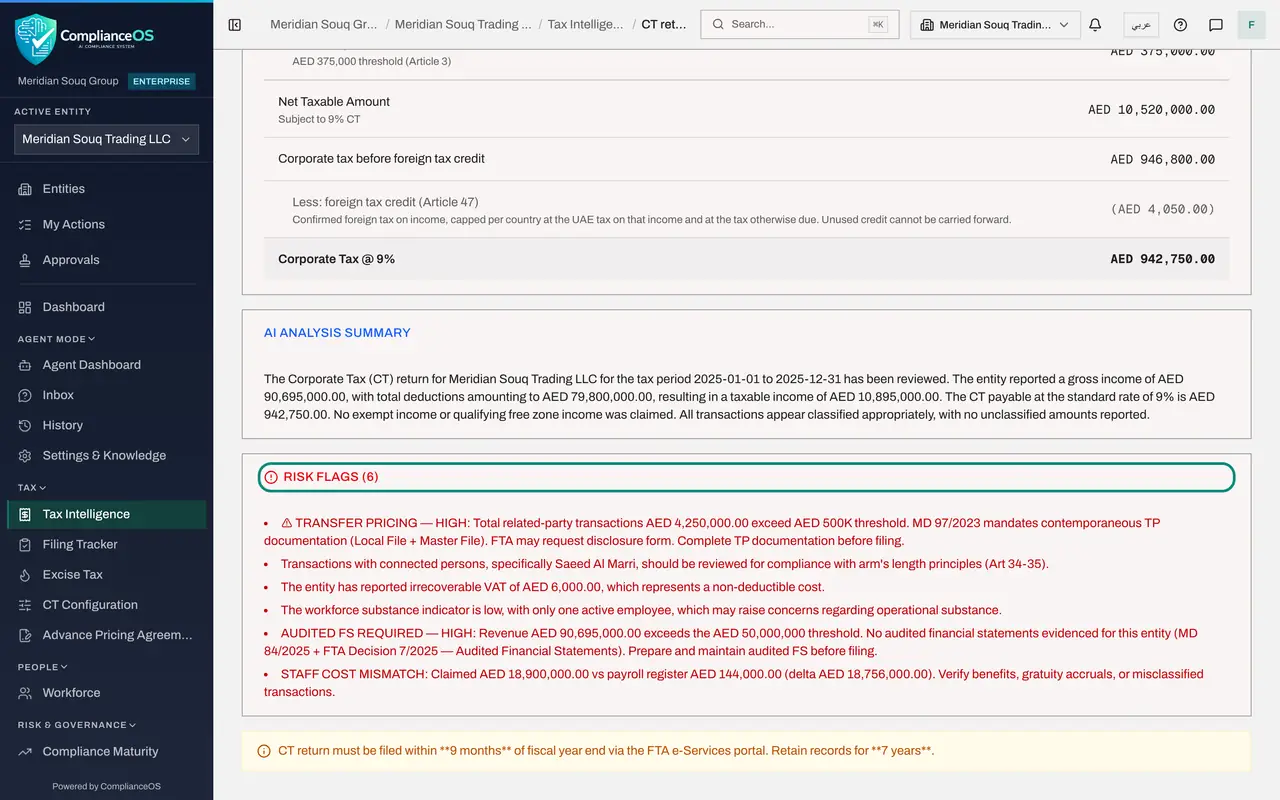
Below the card, a banner shows how unrealised gains are treated: on the accrual basis. Elect Realisation Basis changes that for five tax periods and cannot be undone, so leave it unless the business has decided. The table then repeats the return line by line: net taxable amount 10,520,000, corporate tax before foreign tax credit 946,800, less the foreign tax credit of 4,050 on its own line, and corporate tax of 942,750.
- 5
Read the AI summary and the risk flags
Further down, AI Analysis Summary describes the return in a paragraph, and Risk Flags lists six points to settle before sign-off, among them the transfer-pricing documents, the connected person, the audited financial statements and the staff cost compared with payroll. Settle each one, or record why it does not apply, before you sign.
- 6
Select Submit and Lock
Scroll back up and select Submit and Lock. The window explains what will happen: the return is recorded as filed, the documents you attach go to the Evidence Vault for seven years, and the year's treatment is frozen. It also says filing is a sign-off under your organisation's approval policy.
- Select Submit & Lock
- 7
Attach the acknowledgement and type the reference
Under Supporting documents, which is required, choose the acknowledgement you downloaded from the portal. A line confirms one file attached. In FTA filing reference, type the acknowledgement number.
- Upload Supporting documents *:
ct-return-2025-acknowledgement.pdf - Type FTA filing reference (optional):
CT-2025-ACK-55120
- Upload Supporting documents *:
- 8
Add a comment and select Confirm, File and Lock
Type a comment and select Confirm, File and Lock. The window refuses with a red message: you created or edited this record, so someone else has to approve it. Pressing Compute Return made you the preparer of this return, and the organisation's policy does not let the preparer file it.
- Type Comment:
Figures agree with the return submitted on EmaraTax on 12 October 2026… - Select Confirm, File & Lock
- Type Comment:
- 9
Select Cancel and hand over
Select Cancel. Nothing is filed and the return stays Draft. Tell the compliance officer that the return is ready, and give them the acknowledgement file and its reference: they will attach it when they sign off and file.
- Select Cancel
How to check it worked
You have checked the figures, the credit and the risk flags on the return page, and the Submit and Lock window told you that someone else has to approve; the return is still Draft.
Common mistakes
- Locking before the return has really been submitted on the portal. Once approved, locking freezes the year's tax treatment; after that a correction needs a voluntary disclosure.
- Leaving Supporting documents empty. Confirm, File and Lock stays greyed out until at least one file, normally the portal's acknowledgement, is attached.
- Asking the approver to press Compute Return or Recompute Now before signing when the figures have changed. A recompute that changes the return makes that person a preparer too, and then nobody independent is left to approve.
Check your understanding
1. You prepared the return and select Confirm, File and Lock. What happens?
- A.The return is filed immediately
- B.The window refuses: you created or edited this record, so someone else has to approve it
- C.The return is deleted
- D.Nothing at all
Show answer
Answer: B. The window refuses: you created or edited this record, so someone else has to approve it
The filing policy keeps maker and checker apart. The compliance officer, who did not prepare the return, files it.
2. After a year is locked, how is a mistake in it corrected?
- A.Edit the transaction and compute again
- B.Unlock the year
- C.Through a voluntary disclosure
- D.It cannot be corrected
Show answer
Answer: C. Through a voluntary disclosure
The window says so: after locking, the filed figures can only be corrected through a voluntary disclosure, Form 211.