Lesson 2 of 29
Set up counterparties and their zones in CT Configuration
What you will be able to do
This lesson is for the tax manager. You will build the list of suppliers and customers that the corporate tax calculation reads, and tell the system where each one is based: on the mainland, in a free zone, or abroad.
Before you start
- You are signed in with the Tax manager role for Meridian Souq Trading LLC.
- The year's transactions are imported (lesson 1). They are not classified yet.
- You know, for each main supplier and customer, its country and, for businesses in the United Arab Emirates, whether it is on the mainland or in a free zone.
Steps
- 1
Open CT Configuration
In the left menu, under Tax, choose CT Configuration. CT is short for corporate tax. This screen holds the background facts the calculation reads. The four tiles count the counterparties, the employees, the free zone licence and the counterparties with no zone. The list on the left has four sections; it opens on Vendors and Counterparties.
- 2
Select Seed from transactions
The directory is empty. Select Seed from transactions. The system reads the imported transactions and adds every supplier and customer named on them. A message says how many were added.
- Select Seed from transactions
- 3
Read the seeded list
Eleven counterparties are listed. Each row has a Zone type list, the Country, a VAT override list, the tax registration number, or TRN, and the Source, which says where the entry came from. A row with no zone is shaded and its Zone type reads set zone, because a transaction does not say where a business is based. The tiles at the top show that ten of the eleven are missing a zone.
- 4
Select Template to get the file layout
Zones can be set for many counterparties at once from a file. Select Template. A file called counterparties template is downloaded. Its columns are the name, TRN, country, zone type, jurisdiction, company type, address and two optional defaults. Only the name is required. In zone type use one of four words: MAINLAND, FREE_ZONE, DESIGNATED_ZONE or INTERNATIONAL. A designated zone is a free zone the tax authority treats as outside the country for VAT on goods. International means a business outside the United Arab Emirates.
- Select Template
- 5
Select Bulk Upload CSV and choose your file
Select Bulk Upload CSV and choose the file you filled in. Here the file has twelve lines: ten give a zone to counterparties already in the list, and two are new, Harbourline Imports Ltd in the United Kingdom and Al Noor Packaging Supplies, whose zone was left blank. A message confirms how many were created and how many were updated.
- Upload Choose a file:
meridian-counterparties.csv
- Upload Choose a file:
- 6
Search for a counterparty
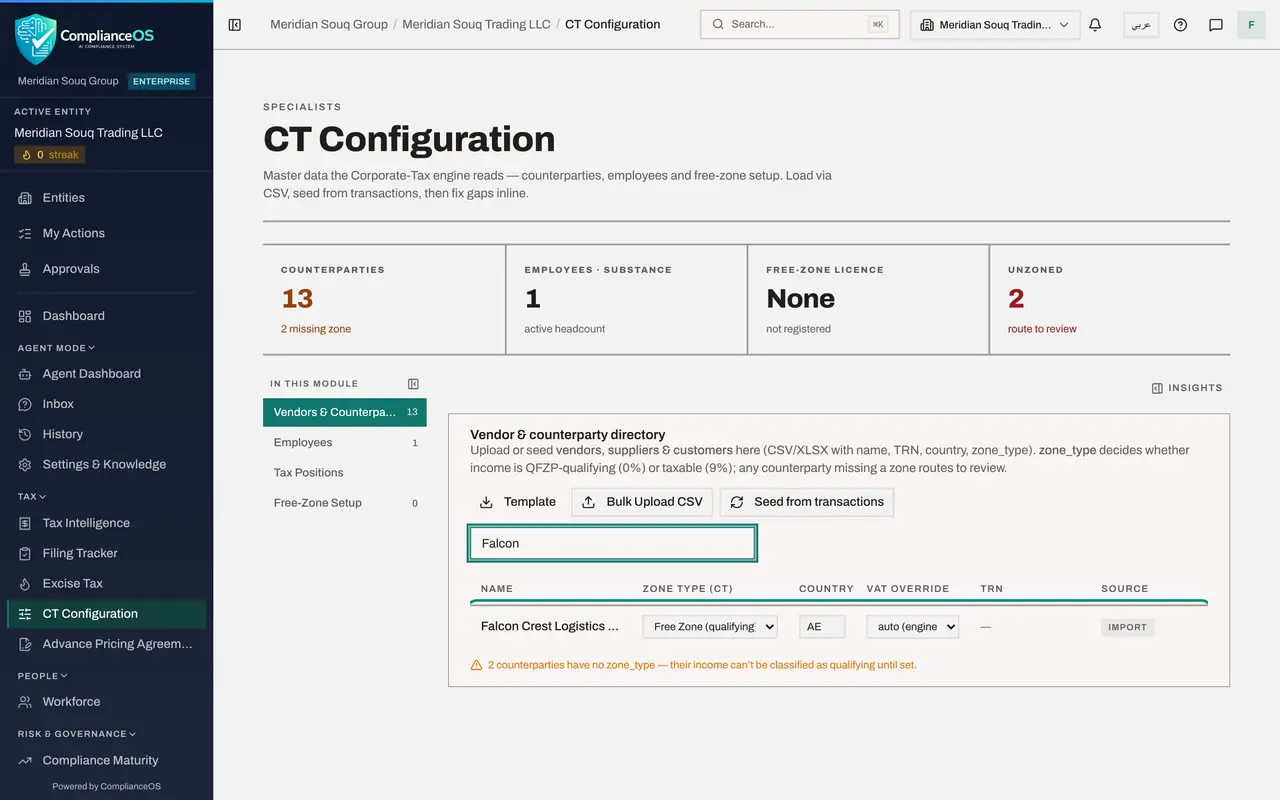
Type part of a name in Search counterparties to find one in a long list. Type Falcon. Falcon Crest Logistics now shows Free Zone, qualifying, and the country AE, taken from the file.
- Type Search counterparties…:
Falcon
- Type Search counterparties…:
- 7
Find the counterparties that still have no zone
Clear the search. Two rows are still shaded: Al Noor Packaging Supplies, which had a blank zone in the file, and Saeed Al Marri, the managing director, who was seeded from a transaction and was not in the file. The Unzoned tile at the top counts them, and the note under the table says their income cannot be treated as qualifying until the zone is set.
- 8
Choose the zone in the row
In the row for Al Noor Packaging Supplies, open the Zone type list and choose Mainland, taxable 9 percent. The change is saved straight away and the message Counterparty updated appears. There is no Save button.
- Choose Zone type for Al Noor Packaging Supplies:
Mainland (taxable 9%)
- Choose Zone type for Al Noor Packaging Supplies:
- 9
Set the zone for the director
Do the same for Saeed Al Marri: choose Mainland, taxable 9 percent. A person paid by the company is listed here like any other counterparty. Lesson 5 records him as a connected person as well.
- Choose Zone type for Saeed Al Marri:
Mainland (taxable 9%)
- Choose Zone type for Saeed Al Marri:
- 10
Know what VAT override is for
The VAT override list in each row normally reads auto, which lets the system decide the VAT treatment of each transaction. Choose Standard 5 percent, Zero-rated, Exempt or Out of scope only when every transaction with that counterparty must be treated one way. Leave it on auto here.
- 11
Read the totals at the top
Scroll back to the top. Counterparties reads thirteen, all zoned, and Unzoned reads zero. When colleagues import more transactions, select Seed from transactions again and set the zone of any new names.
How to check it worked
The Vendor and counterparty directory lists thirteen counterparties, each with a zone type, and the Unzoned figure at the top reads zero.
Common mistakes
- Typing a zone in your own words in the file, such as Jebel Ali. The zone_type column accepts only MAINLAND, FREE_ZONE, DESIGNATED_ZONE or INTERNATIONAL. Put the free zone's name in the address column.
- Leaving a counterparty with no zone. Its transactions are sent for review instead of being treated automatically.
- Spelling a name differently in the upload file from the name on the transactions. The upload updates a counterparty only when the name matches exactly; a different spelling creates a second entry.
Check your understanding
1. Which values can you put in the zone_type column of the upload file?
- A.Any free zone name, such as JAFZA
- B.MAINLAND, FREE_ZONE, DESIGNATED_ZONE or INTERNATIONAL
- C.Yes or No
- D.The name of the emirate
Show answer
Answer: B. MAINLAND, FREE_ZONE, DESIGNATED_ZONE or INTERNATIONAL
The system accepts only those four values. Anything else is rejected and the counterparty is loaded with no zone.
2. What does Seed from transactions do?
- A.It classifies the transactions
- B.It deletes counterparties that have no transactions
- C.It adds every supplier and customer named on the imported transactions to the directory, with no zone
- D.It downloads the transactions as a file
Show answer
Answer: C. It adds every supplier and customer named on the imported transactions to the directory, with no zone
Seeding copies the names from the transactions so nobody has to type them. The zone still has to be set, by file or in the row.