Lesson 27 of 29
Draft a transfer-pricing file with the AI agent and review the draft
What you will be able to do
This lesson is for the tax manager. You will ask the AI agent to draft transfer-pricing documentation from the entity's own records, find the finished draft and its versions, and read the draft with the issues the agent itself flagged, ready for the compliance officer to sign off.
Before you start
- You are signed in with the Tax manager role for Meridian Souq Trading LLC.
- The related-party sale is recorded and assessed under TP Records (lessons 8 and 9).
- A draft takes two to three minutes to write and continues in the background. In this example a Local File draft was generated the same way before the lesson, so that a finished result can be shown.
Steps
- 1
Open Transfer Pricing and find TP Documentation, AI Agent
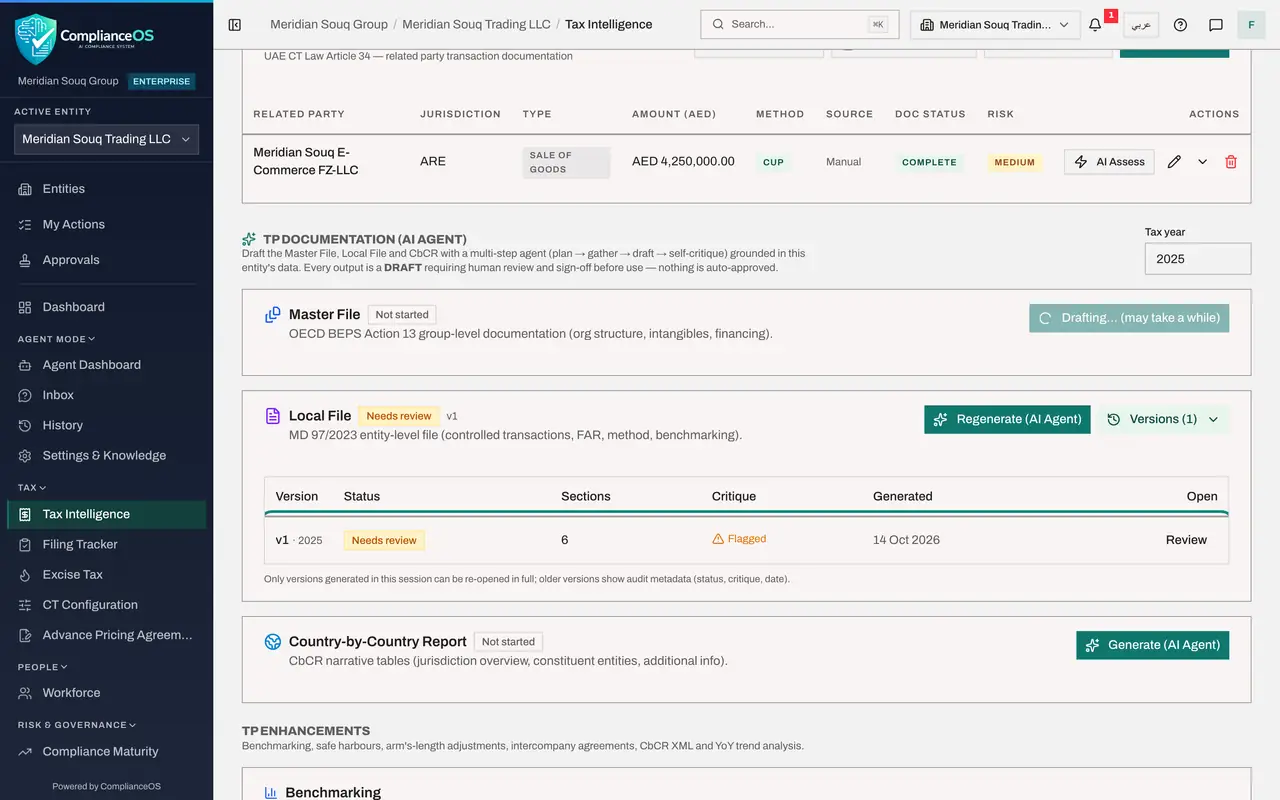
In Tax Intelligence select Analysis, then Transfer Pricing, and scroll to TP Documentation, AI Agent, under the list of records. Three documents can be drafted: the Master File for the whole group, the Local File for this entity, and the country-by-country report. The agent plans the document, gathers this entity's data, writes the draft and then criticises its own work.
- Select Analysis
- Select Transfer Pricing
- 2
Set the tax year
Tax year, at the top right of the section, opens on the current year. Type the year you want to document, here 2025, before you generate anything: a draft is written for the year shown in this box at that moment.
- Type Tax year:
2025
- Type Tax year:
- 3
Select Generate on the Master File
On the Master File card select Generate, AI Agent. A message says generation has started, and the button changes to Drafting, may take a while. The draft is written in the background and takes two to three minutes; you can go on working and come back.
- Select Generate (AI Agent)
- 4
Read the Local File card
A Local File draft for 2025 was generated the same way before the lesson and has finished. Its card shows Needs review and version 1. Regenerate writes a new version, and Versions lists every version written so far, with its tax year.
- 5
Select Versions
Select Versions on the Local File card. A table opens with one line for each version: its status, the number of sections, whether the agent's own critique flagged anything, the date it was generated and a Review button.
- Select Versions (1)
- 6
Select Review to open the draft
Select Review on version 1. AI Draft Review opens. A banner reminds you that this is a draft written by the AI agent and that nothing is final until a person signs it off. A second banner says the agent could not fully support some sections. Agent plan shows what the agent set out to write, here a local file for the fiscal year 2025. The draft describes the real group: the related-party sale to Meridian Souq E-Commerce, the CUP method and the revenue bracket.
- Select Review
- 7
Read a flagged section
Each section of the file follows, with its text and the sources it cites. A section marked Flagged ends with Issues flagged by the critique, in red: the points the agent's own check could not support from the entity's data. Here, for example, the critique notes that the draft quotes a 200 million dirham revenue threshold that the stated revenue bracket does not reach, and that no benchmarking range exists for 2025. Read each issue, correct the facts in the records or in the final document, and regenerate if the records changed.
- 8
Find Approve and sign off
At the bottom of the window, Approve and sign off is greyed out for the tax manager. Hold the pointer over it to read why: it requires an admin or compliance officer role. The person who prepares the draft is not the person who signs it off. The compliance officer opens the same window from Versions and Review, selects Approve and sign off and confirms.
- 9
Select Close
Select Close. Tell the compliance officer that the Local File draft is ready for review.
- Select Close
How to check it worked
The Master File card shows Drafting, the Local File card shows Needs review with version 1, and you have opened AI Draft Review and read at least one flagged section.
Common mistakes
- Generating for the wrong year. Tax year, at the top right of the section, opens on the current year; change it to the year you are documenting before you select Generate.
- Using the draft as it stands. The agent marks sections it could not support from the entity's data as Flagged; each of those needs a person to check and correct it.
- Looking for Approve as the tax manager. Approve and sign off is greyed out for this role; the compliance officer or an administrator signs the draft off.
Check your understanding
1. A section of the AI draft is marked Flagged. What does that tell you?
- A.The section is approved
- B.The agent's own check could not fully support that section from the entity's data, so a person must review it
- C.The section was deleted
- D.The section is confidential
Show answer
Answer: B. The agent's own check could not fully support that section from the entity's data, so a person must review it
After drafting, the agent criticises its own work and lists the issues it found under each flagged section.
2. Who can sign off an AI-drafted transfer-pricing document?
- A.The tax manager who generated it
- B.A compliance officer or an administrator
- C.Anyone
- D.Nobody
Show answer
Answer: B. A compliance officer or an administrator
For the tax manager the button is greyed out with the note that it requires an admin or compliance officer role. The sign-off is the second person's step.