Lesson 12 of 29
Track an advance pricing agreement from draft
What you will be able to do
This lesson is for the tax manager. You will open a record for an advance pricing agreement the group plans to seek, note what it will cover, record whether the entity is eligible to apply, see how the status is moved on, and delete a draft that was opened by mistake.
Before you start
- You are signed in with the Tax manager role for Meridian Souq Trading LLC.
- The group has decided to seek an agreement for the supply of goods to its online store company, and you know the pricing method and the years to be covered.
- Sending the application to the Federal Tax Authority, or FTA, happens outside ComplianceOS. You record the FTA's reference here afterwards.
Steps
- 1
Open Advance Pricing Agreements
In the left menu, under Tax, choose Advance Pricing Agreements. An advance pricing agreement, or APA, is an agreement made in advance with the tax authority on how prices between related companies will be set. The list on the left filters by stage: All, Active, In negotiation, Drafts and Closed. The table is empty.
- 2
Select New APA
Select New APA at the top right. The New Advance Pricing Agreement form opens. A new record always starts as a draft.
- Select New APA
- 3
Enter the counterparty and the type
In Counterparty Name, type the related company the agreement is about. APA Type says who the agreement is with. Unilateral is with the tax authority of the United Arab Emirates alone. Bilateral and Multilateral also involve the tax authorities of other countries. Both companies here are in the Emirates, so leave Unilateral.
- Type e.g. Group Holding B.V.:
Meridian Souq E-Commerce FZ-LLC
- Type e.g. Group Holding B.V.:
- 4
Enter the pricing method and the years covered
In Pricing Method, type the method the agreement would fix; use the same one as the transfer-pricing record, CUP. In Validity Start and Validity End, enter the first and last day the agreement would cover: 1 January 2027 to 31 December 2029.
- Type e.g. TNMM, CUP, Cost Plus:
CUP - Type Validity Start:
2027-01-01 - Type Validity End:
2029-12-31
- Type e.g. TNMM, CUP, Cost Plus:
- 5
Describe what the agreement covers
Leave FTA Reference empty until the authority gives you one. In Covered Transactions, describe the arrangement in a sentence or two. Notes is for anything else a colleague should know.
- Type Covered Transactions:
Wholesale supply of homeware from Meridian Souq Trading LLC to the gro…
- Type Covered Transactions:
- 6
Select Create APA
Select Create APA. The form closes, the message APA record created appears, and the agreement is listed with the type Unilateral, the status Draft and its validity dates. The tiles above the table count one application and one draft.
- Select Create APA
- 7
Select the row to open its detail
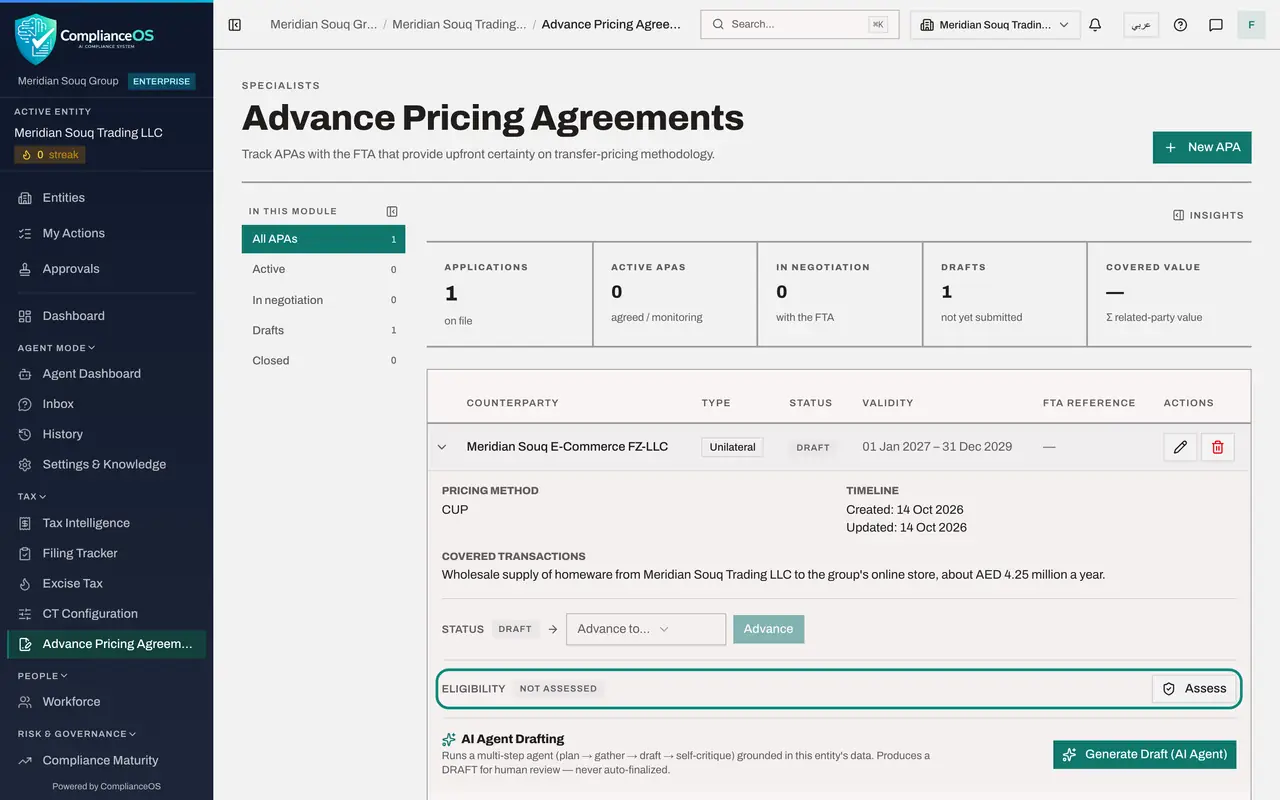
Select the row. The detail opens underneath with the pricing method, the dates it was created and updated, the covered transactions, the Status line and the Eligibility line. Eligibility reads Not assessed.
- 8
Select Assess and record the eligibility decision
Select Assess. This is your own judgement on the facts, not a calculation. In Eligibility Status choose your conclusion, here Eligible. In Assessment Notes give the reasons, so the judgement can be understood later. Then select Save Assessment.
- Select Assess
- Select Eligibility Status
- Choose Eligible
- Type Rationale for this eligibility judgement (facts and circumstances):
Recurring related-party sales; pricing policy documented; management a… - Select Save Assessment
- 9
Read the Eligibility line
Eligibility now shows Eligible with the date and your notes, and the button reads Update assessment so the judgement can be revised.
- 10
See how the status is moved on
On the Status line, open Advance to. It lists the next stages the record can move to from Draft. Choosing Submitted shows a box for the FTA reference, which is required, and the Advance button records the move. Leave this record at Draft until the application has really been sent: press Escape to close the list without choosing.
- Select Advance to…
- 11
Find AI Agent Drafting
At the bottom of the detail, AI Agent Drafting writes a first draft of the application from the entity's data, working in the background. Select Generate Draft, AI Agent. The button shows that drafting has started; the draft takes a few minutes and appears in the detail for you to review. Nothing is sent to the FTA.
- Select Generate Draft (AI Agent)
- 12
Create a second draft to practise deleting
Select New APA again, type Harbourline Imports Ltd as the counterparty and select Create APA. Suppose this draft was opened by mistake.
- Select New APA
- Type e.g. Group Holding B.V.:
Harbourline Imports Ltd - Select Create APA
- 13
Select the bin on the practice draft
Each row ends with a pencil, which opens the record for editing, and a bin. Select the bin on the Harbourline row. A window asks whether to delete the draft and warns that any AI drafts written for it are deleted too and that this cannot be undone.
- Select Delete
- 14
Select Delete to confirm
Select Delete. The message Draft APA deleted appears and only the agreement with Meridian Souq E-Commerce remains. Only a draft can be deleted; once a record has moved on, it is withdrawn or closed through its status instead.
- Select Delete
How to check it worked
One agreement with Meridian Souq E-Commerce FZ-LLC is listed with the status Draft, its detail shows Eligible with your notes, and the practice draft for Harbourline Imports Ltd is gone.
Common mistakes
- Moving the status to Submitted before the application has gone to the FTA. Submitted asks for the FTA reference, which you only have once the authority has received the application.
- Leaving Covered Transactions vague. Say what is supplied, between whom and for which years, so a colleague can match it to the transfer-pricing records.
- Expecting to delete an agreement after it has moved on from Draft. Only a draft can be deleted; a later one is withdrawn or closed through its status.
Check your understanding
1. What is an advance pricing agreement?
- A.A discount agreed with a supplier
- B.An agreement with the tax authority, made in advance, on how prices between related companies will be set
- C.A loan from the parent company
- D.A promise to file the return early
Show answer
Answer: B. An agreement with the tax authority, made in advance, on how prices between related companies will be set
For the years covered, the authority accepts the agreed pricing method for the transactions the agreement lists.
2. Which agreements can be deleted with the bin?
- A.Any agreement
- B.Only drafts
- C.Only expired agreements
- D.None
Show answer
Answer: B. Only drafts
The bin works on drafts and asks you to confirm first. For any other status the screen tells you to use the status workflow instead.