Lesson 28 of 29
Sign off an AI-drafted transfer-pricing file as the compliance officer
What you will be able to do
This lesson is for the compliance officer, the second person for transfer-pricing documents. The tax manager has had the AI agent draft the Local File; you open the draft, read what the agent flagged, and approve and sign it off.
Before you start
- You are signed in with the Compliance officer role for Meridian Souq Trading LLC.
- The tax manager has generated a Local File draft for 2025 with the AI agent (lesson 27) and told you it is ready.
- You have checked the flagged sections against the entity's records.
Steps
- 1
Open Transfer Pricing and set the tax year
In Tax Intelligence select Analysis, then Transfer Pricing, and scroll to TP Documentation, AI Agent. Type 2025 in Tax year. The Local File card shows Needs review and version 1.
- Select Analysis
- Select Transfer Pricing
- Type Tax year:
2025
- 2
Select Versions, then Review
On the Local File card select Versions, then Review on version 1. AI Draft Review opens with the agent's plan, the sections and the issues the agent flagged.
- Select Versions (1)
- Select Review
- 3
Read the flagged issues
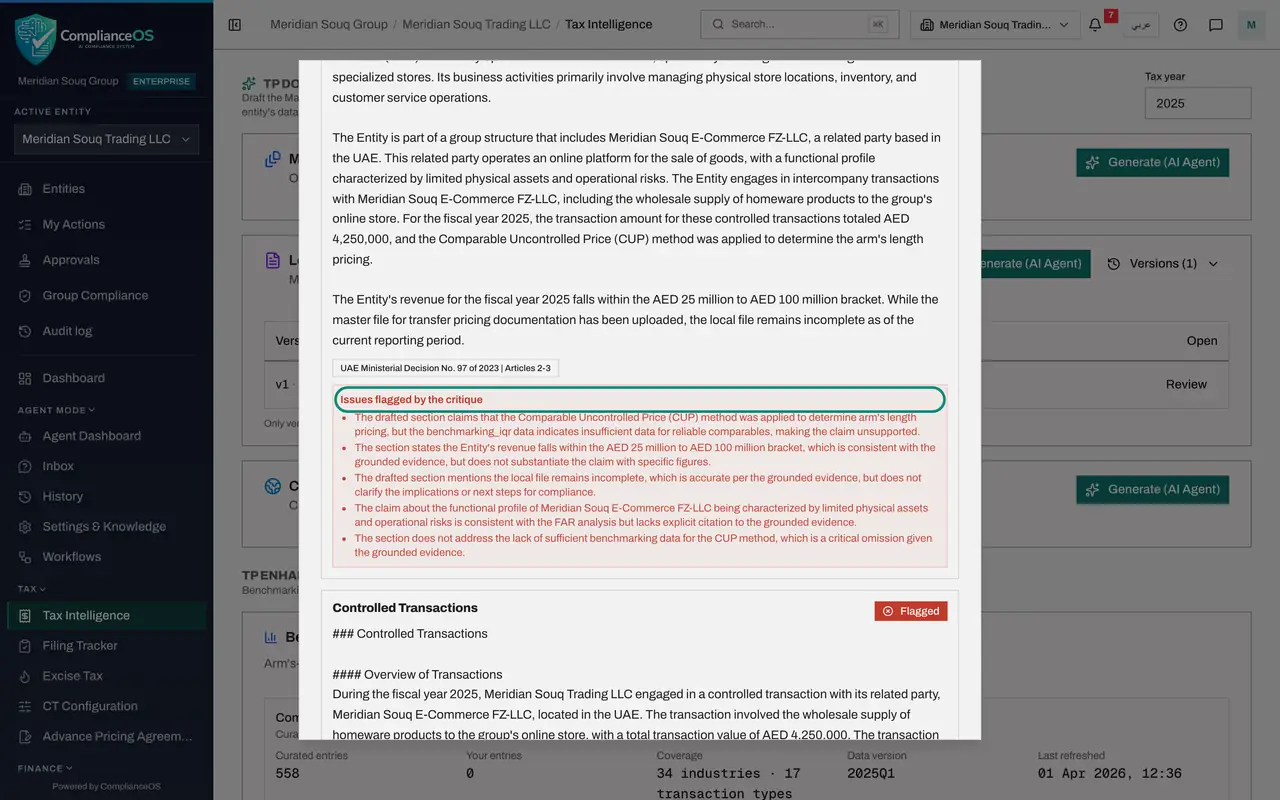
Scroll through the sections. Under each one marked Flagged, read Issues flagged by the critique and satisfy yourself that each point has been dealt with in the records or will be corrected in the final document.
- 4
Select Approve and sign off
At the bottom of the window select Approve and sign off. For the compliance officer the button is live. A second window asks you to confirm, because the sign-off is recorded under the organisation's approval policy; select the confirm button in it.
- Select Approve & sign off
- Select Approve & sign off
- 5
Check the status on the card
The window closes. The Local File card now shows Approved, its line in the Versions table shows Approved, and a new button, Export DOCX, downloads the approved file as a Word document for the tax manager to attach to the transfer-pricing record.
- Select Close
How to check it worked
The Local File card for 2025 shows Approved, the version line shows Approved, and Export DOCX is offered.
Common mistakes
- Approving without reading the flagged issues. Sign-off records that a person has checked the draft; it is kept in the audit trail under your name.
- Approving a draft you generated yourself. The approval policy expects a different person from the one who prepared the draft.
- Looking at the wrong year. Set Tax year to the year of the draft before opening Versions.
Check your understanding
1. What does Approve and sign off record?
- A.That the AI agent finished writing
- B.That a person with approval rights has reviewed this version of the draft and accepts it
- C.That the file was sent to the tax authority
- D.Nothing
Show answer
Answer: B. That a person with approval rights has reviewed this version of the draft and accepts it
Every AI output starts as a draft that needs a person's review. The sign-off is that review, recorded against the approver.
2. Where do you find the draft to sign off?
- A.Filing Tracker
- B.Tax Intelligence, Analysis, Transfer Pricing: the Versions table on the document's card, then Review
- C.Compliance Maturity
- D.CT Configuration
Show answer
Answer: B. Tax Intelligence, Analysis, Transfer Pricing: the Versions table on the document's card, then Review
Each document card in TP Documentation, AI Agent, lists its versions, and Review opens the one you choose.