Lesson 1 of 29
Bring the year's transactions into Tax Intelligence
What you will be able to do
This lesson is for the tax manager. You will bring a financial year's income and expenses into Tax Intelligence from a file, so that corporate tax can be worked out from them later in the course.
Before you start
- You are signed in with the Tax manager role for Meridian Souq Trading LLC.
- The finance team has given you the year's income and expenses as a spreadsheet saved in CSV or Excel format. This course uses eleven lines for the year 2025.
- Nothing has been imported for the entity yet, so the transaction list is empty.
Steps
- 1
Open Tax Intelligence
In the left menu, under Tax, choose Tax Intelligence. This is where every transaction is held for tax. Corporate tax and value added tax, or VAT, are both worked out from the same list.
- 2
Read the six stages across the top
The strip under the title shows the order of work: Import, Classify, Review Queue, Compute VAT return, Compute CT return and Filing Status. CT is short for corporate tax. A tick appears on a stage when it is done. Below it, Work, Returns, Analysis, Setup and More group the tabs of the module.
- 3
Select Import
The list says No transactions found. Select Import in the row of buttons above the list. The Import Transactions window opens.
- Select Import
- 4
Select Template to see the layout
Select Template. A sample file is downloaded that shows the columns the import expects: the date, the type, which is INCOME or EXPENSE, the amount in dirhams before VAT, a description, the supplier or customer, their country, and the invoice number. Put one transaction on each line.
- Select Template
- 5
Select Choose File and pick your file
Select Choose File and pick the file from your computer. Here it is called meridian-souq-trading-2025.csv and holds eleven lines: three of income and eight of expenses. The system reads the file and shows a preview. Nothing has been imported yet.
- Upload Choose a file:
meridian-souq-trading-2025.csv
- Upload Choose a file:
- 6
Check the four counts in the preview
Will import is the number of new lines. Duplicates counts lines that are already in Tax Intelligence, which are left out. Errors counts lines that cannot be read, for example a missing date. Total is every line in the file. Here all eleven lines will be imported, with no duplicates and no errors.
- 7
Select Confirm import
Select Confirm import. The message changes to say eleven transactions were imported and are not classified yet. Classifying means deciding the tax treatment of each line. The window offers Classify these transactions; leave that for now, because classification reads the set-up you will enter in the next lessons.
- Select Confirm import (11 rows)
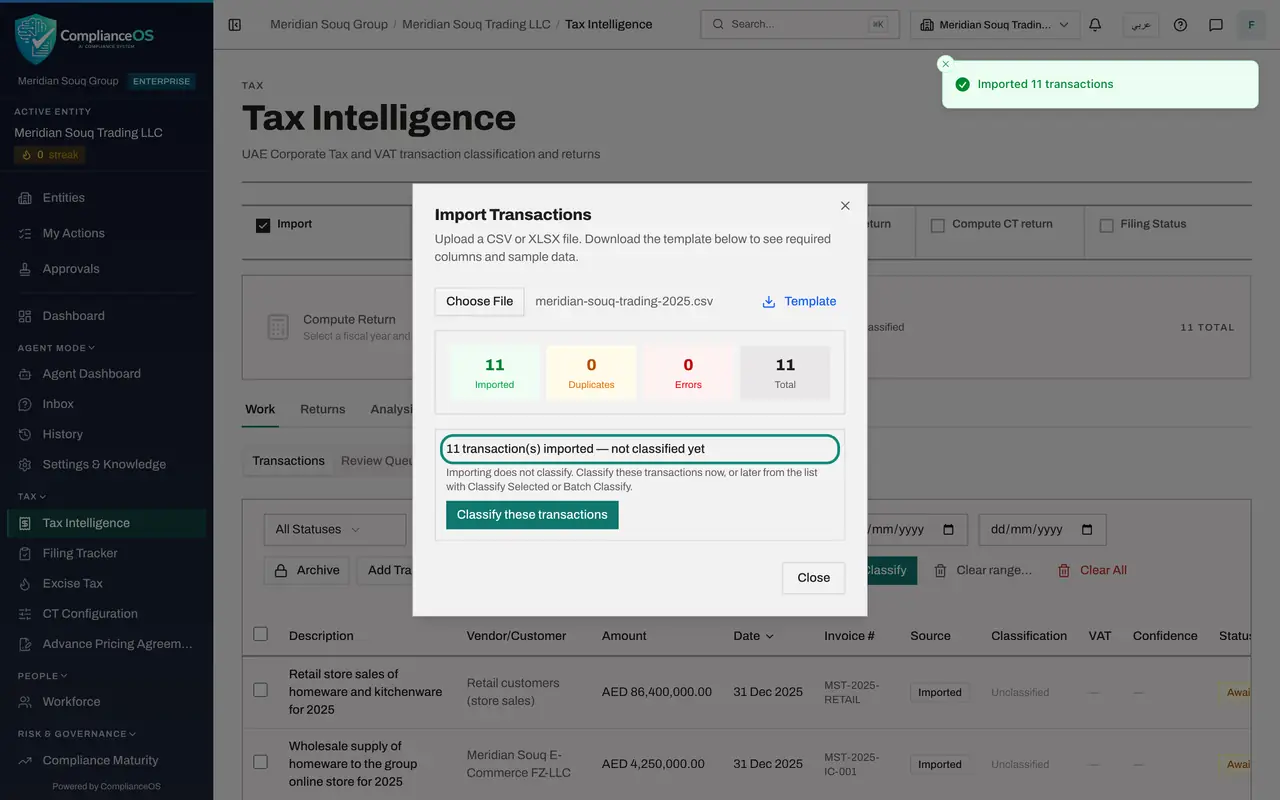
- 8
Select Close
Select Close at the bottom of the window. The transactions are now in the list.
- Select Close
- 9
Read a row in the list
Each row shows the description, the supplier or customer, the amount, the date and the invoice number. Source reads Imported. Classification reads Unclassified, VAT and Confidence show a dash, and Status reads Awaiting Review, because nobody has decided the tax treatment yet. Scroll the table sideways to reach the buttons at the end of a row: Classify works on that one line, the pencil opens it for correction and the bin deletes it.
- 10
Read the counters above the list
The box above the tabs counts the transactions by state. It reads eleven unclassified and eleven in total. The Classify stage in the strip shows how many remain.
- 11
Filter the list by type
Three lists above the table narrow what is shown: All Statuses, All Types and All Years. Open All Types and choose Expense. Only the eight expense lines stay in the list, and the counters above follow the filter.
- Select Type
- Choose Expense
- 12
Search for a supplier
Type part of a name in the Vendor or Customer box to find one counterparty. Type Corniche and the list shows only the rent paid to Corniche Bayan Properties LLC. The two date boxes beside it limit the list to a range of dates.
- Type Vendor/Customer...:
Corniche
- Type Vendor/Customer...:
- 13
Clear the filters
Clear the search box and set the type list back to All Types. All eleven lines are listed again.
- Select Type
- Choose All Types
- 14
Select Export CSV to keep a copy
Export CSV downloads the list as a file, with any filters applied. Use it to send the list to a colleague or to check it against the accounts.
- Select Export CSV
How to check it worked
The Transactions list shows eleven rows dated 2025, each marked Imported and Unclassified, and the counter above the list reads 11 total.
Common mistakes
- Entering amounts that include VAT. The amount_aed column is the amount before VAT; the system works the VAT out itself when it classifies the line.
- Selecting Classify these transactions straight after the import, before the counterparties and connected persons are set up. Classification reads that set-up, so do the next lessons first.
- Importing the same file twice to be safe. The preview counts repeated lines under Duplicates and leaves them out, so a second import adds nothing.
Check your understanding
1. After Confirm import, what state are the new transactions in?
- A.Classified and approved
- B.Imported but not classified
- C.Filed
- D.Awaiting payment
Show answer
Answer: B. Imported but not classified
Importing only stores the lines. Classification is a separate step, started from the import message or from the list.
2. The preview shows 9 under Will import and 2 under Duplicates. What happens when you confirm?
- A.All eleven lines are added
- B.Nothing is added until the duplicates are removed from the file
- C.Nine lines are added and the two repeated lines are left out
- D.The two duplicates replace the earlier lines
Show answer
Answer: C. Nine lines are added and the two repeated lines are left out
Lines already in Tax Intelligence are recognised and skipped, so only the new ones are added.