Lesson 29 of 29
How this connects: one transaction, several modules
What you will be able to do
This closing lesson is for the tax manager. You will follow the links between corporate tax and the rest of ComplianceOS on the live screens: a payment to a director is caught by the Connected Persons list, one classification feeds both the VAT return and the corporate tax return, the return starts from the ledger profit and checks staff cost against payroll, and the Filing Tracker follows the return.
Before you start
- You are signed in with the Tax manager role for Meridian Souq Trading LLC.
- The earlier lessons are done: the 2025 return is filed, Saeed Al Marri is on the Connected Persons list, and seven of its transactions are in the ledger.
- The year 2026 is still open, so new transactions can be added to it.
Steps
- 1
Select Add Transaction
First link: Connected Persons and the transaction list. In Tax Intelligence, select Add Transaction above the list. This form adds one transaction by hand; here it is the managing director's pay for the third quarter of 2026.
- Select Add Transaction
- 2
Choose the type and enter the amount and the date
In Type choose Expense. In Amount type the amount before VAT, 195000. In Date enter 30 September 2026. The dotted box in between is only for a transaction in another currency.
- Select Type
- Choose Expense
- Type AED 0.00:
195000 - Type Date *:
2026-09-30
- 3
Enter the description, the payee and the reference
In Description say what the payment is. In Vendor or Customer type the payee's name exactly as it is on the Connected Persons list: Saeed Al Marri. In Invoice Number type the payroll reference. Then select Add Transaction at the bottom of the form.
- Type Description *:
Managing director remuneration for July to September 2026 - Type Vendor/Customer:
Saeed Al Marri - Type Invoice Number:
PAY-2026-Q3-MD - Select Add Transaction
- Type Description *:
- 4
Show only 2026 and select Classify Selected
The payment is at the top of the list, unclassified. Open All Years above the table and choose 2026, so that only this payment is listed. Tick the box in the heading row to select it, then select Classify Selected in the bar that appears. The AI assistant gives the payment a corporate tax category and a VAT treatment in a few seconds, and a message reports the result.
- Select Year
- Choose FY 2026
- Select Select all
- Select Classify Selected
- 5
Open the row and read why it needs review
Select the description to open the row. Why this needs review starts with Connected Person transaction, verify arm's length pricing, and the reasoning ends with a connected person alert naming Saeed Al Marri. Nobody told the system this payment was to a director: it matched the payee's name against the Connected Persons list from lesson 5. A blue line underneath also reminds you of the transitional election on file from lesson 13.
- 6
Approve it in the Review Queue
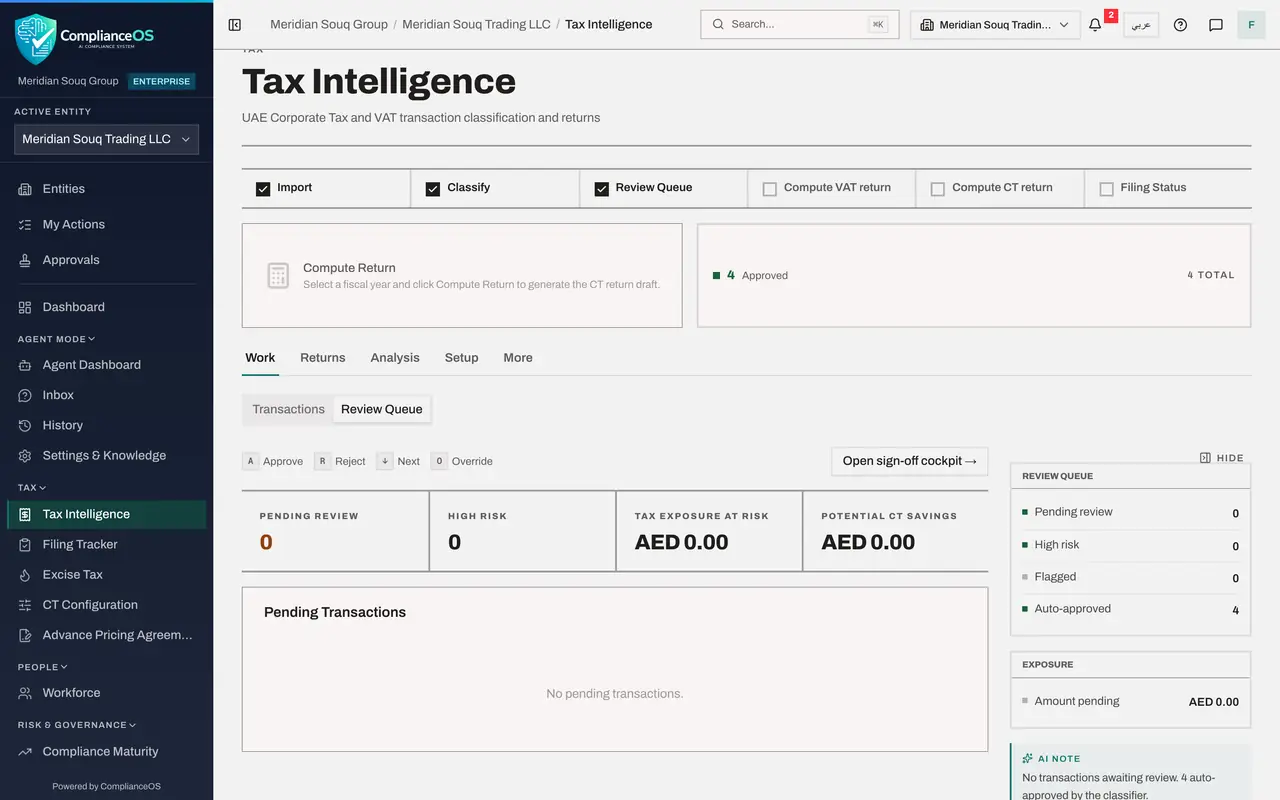
Select the Review Queue tab. The payment is waiting there. Read the card and select Approve. When the 2026 return is computed, the excess recorded for 2026 under Connected Persons will decide how much of the director's pay is deductible.
- Select Review Queue1
- Select Approve
- 7
Open the VAT Return tab for the last quarter of 2025
Second link: VAT. Select Returns, then the VAT Return tab. In Year choose 2025 and select Q4. The period fills in as 1 October to 31 December 2025, the quarter that holds the transactions you imported in lesson 1.
- Select Returns
- Select VAT Return
- Choose Year:
2025 - Select Q4
- 8
Select Compute VAT Return
Select Compute VAT Return. The result shows VAT due of 4,320,000 dirhams, recoverable VAT of 2,925,000 and net VAT payable of 1,395,000, worked out from the same eleven transactions, using the VAT treatment the classification gave each one at the moment it gave the corporate tax category. Nothing was classified a second time. The red box lists blocking issues to resolve before a VAT filing, such as income classified as out of scope that maps to no VAT box. The VAT course explains each box and each check.
- Select Compute VAT Return
- 9
Open the CT Return tab and compute 2025 again
Third link: the corporate tax return itself. Select the CT Return tab, choose 2025 and select Compute Return. The year is filed and locked, so the filed figures are shown again and nothing is overwritten.
- Select CT Return
- Select 2025
- Choose 2025
- Select Compute Return
- 10
Point to the lines that come from other modules
Open Tax vs Accounting Reconciliation. Accounting profit per ledger comes from the Accounting module: it is the net figure of the posted journal entries, which the finance manager sees in the profit and loss report. Connected person payments above market value comes from the Connected Persons list. The return never asks you to type these figures.
- 11
Read the risk flags that check other modules
Scroll to Risk Flags. Staff cost mismatch compares the staff cost claimed in the return with the payroll register kept in Workforce. Transfer pricing looks at the records under TP Records and their documents. Audited financial statements looks for the statements as evidence. Each flag tells you which module to open to settle it.
- 12
Finish in the Filing Tracker
Last link: the Filing Tracker. Choose it in the left menu. The deadline CT Return Filing 2025 was created when the return was first computed and was completed when the compliance officer locked it. Computing the VAT return a moment ago has added VAT Return Filing for the quarter to the same list, shown as Overdue with a File the return button, and the compliance figure has dropped to 50 percent. Every return in Tax Intelligence is followed here, with the other deadlines of the entity.
- Select Filing Tracker
How to check it worked
The new payment to Saeed Al Marri was sent to the Review Queue with a connected person reason, the VAT return for the last quarter of 2025 shows figures built from the same transactions as the corporate tax return, and you can point to the lines of the corporate tax return that come from the ledger, from Workforce and from the transfer-pricing records.
Common mistakes
- Fixing a figure in the return instead of at its source. The return is worked out from transactions, the connected persons list, the transfer-pricing records and the ledger; correct the source and compute again.
- Classifying the same transaction twice, once for VAT and once for corporate tax. There is one classification; both returns read it.
- Assuming a connected person is only checked once a year. Every new payment to a name on the list is sent for review when it is classified.
Check your understanding
1. A payment to Saeed Al Marri is added and classified, and waits in the Review Queue like every AI suggestion. Why does it also carry the Article 36 reason?
- A.Because it is in 2026
- B.Because the supplier name matches a person on the Connected Persons list, so a person must check it against market value
- C.Because it has no invoice number
- D.All payments carry that reason
Show answer
Answer: B. Because the supplier name matches a person on the Connected Persons list, so a person must check it against market value
Every classification made by the AI waits for a person, but this row also names Article 36, connected person, so the reviewer checks the payment against market value. The match is made on the name, which is why the name on the list must be the name used on payments.
2. Which line of the corporate tax return's reconciliation comes from the Accounting module?
- A.Entertainment 50 percent cap
- B.Accounting profit per ledger
- C.Tax payable
- D.Gross income
Show answer
Answer: B. Accounting profit per ledger
It is the net profit of the posted journal entries for the year, the same figure the finance team sees in the profit and loss report.