Lesson 22 of 29
Register a free zone licence and its qualifying activities
What you will be able to do
This lesson is for the tax manager. You will switch to the group's free zone company, register its free zone licence with the activities it is allowed to carry out, and use the licence card to check those activities, create its compliance items and look up the zone's rules.
Before you start
- You are signed in with the Tax manager role, held for the whole organisation since lesson 15.
- You have the free zone company's licence: its number, type, issue and expiry dates, annual fee and the activities printed on it.
Steps
- 1
Open the entity list
The button at the top right of every screen names the entity you are working in. Select it. The list shows All entities and every entity you hold a role on. Both companies are listed, because in lesson 15 the administrator gave you the Tax manager role for the whole organisation. If a company you need is missing, ask an access administrator for a role on it.
- Select Switch entity
- 2
Refresh the page and switch to the free zone company
Select Meridian Souq E-Commerce FZ-LLC in the list. If you were given a role a moment ago, refresh the page first so that the list includes the new company. The screens now show that company's records, and its name is in the button. It has no transactions yet.
- Select Switch entity
- Select Meridian Souq E-Commerce FZ-LLC
- 3
Choose Free Zones in the left menu
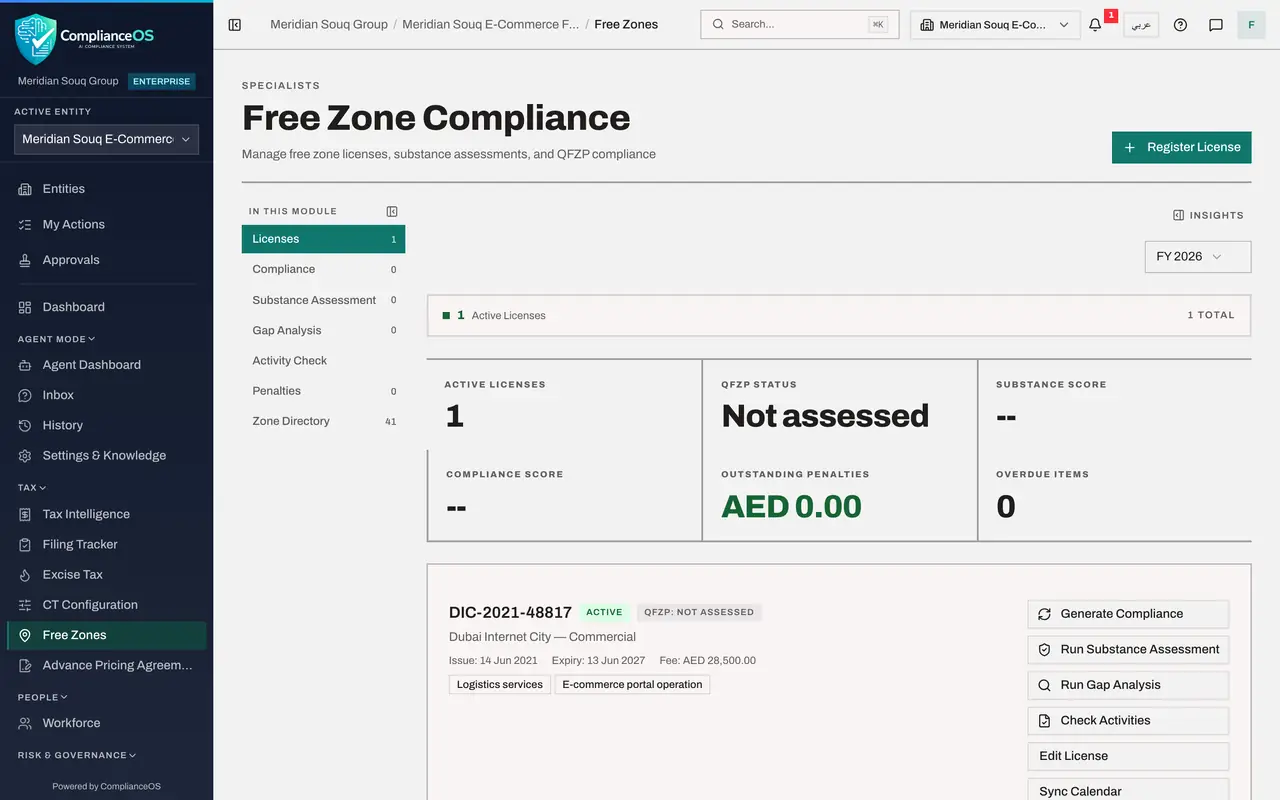
For a free zone entity the left menu has an extra entry under Tax: Free Zones. Choose it. Free Zone Compliance opens. The strip across the top shows the year's position: active licences, QFZP status, substance score, compliance score, outstanding penalties and overdue items. QFZP means Qualifying Free Zone Person, a free zone business that meets the conditions to pay 0 percent corporate tax on its qualifying income. Nothing is registered yet.
- Select Free Zones
- 4
Select Register License and choose the free zone
Select Register License at the top right. In Free Zone choose the zone that issued the licence. The list holds the country's free zones by short name; Meridian Souq E-Commerce is licensed in DIC, Dubai Internet City.
- Select Register License
- Select Select zone
- Choose DIC - Dubai Internet City
- 5
Enter the licence number, type, dates and fee
Type the License Number exactly as printed, and the License Type, here Commercial. Enter the Issue Date and the Expiry Date. Annual Fee is the yearly licence fee in dirhams. The expiry date drives the renewal reminder.
- Type e.g. DIFC-2024-001:
DIC-2021-48817 - Type e.g. Commercial:
Commercial - Type issue_date:
2021-06-14 - Type expiry_date:
2027-06-13 - Type e.g. 50000:
28500
- Type e.g. DIFC-2024-001:
- 6
Add a qualifying activity
Under Permitted Activities, open the list Add a Qualifying Activity. It holds the activities the law names as qualifying, such as manufacturing, holding of shares, headquarter services, and logistics services. The company runs order fulfilment for the group and for other sellers, so choose Logistics services. Income from a listed activity can be treated as qualifying.
- Select + Add a Qualifying Activity (MD 265/2023)…
- Choose Logistics services
- 7
Add another licence activity and select Register License
The licence also allows the company to run the online store's website. That is not on the qualifying list, so type it in the box Or add another licence activity and select Add. It is recorded, but its income does not qualify. Then select Register License at the bottom.
- Type Or add another licence activity…:
E-commerce portal operation - Select Add
- Select Register License
- Type Or add another licence activity…:
- 8
Read the licence card
The licence appears as a card: its number, the status Active, QFZP Not assessed, the zone and type, the dates, the fee and the two activities. Active Licenses at the top reads one. Seven buttons sit on the card: Generate Compliance, Run Substance Assessment, Run Gap Analysis, Check Activities, Edit License, Sync Calendar and Export PDF.
- 9
Select Edit License and record the actual activities
Select Edit License. Here you update the type, the renewal status, which can be Active, Pending Renewal, Expired or Suspended, the expiry date, the fee and the permitted activities. At the bottom, Actual Activities is what the company really does, separated by commas. Type them. Saving them makes the AI assistant compare actual with permitted.
- Select Edit License
- Type Actual Activities (comma-separated):
Order fulfilment and delivery for online sellers, E-commerce portal op…
- 10
Select Save Changes
Select Save Changes. The licence is updated and an activity check is run in the background.
- Select Save Changes
- 11
Select Activity Check
Select Activity Check in the list on the left and, if no check is shown, select Run Activity Check. Each check compares what the company does with what the licence permits. It gives a risk level, here Low, and a line for each activity with a status and a detail. Logistics services reads Authorized not conducted: permitted by the licence, but the check found no evidence of the activity in the entity's records yet. An activity carried out without being on the licence would be shown as unauthorised.
- Select Activity Check
- Select Run Activity Check
- 12
Go back to Licenses and select Generate Compliance
Select Licenses, then Generate Compliance on the card. It is meant to create the list of obligations that come with a licence in this zone, such as renewal and the annual filings, so that each can be tracked under Compliance.
- Select Licenses1 (1)
- Select Generate Compliance
- 13
Select Compliance
Select Compliance in the list on the left. Generate Compliance created four obligations for the licence, each with its due date and the status Pending: the annual return, the activity report, the audit submission and data protection. Start marks one as in progress, and Complete records it as done with its proof.
- Select Compliance4 (4)
- 14
Look up the zone in the Zone Directory
Select Zone Directory. Each card is one free zone with its authority, its emirate, a link to the authority's website and the filings it expects. Find DIC, Dubai Internet City, and select Regulatory Details on its card. It opens the zone's rules: the minimum number of employees, the core income-generating activities, the minimum spending and whether outsourcing and a flexi desk are allowed. Use the directory to check which zone a group company or a counterparty belongs to.
- Select Zone Directory41 (41)
- Select Regulatory Details
How to check it worked
Free Zone Compliance for Meridian Souq E-Commerce FZ-LLC shows one active licence, DIC-2021-48817, listing Logistics services and E-commerce portal operation, and Active Licenses at the top reads one.
Common mistakes
- Typing a general word such as trading as the only licence activity. Only an activity chosen from the Qualifying Activity list lets the calculation treat its income as qualifying for the 0 percent rate.
- Looking for Free Zones in the left menu of a mainland company. The menu lists it for free zone entities; switch to the free zone company first.
- Assuming a licence on its own gives the 0 percent rate. The company must also pass the substance assessment and keep its non-qualifying income small, which the next lesson covers.
Check your understanding
1. A company of the group is missing from the entity list at the top of the screen. Why?
- A.It was deleted
- B.You only see the entities on which you hold a role; ask an access administrator for a role on it
- C.The list shows one company at a time
- D.Free zone companies are hidden
Show answer
Answer: B. You only see the entities on which you hold a role; ask an access administrator for a role on it
Roles are granted for one entity, a unit or the whole organisation. Once the administrator grants the role and you refresh the page, the company appears.
2. Why choose an activity from the Qualifying Activity list instead of typing it?
- A.It is faster
- B.Only a listed qualifying activity lets the calculation treat the income from it as qualifying free zone income
- C.Typed activities are rejected
- D.It changes the licence fee
Show answer
Answer: B. Only a listed qualifying activity lets the calculation treat the income from it as qualifying free zone income
The note under Permitted Activities says so. Typed activities are recorded, but they do not qualify.