Lesson 3 of 29
Finish CT Configuration: employees, tax positions, free zone set-up and the vendor directory
What you will be able to do
This lesson is for the tax manager. You will read the other three sections of CT Configuration, so you know what each one feeds into the calculation, and then complete a supplier's details in the vendor directory inside Tax Intelligence.
Before you start
- You are signed in with the Tax manager role for Meridian Souq Trading LLC.
- The counterparties are loaded and zoned (lesson 2).
- You have the tax registration number of your main supplier.
Steps
- 1
Open CT Configuration and select Employees
In the left menu choose CT Configuration, then select Employees. This is the employee roster, the same people as in Workforce: here one active employee, Aisha Farouk, with her start date and status. The number of active employees is a sign of real activity, which matters most for a free zone company claiming the 0 percent rate.
- Select Employees1 (1)
- 2
Select Template to see the roster's columns
Select Template. A file called employees template is downloaded with the columns the roster takes: full name, employment date, job title, department, nationality, whether the person is Emirati, employee number, basic salary and allowances. Bulk Upload CSV and Seed from staff-cost are greyed out for the tax manager: the line under them explains that they create employee records, which needs the Workforce create permission held by HR. The link under the table opens Workforce.
- Select Template
- 3
Select Tax Positions
Select Tax Positions. Where the tax law allows a business choice, you declare the choice here and the system applies it as it stands. There is one position today: how a company based in a designated zone treats goods it sells to a mainland customer. The list offers Out of scope, where the customer accounts for import VAT, which is the default, or Standard-rated 5 percent. Meridian Souq Trading is a mainland company, so leave the default.
- Select Tax Positions
- 4
Select Free-Zone Setup
Select Free-Zone Setup. Three cards summarise the entity's free zone position: its licence, its latest substance assessment and its qualifying activities. This mainland entity has no licence registered and no assessment. Lessons 22 and 23 fill these in for the group's free zone company. The Free Zones link under the cards opens the screen where licences are kept.
- Select Free-Zone Setup0 (0)
- 5
Open Tax Intelligence, select Setup, then Vendors
In the left menu choose Tax Intelligence. Select Setup, then the Vendors tab. It shows the same directory you built in CT Configuration, with more detail: other names the business is known by, its tax registration number, or TRN, its country and zone, and the supplier checks used for VAT.
- Select Setup
- Select Vendors
- 6
Filter the directory by zone
The row of lists above the table filters by country, zone, source, whether the TRN is present, and whether the supplier checks are complete. Open the zone list and choose Free zone. Two counterparties remain: Falcon Crest Logistics and the group's own online store company.
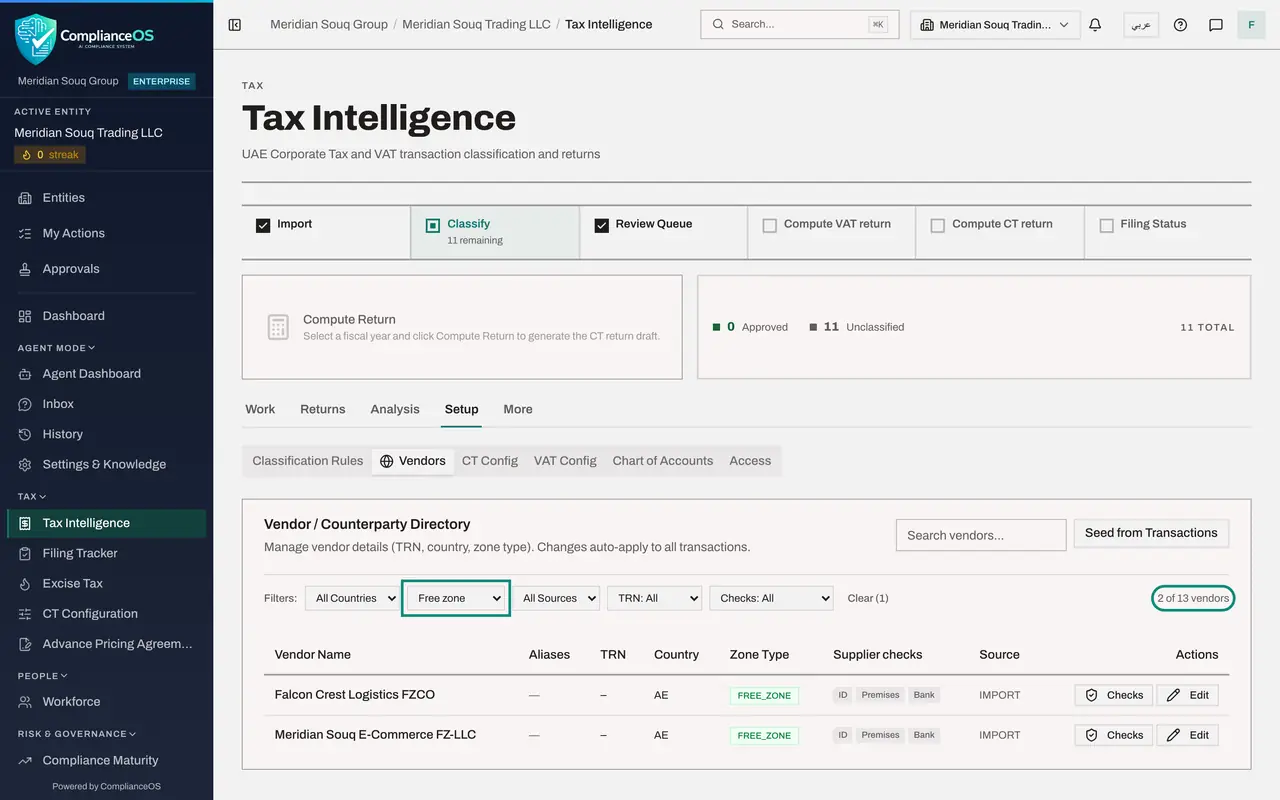
- 7
Set the zone list back to All Zones
Choose All Zones again so the whole directory is listed. The line above the table reads 13 of 13 vendors.
- 8
Select Edit on the supplier's row
Find Bayt Al Reem Wholesale LLC and select Edit at the end of its row. The TRN, the country and the zone become boxes you can change, and the buttons change to Save and Cancel.
- Select Edit
- 9
Type the tax registration number and select Save
In the TRN box type the supplier's fifteen digit tax registration number, exactly as it appears on their tax invoices. Leave the country as AE and the zone as Mainland. Select Save. The change applies to every transaction with this supplier.
- Type 15-digit TRN:
100384756200003 - Select Save
- Type 15-digit TRN:
- 10
Select Checks to see the supplier checks
Select Checks on the same row. The window lists three checks on the supplier: identity, place of business and bank account. They belong to VAT: from October 2026 a supplier must be verified before its input VAT is claimed. The VAT course covers them, and they do not change the corporate tax figure.
- Select Checks
- 11
Select Cancel
Select Cancel to close the window without recording any checks.
- Select Cancel
How to check it worked
In Tax Intelligence, under Setup and Vendors, the row for Bayt Al Reem Wholesale LLC shows its tax registration number, and you can say what the Employees, Tax Positions and Free-Zone Setup sections are for.
Common mistakes
- Expecting to load employees yourself. Bulk Upload CSV and Seed from staff-cost create employee records, which needs the Workforce create permission; send the filled-in template to HR.
- Changing the VAT position on Tax Positions for a mainland company. It only applies to a company based in a designated zone that sells goods to mainland customers.
- Typing a tax registration number with spaces or fewer than fifteen digits. The number is fifteen digits with no spaces.
Check your understanding
1. Why does the calculation care how many employees the entity has?
- A.To work out salaries
- B.Because headcount is a sign that a free zone business really operates there, which the 0 percent rate depends on
- C.To set the VAT rate
- D.It does not use it
Show answer
Answer: B. Because headcount is a sign that a free zone business really operates there, which the 0 percent rate depends on
Active headcount is one of the substance signals for a qualifying free zone person. For a mainland company it is background information.
2. Where do you add a supplier's tax registration number after the counterparties are loaded?
- A.In CT Configuration, Tax Positions
- B.In Tax Intelligence, Setup, Vendors: select Edit on the row
- C.In the Filing Tracker
- D.It cannot be added later
Show answer
Answer: B. In Tax Intelligence, Setup, Vendors: select Edit on the row
The Vendors tab shows the same directory with more detail, and Edit on a row opens the number, the country and the zone for change.