Lesson 6 of 29
Classify the year's transactions and clear the Review Queue
What you will be able to do
This lesson is for the tax manager. You will ask the system to classify the imported transactions, which gives each one a corporate tax category and a VAT treatment, and then approve the ones it holds back for a person to check.
Before you start
- You are signed in with the Tax manager role for Meridian Souq Trading LLC.
- The year's transactions are imported, the counterparties have zones, and the managing director is recorded as a connected person (lessons 1 to 5).
- Classification is done by the AI assistant. It takes a few seconds for a handful of lines and longer for a full ledger.
Steps
- 1
Open Tax Intelligence
In the left menu choose Tax Intelligence. The Classify stage in the strip says eleven remain, and every row in the list reads Unclassified.
- 2
Tick the box at the top of the list
Tick the box in the heading row of the table to select every transaction. A bar appears above the table: it says how many are selected and offers Classify Selected, Clear classifications and Clear selection. To classify only part of the list, filter it first, for example by year, and then tick the heading box.
- Select Select all
- 3
Select Classify Selected
Select Classify Selected. The button reads Classifying while the AI assistant works through the lines. When it finishes, a message gives the result: eleven transactions classified, one approved automatically and ten waiting for review. Only a line that a fixed rule decides is approved on its own, here the loan interest, which the law treats as exempt from VAT. Everything the AI assistant decided is a suggestion for a person to approve.
- Select Classify Selected
- 4
Read the Classification and VAT columns
Each row now has a corporate tax category in Classification, such as Cost of Goods Sold, Staff Costs, Rent, or Entertainment with its 50 percent cap. The fines are marked Non-Deductible. The VAT column beside it shows the VAT treatment, and Confidence and Status follow; scroll the table sideways to reach the buttons. One classification feeds both taxes. Rows that await review keep a Classify button; every classified row has Override.
- 5
Open the director's row to read the reasoning
Select the description of Managing director remuneration to open the row. The yellow box, Why this needs review, lists the reasons a person must look at it; one of them is Article 36, connected person. AI Reasoning then explains the classification and ends with a connected person alert, because Saeed Al Marri is on the Connected Persons list: the payment is deductible only up to market value. Below are the estimated tax effect and the place to attach evidence.
- 6
Select the Review Queue tab
Scroll up and select the Review Queue tab beside Transactions. Four tiles head the queue: Pending Review, High Risk, Tax Exposure at Risk and Potential CT Savings. Ten transactions are pending. The panel on the right repeats the counts: ten pending and one auto-approved, the loan interest.
- Select Review Queue10
- 7
Read a card
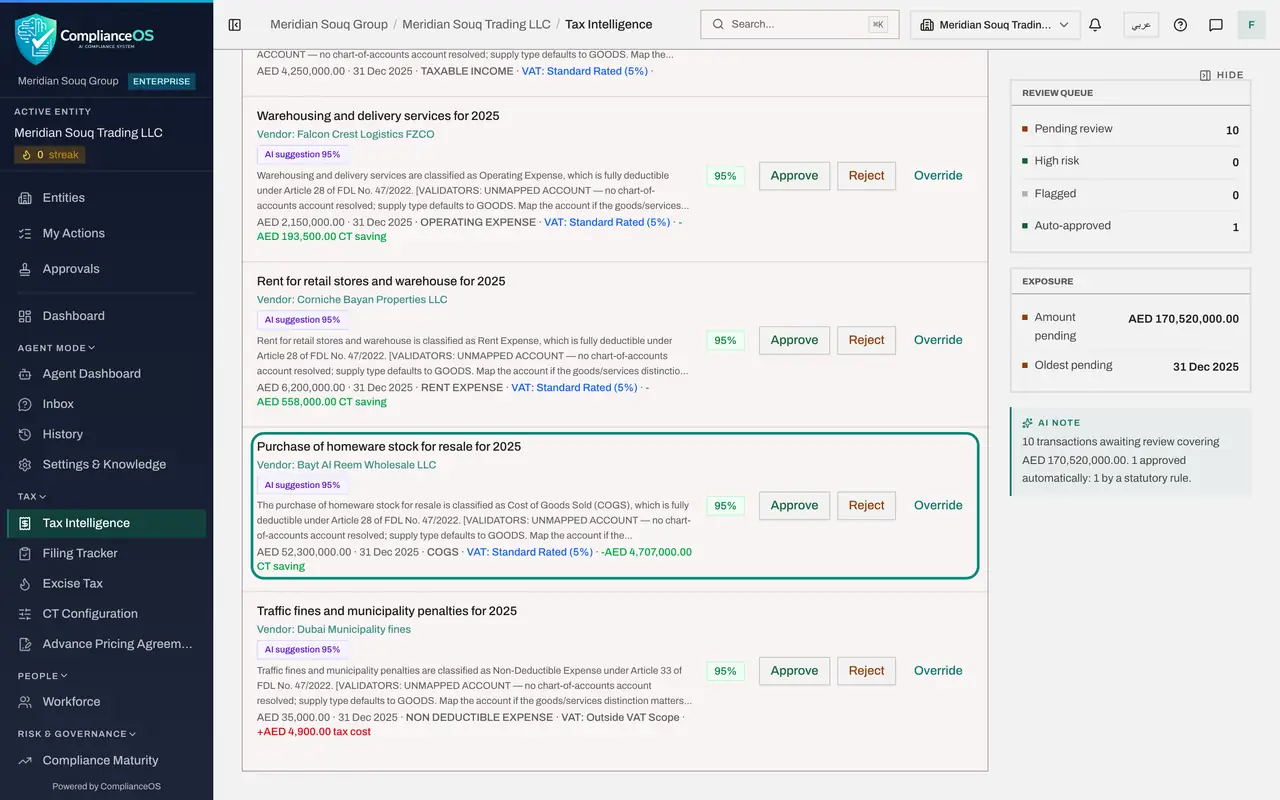
Each pending transaction is a card. The first line is the description, then the supplier or customer. A purple badge reads AI suggestion 95 percent: the category was proposed by the AI assistant, with its confidence, and is not yet approved. The reasoning follows, then the amount, the date, the proposed corporate tax category, the VAT treatment and, for an expense, the corporate tax it saves. Three buttons follow: Approve, Reject and Override.
- 8
Select Approve on the stock purchase
The stock purchase is correctly proposed as cost of goods sold with VAT at 5 percent. Select Approve on its card. The card leaves the queue and the pending count drops by one. Approving a suggestion is the normal path: it records that a person accepted the AI assistant's proposal.
- Select Approve
- 9
Select Override on the director's pay to see the choices
On the card for Managing director remuneration, select Override. The window lets you change the corporate tax category and the VAT treatment, add reviewer notes, and tick a box to save the choice as a rule for all future transactions with the same supplier. The proposed category, Staff Costs, is right, so nothing needs changing.
- Select Override
- 10
Select Cancel, then Approve the director's pay
Select Cancel to close the window without changing anything. Then select Approve on the card. Approving does not make the whole payment deductible: the return will still disallow the excess recorded under Connected Persons.
- Select Cancel
- Select Approve
- 11
Open the sign-off cockpit
Select Open sign-off cockpit above the tiles. It shows the waiting transactions on one page built for a reviewer: how many await sign-off, how many have low confidence and the value pending. Each line shows its category, confidence and the AI suggestion badge, and Why opens the reasoning. Every decision made here is recorded against the person who made it.
- Select Open sign-off cockpit →
- 12
Select AI suggestions and Approve selected
Read each remaining line: the sales and the online-store sale as taxable income, the London interest, the salaries, the entertainment with its 50 percent cap, the logistics, the rent and the fines as non-deductible. When you agree with all of them, select Select AI suggestions, which ticks every line the AI assistant proposed, then Approve selected. The lines are approved in one go and the page empties.
- Select Select AI suggestions (8)
- Select Approve selected
- 13
Go back to the Review Queue
Select Back to Tax at the top of the cockpit, then the Review Queue tab.
- Select Back to Tax
- Select Review Queue
- 14
Check that the queue is empty
The queue reads No pending transactions, Pending Review shows zero and the Review Queue stage in the strip is ticked. The box beside the strip counts 11 Approved: all eleven transactions are approved and ready for the return. A line left as an unreviewed AI suggestion would stop the return from being filed later, so always clear the queue.
How to check it worked
The Review Queue shows zero pending, and every row in the Transactions list has a classification and a VAT treatment.
Common mistakes
- Using Approve selected without reading the lines. It approves every ticked suggestion at once, so read each line first.
- Using Reject for a line that is only wrongly categorised. Reject takes the line out of the confirmed figures. Use Override to correct the category instead.
- Ignoring a connected person alert. The payment itself can be approved, but the benchmark recorded under Connected Persons decides how much of it is deductible, so make sure that record is right.
Check your understanding
1. After classification, ten lines wait in the Review Queue marked AI suggestion and one is approved automatically. Why?
- A.The ten could not be read
- B.Anything the AI assistant proposes is a suggestion for a person to approve; only a line decided by a fixed rule, such as exempt loan interest, is approved on its own
- C.It is random
- D.Income is always held back and expenses never are
Show answer
Answer: B. Anything the AI assistant proposes is a suggestion for a person to approve; only a line decided by a fixed rule, such as exempt loan interest, is approved on its own
The badge shows the AI assistant's confidence. A person makes the final decision, and the return cannot be filed while a suggestion is unreviewed.
2. A card proposes the wrong category for a payment. Which button corrects it?
- A.Approve
- B.Reject
- C.Override
- D.Next
Show answer
Answer: C. Override
Override opens a window where you choose the right corporate tax category and VAT treatment and note the reason.