Lesson 11 of 29
Read the Compliance Maturity score and benchmark
What you will be able to do
This lesson is for the tax manager. You will open Compliance Maturity, which the Tax manager role can now read, find the score for the Tax module, and see how the entity compares with its peers and with its own past.
Before you start
- You are signed in with the Tax manager role for Meridian Souq Trading LLC.
- The score is worked out by the system from the compliance items in each module. Nothing is typed in on this screen.
Steps
- 1
Open Compliance Maturity
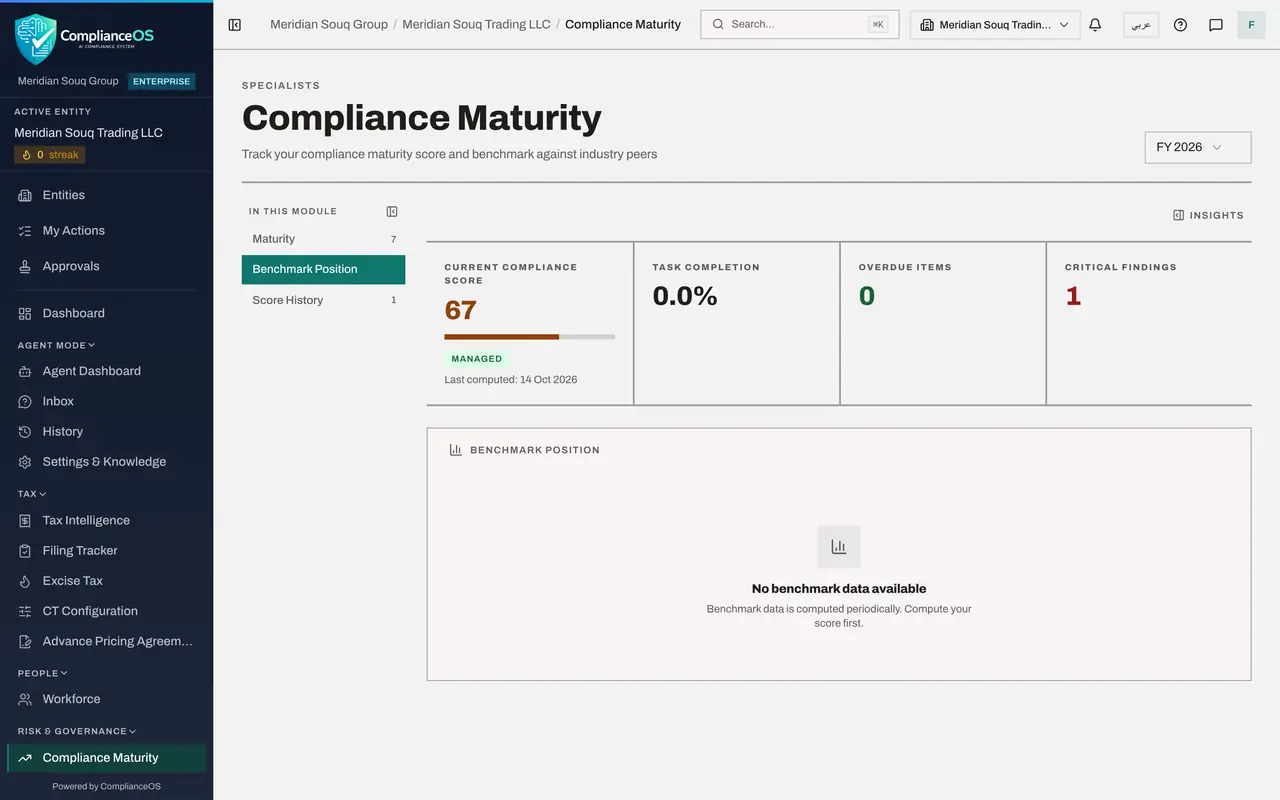
In the left menu, under Risk and Governance, choose Compliance Maturity. Four tiles head the screen. Current compliance score is 67 out of 100, at the level Managed, with the date it was last computed. Task completion is the share of compliance tasks done. Overdue items shows zero and Critical findings shows one. The button at the top right chooses the financial year.
- Select Compliance Maturity
- 2
Find the Tax module in the breakdown
Maturity breakdown by module has one card for each part of ComplianceOS in use: Tax, Contracts, Workforce, data protection, Sanctions, Free zone and anti-money laundering. Each card shows the module's level, its score and how many of its items are compliant. The levels run from Ad hoc through Repeatable and Managed to Optimized. The Tax card, first in the list, reads Ad hoc with zero of zero items, because this new entity has no tax compliance items yet.
- 3
Select Benchmark Position
Select Benchmark Position in the list on the left. It places the entity's score against other organisations of its kind. For a new entity it says No benchmark data available: the comparison is computed from time to time, after the entity has a score.
- Select Benchmark Position
- 4
Select Score History
Select Score History. It lists each time the score was computed, with the date, the score, the change since the time before, the level, task completion, overdue items and critical findings. There is one line so far, for today, at 67.
- Select Score History1 (1)
- 5
Go back to Maturity
Select Maturity to return to the cards. Use this screen before a filing deadline to check that nothing is overdue and to see which module holds the critical findings.
- Select Maturity7 (7)
How to check it worked
You can say that the entity's current compliance score is 67, at the level Managed, that the Tax module is at Ad hoc, and that Score History holds one line.
Common mistakes
- Reading a low score early in set-up as a failure. A module with no compliance items yet scores zero and shows as Ad hoc until its items are created and completed.
- Comparing scores of different years without changing the year. The button at the top right chooses the financial year the whole screen shows.
Check your understanding
1. Where does the Compliance Maturity score come from?
- A.The tax manager types it in
- B.The system works it out from the compliance items in each module
- C.The Federal Tax Authority sends it
- D.It is copied from the corporate tax return
Show answer
Answer: B. The system works it out from the compliance items in each module
Each module card shows how many of its items are compliant, and the levels and the overall score follow from those counts.
2. Which part of the screen shows how the score has changed over time?
- A.Maturity
- B.Benchmark Position
- C.Score History
- D.Insights
Show answer
Answer: C. Score History
Score History keeps the past scores so you can see the direction of travel.