Lesson 16 of 28
Work the alerts and draft a suspicious activity report
What you will be able to do
This lesson is for the AML officer. You will work through the four open transaction alerts: open one to read it, investigate it, dismiss the ones that are explained, escalate one, and turn one into a suspicious activity report with a narrative. Then you will find the draft report on the SARs tab and send it for review by a second person.
Before you start
- Four alerts are open on the Monitoring tab, from the earlier lessons.
- You are signed in as the AML officer for the entity.
- You have looked at the documents behind each transaction. The app records your decision; it does not make it.
Steps
- 1
Read the list of alerts
On the Monitoring tab, Transaction Alerts lists each alert with its type, severity, amount, status, date and the actions you can take. Four are open: a sanctions alert, two for large amounts, and one from your cash rule.
- 2
Open the alert for the purchase
Select the line for 78,500 dirhams. It opens to show the description, which names the rule, the amount and the supplier, and the transaction it belongs to.
- 3
Select Investigate
Select Investigate on that line. A message says Alert updated and the status changes to Investigating. The buttons change to Escalate, Create SAR and Dismiss.
- Select Investigate
- 4
Select Dismiss
This purchase is from a screened supplier, with an invoice, paid by bank transfer. Select Dismiss. A window titled Dismiss alert asks you to say why the alert is not suspicious. The reason is shown on the alert and kept in the audit trail.
- Select Dismiss
- 5
Type the reason and confirm
In Reason for dismissing type what you checked, then select Dismiss in the window. The status changes to Dismissed, the buttons disappear, and the opened line now shows your reason.
- Type Reason for dismissing:
Regular supplier, screened and cleared. Invoice QAN-2026-0412 on file… - Select Dismiss
- Type Reason for dismissing:
- 6
Investigate the large cash sale
Now the alert for the sale of 126,000 dirhams with the type Threshold, automatic rule. Select Investigate on its line.
- Select Investigate
- 7
Select Create SAR
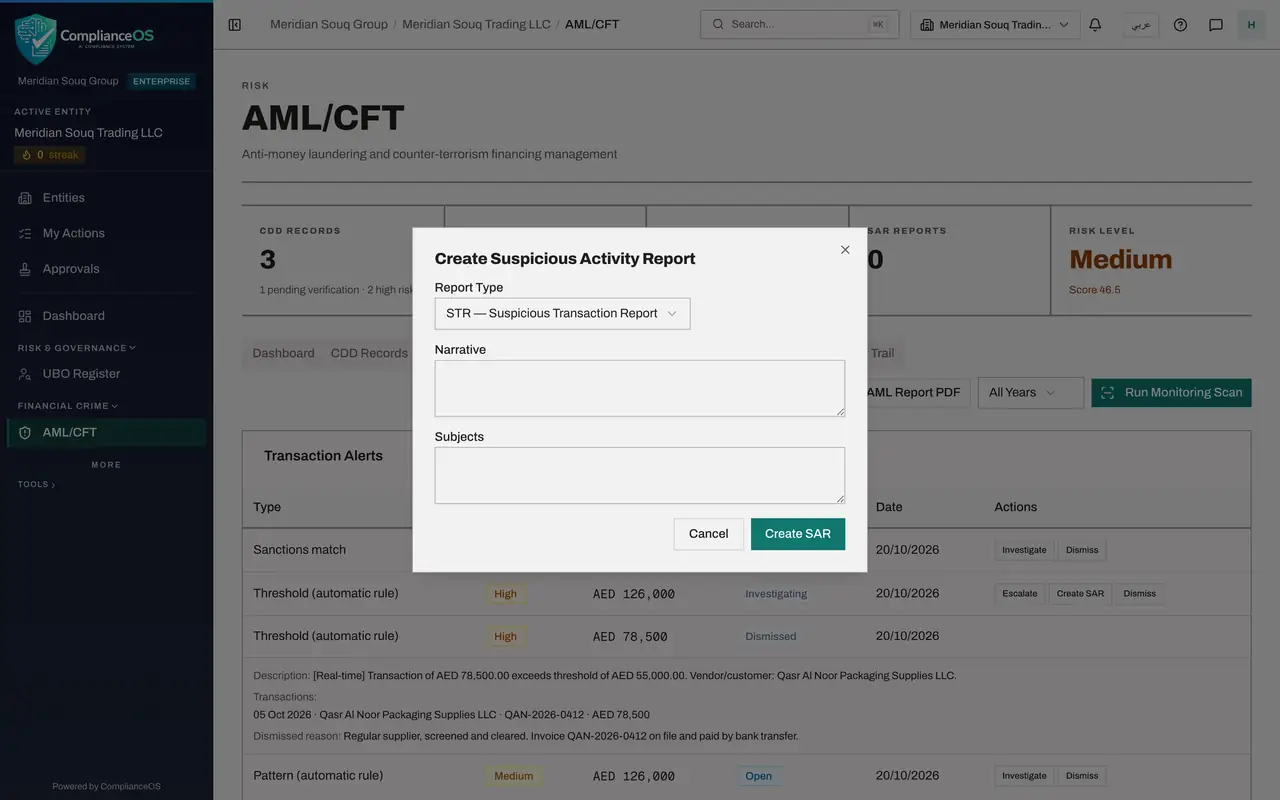
The customer paid in banknotes and has not explained why, so select Create SAR on that line. A form opens. Open Report Type: SAR is a suspicious activity report, about behaviour, and STR is a suspicious transaction report, about one transaction. Choose STR.
- Select Create SAR
- Select SAR — Suspicious Activity Report
- Choose STR — Suspicious Transaction Report
- 8
Write the narrative
In Narrative write what happened and why it is suspicious: the date, the amount, how it was paid, and what does not fit. Write it so that someone outside the company can follow it.
- Type Narrative:
On 6 October 2026 the customer bought homeware for 126,000 dirhams and…
- Type Narrative:
- 9
Name the subjects
In Subjects name the people and companies the report is about.
- Type Subjects:
Mirdif Lantern Homeware LLC, customer. Imran Rafiq Siddiqui, manager.
- Type Subjects:
- 10
Select Create SAR to save the draft
Select Create SAR at the bottom of the form. A message says SAR created, draft, and the form closes. The alert's own line still reads Investigating for the moment; it catches up at your next action on this tab.
- Select Create SAR
- 11
Dismiss the alert that repeats the same sale
The alert with the type Pattern, automatic rule, is for the same sale, raised by your cash rule. It is now covered by the report. Select Investigate on it, then Dismiss, and give that as the reason. Notice the line above it: the alert you reported stays Escalated, and under it a line reads Report being drafted, not filed yet. The alert follows its report: nothing has gone to the regulator yet.
- Select Investigate
- Select Dismiss
- Type Reason for dismissing:
Same sale as the reported alert; covered by the suspicious transaction… - Select Dismiss
- 12
Escalate the sanctions alert
The critical alert is the possible sanctions match that the compliance officer escalated. Select Investigate on it, then Escalate. Select the line to open it: it now says Escalated for senior review, with a File SAR button for the case where the review ends in a report.
- Select Investigate
- Select Escalate
- 13
Open the SARs tab
Scroll to the top and select the SARs tab. The report is listed with the type STR, the status Draft, the amount, and a Deadline for filing. Select the line to open it and read the narrative, the subjects and the alert it came from.
- Select SARs1
- 14
Select Send to Review
Select Send to Review on the line. A message says SAR status updated and the status becomes Internal review. The button is now Approve. A report must be approved by a different person from the one who wrote it, so your part ends here. The next lesson is the reviewer's.
- Select Send to Review
How to check it worked
On the Monitoring tab no alert has the status Open, and the SARs tab lists one report with the status Internal review and a deadline.
Common mistakes
- Dismissing an alert before reading it. Select the row first: the description names the rule, the amount and the customer or supplier.
- Treating an alert as dealt with once a report is created from it. The alert stays Escalated with the line Report being drafted, not filed yet, until the report is approved and its filing is recorded.
- Writing a narrative that says only suspicious. Say what happened, when, how much, and why it does not fit what you know of the customer.
Check your understanding
1. Which buttons does an alert show after you select Investigate?
- A.Investigate and Dismiss
- B.Escalate, Create SAR and Dismiss
- C.Approve and Reject
- D.None
Show answer
Answer: B. Escalate, Create SAR and Dismiss
An open alert offers Investigate or Dismiss. Once you are investigating, you can escalate it, create a report from it, or dismiss it.
2. A report is created from an alert. What is its first status and what do you do next?
- A.Filed; nothing more to do
- B.Draft; select Send to Review so that a second person can look at it
- C.Approved; download it
- D.Dismissed; create it again
Show answer
Answer: B. Draft; select Send to Review so that a second person can look at it
A new report is a draft with a filing deadline. Sending it to review moves it to Internal review, where a different person approves it.