Lesson 11 of 28
Verify and update a due diligence record
What you will be able to do
This lesson is for the AML officer. After checking a customer's documents you will mark the due diligence record as verified, see who verified it and when, and update the record the app opened for the new trade customer. You will also learn what each verification status means and which fields can be changed later.
Before you start
- The two CDD records of the previous lesson exist, as does the one the app opened for the new trade customer.
- You have checked the corporate customer's trade licence and the identity of its manager.
- You are signed in as the AML officer. Changing a record needs permission to edit AML records.
Steps
- 1
Select Verify / Edit on the customer's row
On the CDD Records tab, find the corporate customer and select Verify / Edit at the end of its row. A window opens with the customer's name and type, the record's status, risk level, CDD type and dates, and a section for KYC documents.
- Select Verify / Edit
- 2
Open Verification Status
Open Verification Status. Pending means nothing has been checked yet. In Progress means checks have started. Verified means you have seen the documents and they are in order. Failed means the customer did not pass. Expired means the checks are out of date and must be repeated.
- Select Pending
- 3
Choose Verified
You have seen the trade licence and the manager's identity card, so choose Verified.
- Choose Verified
- 4
Check the risk level, CDD type and review date
Risk Level and CDD Type can be changed here when your view of the customer changes. Next Review Date can be moved. They are right for this customer, so leave them.
- 5
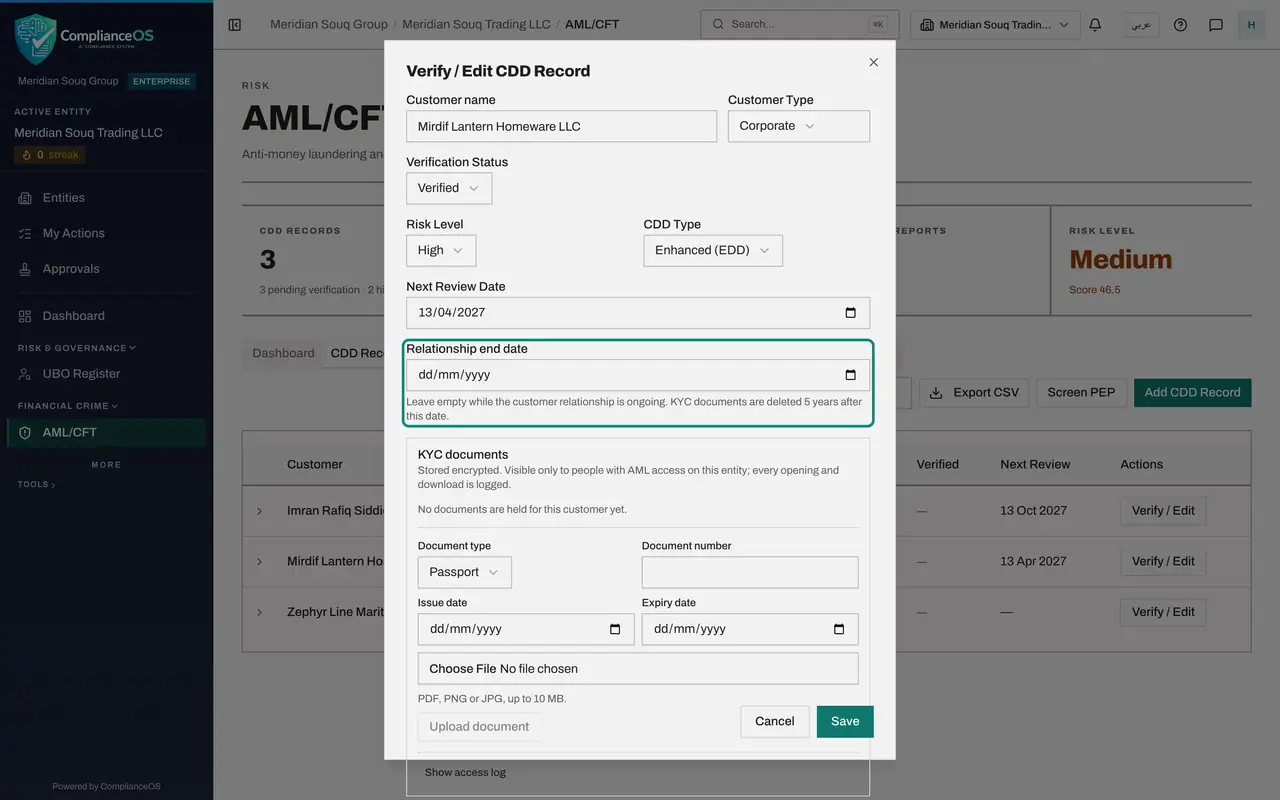
Leave Relationship end date empty
Relationship end date is the day the customer stopped being a customer. Leave it empty while the relationship is ongoing. The line under it says how long identity documents are kept after that date. A later lesson uses this field.
- 6
Select Save
Select Save. A message says CDD record updated. In the list, the status is now Verified and the Verified column shows today's date.
- Select Save
- 7
Open the row to see who verified it
Select the customer's row. Verified by now shows your name and the date, and Last updated by shows who last changed the record.
- 8
Update the record the app opened
Now the new trade customer. Select Verify / Edit on its row. Its check was escalated and its trade licence has been asked for, so open Verification Status and choose In Progress.
- Select Verify / Edit
- Select Pending
- Choose In Progress
- 9
Save the second record
Select Save. Its row now shows In Progress. The app opened this record from a sale, so check Customer Name and Customer Type in the same window too: if the name was spelt differently on the sale, or the customer is a company rather than a person, correct it here.
- Select Save
- 10
Read CDD Completion on the dashboard
Select the Dashboard tab. Under Compliance Status, CDD Completion shows the share of records that are no longer pending. The counter at the top says how many are still pending verification.
- Select Dashboard
How to check it worked
The corporate customer's row shows Verified with today's date in the Verified column, and the opened row shows Verified by with your name.
Common mistakes
- Marking a record Verified before you have seen the documents. The app records your name and the date against the verification.
- Using Failed when you are only waiting. Failed means the checks were done and the customer did not pass; while you wait for documents the status is In Progress.
- Correcting the customer's name to match a different customer. Customer Name and Customer Type can be corrected here, for a misspelling or a wrong type, but a different customer needs its own record.
Check your understanding
1. You have asked a customer for a passport and are waiting for it. Which verification status fits?
- A.Verified
- B.In Progress
- C.Failed
- D.Expired
Show answer
Answer: B. In Progress
In Progress says the checks have started and are not finished. Verified is for completed checks, Failed for checks the customer did not pass, and Expired for checks that are out of date.
2. Where do you see who verified a record?
- A.It is not recorded
- B.Open the row in CDD Records: Verified by shows the name and the date
- C.Only in the regulator's portal
- D.In the Screening tab
Show answer
Answer: B. Open the row in CDD Records: Verified by shows the name and the date
The app stores the person and the time when the status is set to Verified, and shows them in the opened row and in the AML report.