Lesson 3 of 28
Screen a new supplier by hand
What you will be able to do
This lesson is for the AML officer. You will check two new suppliers against the sanctions lists before the company trades with them, fill in every field of the Screen Counterparty form, see the country warning, and learn to read a Cleared result in the result box and in the list of checks.
Before you start
- You are signed in as the AML officer for the entity.
- The watchlists are up to date, as checked in the previous lesson.
- You have the supplier's full legal name, exactly as written on its trade licence.
Steps
- 1
Open the Screening tab
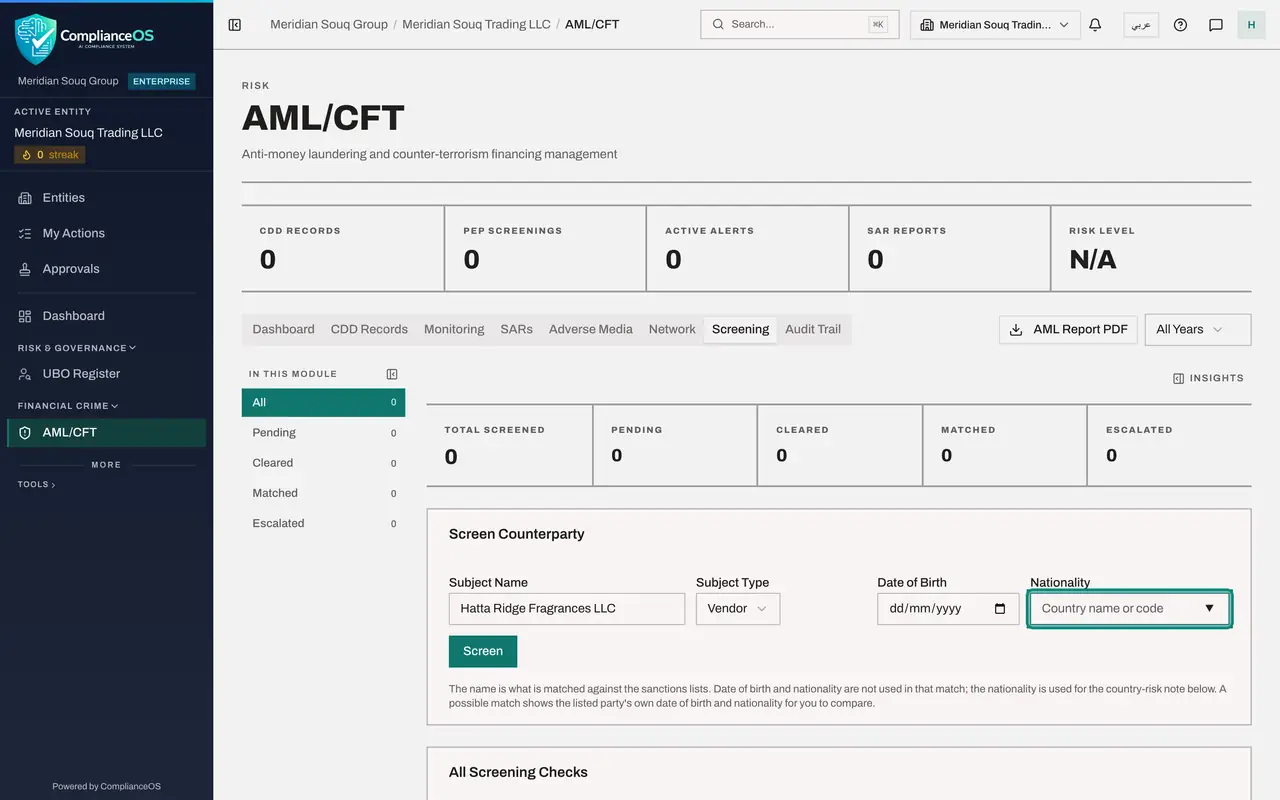
In AML/CFT select the Screening tab. The Screen Counterparty form is near the top. A counterparty is anyone the company deals with: a customer, a supplier or an owner.
- Select Screening
- 2
Type the full legal name
In Subject Name type the supplier's full legal name, here Hatta Ridge Fragrances LLC. Use the name on the trade licence, including the legal ending such as LLC. The app will not screen a name shorter than two characters.
- Type Subject Name:
Hatta Ridge Fragrances LLC
- Type Subject Name:
- 3
Choose the subject type
Open Subject Type and choose what this party is to you. Customer is a buyer, Vendor is a supplier, UBO is a beneficial owner, and Other is anyone else. Choose Vendor. If you leave it empty, the app asks you to choose before it screens.
- Select Select type
- Choose Vendor
- 4
Know when to use Date of Birth and Nationality
Date of Birth and Nationality are for a person, not a company. Record them when you have the passport or identity card in front of you, because they are what you compare with a list entry if the name comes back as a possible match. Nationality takes a country name or its two letter code. To see what it does, type Iran.
- Type Nationality:
Iran
- Type Nationality:
- 5
Read the country warning
A coloured line appears under the form. It says the country is on a list kept by the Financial Action Task Force, or FATF, the international body that names higher risk countries, and that enhanced due diligence is recommended. Red is the black list and orange is the grey list. The warning is about the country only.
- 6
Clear the nationality for a company
This supplier is a company in the United Arab Emirates, so delete the text in Nationality. The warning disappears.
- 7
Select Screen
Select Screen. After a few seconds a message says Screening completed and a Screening Result box opens under the form. The status is Cleared, and the box says No match above the threshold: no entry on any list came close enough to this name.
- Select Screen
- 8
Find the check in All Screening Checks
Scroll down to All Screening Checks. The supplier is listed with its type, status, match score and the time of the check. The boxes at the top now count one name screened and one cleared. Checks cannot be edited or deleted: the list is your evidence that the name was screened.
- 9
Screen the second supplier
Scroll back up, replace the name with Juniper Dhow Furniture LLC, and select Screen again. Subject Type is still Vendor.
- Type Subject Name:
Juniper Dhow Furniture LLC - Select Screen
- Type Subject Name:
- 10
Read the second result
The Screening Result box now shows the second supplier, again Cleared with No match above the threshold. The box always shows the last name you screened. Nothing is waiting for you.
- 11
Compare the two lines in the list
In All Screening Checks both suppliers now have a line, newest first. For a cleared check the Match Score column shows a dash and Matched Entry reads No match above the threshold, so no list entry is named. The boxes at the top count two names screened and two cleared.
- 12
Filter the list by status
Scroll to the top. The list on the left, In this module, filters the checks by status. Select Cleared: the list below now shows only cleared checks, which are your two suppliers. Select All to see every check again. Both suppliers can be taken on.
- Select Cleared2
How to check it worked
Both suppliers are listed in All Screening Checks with the status Cleared, and nothing is listed under Pending.
Common mistakes
- Typing a short or trading name. Screen the full legal name; a shortened name can miss a match or raise false ones.
- Screening one supplier and assuming the next is fine. Every new party gets its own check, and each check is a separate line of evidence.
- Leaving Subject Type empty. The app asks for it, because it uses the type to tell companies from people.
Check your understanding
1. A result says Cleared, No match above the threshold. What should you do?
- A.Ask a colleague to review it
- B.Nothing more: the supplier is clear, and the check stays in the list as evidence
- C.Screen the name again until a score appears
- D.Delete the check
Show answer
Answer: B. Nothing more: the supplier is clear, and the check stays in the list as evidence
Cleared is the result. No entry on any list came close enough to the name, so nothing waits for a decision.
2. You type a nationality and an orange or red line appears under the form. What is it telling you?
- A.The person is sanctioned
- B.The country is on a FATF list of higher risk countries, so stronger checks are recommended
- C.The name is misspelt
- D.Screening is paused
Show answer
Answer: B. The country is on a FATF list of higher risk countries, so stronger checks are recommended
The line is a country warning from the Financial Action Task Force lists. It is about the country, not about the person, and it appears before you screen.