Lesson 17 of 28
Approve a suspicious activity report and record its filing
What you will be able to do
This lesson is for the second person who reviews a suspicious activity report, here the compliance officer. You will find the report the AML officer sent for review, read it in full, export the list, approve it, download the goAML file, and record the reference once the report has been filed in the regulator's portal. ComplianceOS never files for you: the filing itself is done by a person outside the app.
Before you start
- The AML officer has created a report and selected Send to Review, as in the previous lesson.
- You are signed in as a different person from the author, here the compliance officer, Mariam Aziz. The author cannot approve their own report.
Steps
- 1
Open the SARs tab
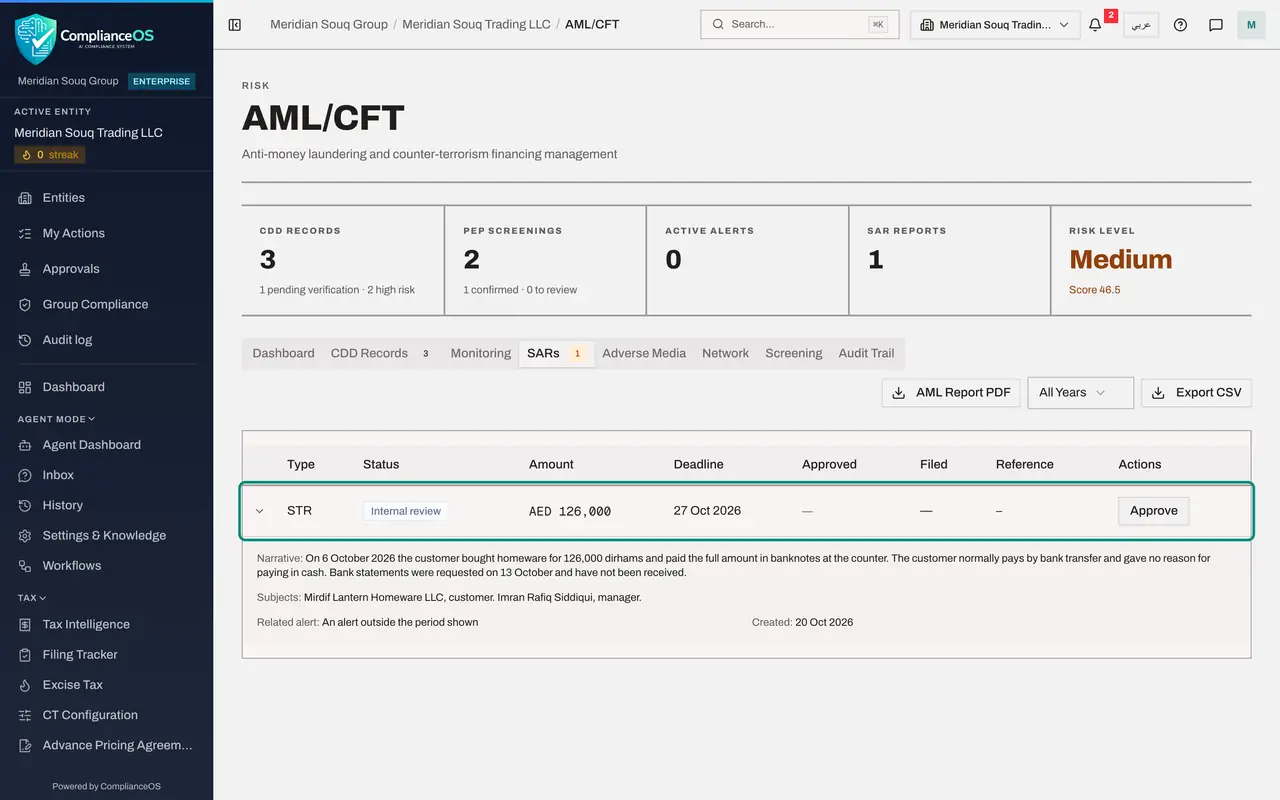
In AML/CFT select the SARs tab. The number on the tab counts reports that are not yet filed. One report is waiting with the status Internal review.
- Select SARs1
- 2
Read the columns
Each line shows the report type, its status, the amount involved, the Deadline for filing, the date it was Approved, the date it was Filed, and the Reference given by the regulator. The last three are empty until those steps are done.
- 3
Open the report and read it
Select the line. It opens to show the Narrative, the Subjects, the alert the report came from, and the date it was created. Read it as the regulator would: is it clear what happened and why it is suspicious?
- 4
Select Export CSV
Select Export CSV at the top right to download the list of reports as a spreadsheet file, with the type, status, amount, deadline and filing date of each. The narrative is not in the file.
- Select Export CSV
- 5
Use the year filter
Open the year filter beside the report button and choose FY 2025. The list says No SARs filed, because this report belongs to 2026. An empty list may only mean the wrong year is chosen.
- Select Year
- Choose FY 2025
- 6
Choose All Years again
Open the filter again and choose All Years. The report is back.
- Select Year
- Choose All Years
- 7
Select Approve
You have read the report and it is fit to be filed. Select Approve at the end of the line. A window asks you to confirm, with the reminder that an approver must be independent of the author. If the author tried this, the app would refuse.
- Select Approve
- 8
Select Confirm
Select Confirm. A message says SAR approved, download the goAML report and file via the CBUAE portal. The status changes to Approved, the Approved column shows today's date with your name as the approver, and the line now has two buttons: goAML report and Record filing.
- Select Confirm
- 9
Select goAML report
Select goAML report. A file downloads to your computer in the format of goAML, the reporting portal of the Central Bank's financial intelligence unit. A message reminds you to file it in the portal and then record the reference here. ComplianceOS does not send it.
- Select goAML report
- 10
Select Record filing
File the report in the goAML portal yourself. When the portal has given you a reference, come back and select Record filing. A window asks for the goAML filing reference.
- Select Record filing
- 11
Type the reference and select Confirm
Type the reference exactly as the portal shows it, here GOAML-STR-2026-TRAINING-00417, and select Confirm. A message says Manual filing recorded.
- Type Your answer:
GOAML-STR-2026-TRAINING-00417 - Select Confirm
- Type Your answer:
- 12
Check the filed report
The status is now Filed. The Filed column shows today's date and the Reference column shows the reference you typed. The buttons are gone: the report is complete, and the SAR Reports counter at the top no longer counts it.
How to check it worked
The report shows the status Filed, with today's date under Filed and your reference in the Reference column.
Common mistakes
- Approving without reading. Open the row and read the narrative and the subjects: your approval says the report is fit to be filed.
- Believing the app files the report. ComplianceOS never sends anything to the regulator. Filing is done by a person in the regulator's goAML portal.
- Missing the deadline. The Deadline column shows the date by which the report must be filed.
- Recording a reference before you have filed. Record filing marks the report as filed on your word; file in the portal first.
Check your understanding
1. Who can approve a suspicious activity report?
- A.The person who wrote it
- B.A different person from the author, with permission to edit AML records
- C.Anyone in the company
- D.The customer
Show answer
Answer: B. A different person from the author, with permission to edit AML records
The confirmation says it: an approver must be independent of the author. The app refuses an approval by the same person.
2. The report is approved in ComplianceOS. Has the regulator received it?
- A.Yes, approval sends it
- B.No. A person files it in the goAML portal and then records the reference in the app
- C.Yes, after 24 hours
- D.Only if the amount is above 55,000 dirhams
Show answer
Answer: B. No. A person files it in the goAML portal and then records the reference in the app
The dashboard marks CBUAE goAML as Manual for this reason. The app keeps the internal record and prepares a file; it does not submit.