Lesson 14 of 28
Screen for politically exposed persons
What you will be able to do
This lesson is for the AML officer. A politically exposed person, or PEP, is someone who holds or held a prominent public position, and needs closer checks. You will screen two people connected with a corporate customer. The first comes back with no match. The second matches an entry on the list, and you will read the entry, review it and confirm it. The entry used here is not a real office holder: it comes from a list called Training examples, fictional, which exists only in this training environment.
Before you start
- You are signed in as the AML officer for the entity.
- You have each person's full name and, if possible, the date of birth and nationality from an identity document.
- The corporate customer has a CDD record, so the screening can be linked to it.
- The PEP Database box on the Dashboard tab says Up to date. If it says Out of date or Not loaded, checks are paused until an organisation administrator updates the list.
Steps
- 1
Select Screen PEP
On the CDD Records tab select Screen PEP at the top right. A form opens to screen one person against databases of politically exposed persons.
- Select Screen PEP
- 2
Type the person's name
In Subject Name type the person's full name. Here it is the manager named on the corporate customer's trade licence, Imran Rafiq Siddiqui.
- Type Subject Name *:
Imran Rafiq Siddiqui
- Type Subject Name *:
- 3
Choose the subject type
Open Subject Type and choose the person's role: Customer, UBO for a beneficial owner, Director or Shareholder. Choose Director.
- Select Customer
- Choose Director
- 4
Add the date of birth and nationality
Date of Birth and Nationality are optional. The hint under the date says it is the strongest filter against false matches for common names, so enter it whenever you have it. Nationality takes a country code or a country name.
- Type Date of Birth (optional):
1985-06-20 - Type Nationality (optional):
Pakistan
- Type Date of Birth (optional):
- 5
Link the screening to the customer's record
Open Link to CDD and choose the customer this person belongs to. The result is then kept with that customer's due diligence record. Leave it on None for a person with no record.
- Select — None —
- Choose Mirdif Lantern Homeware LLC
- 6
Select Screen PEP and wait for the result
Select Screen PEP at the bottom of the form. The check takes a few seconds. The form closes and a message says PEP screening completed.
- Select Screen PEP
- 7
Read a result with no match
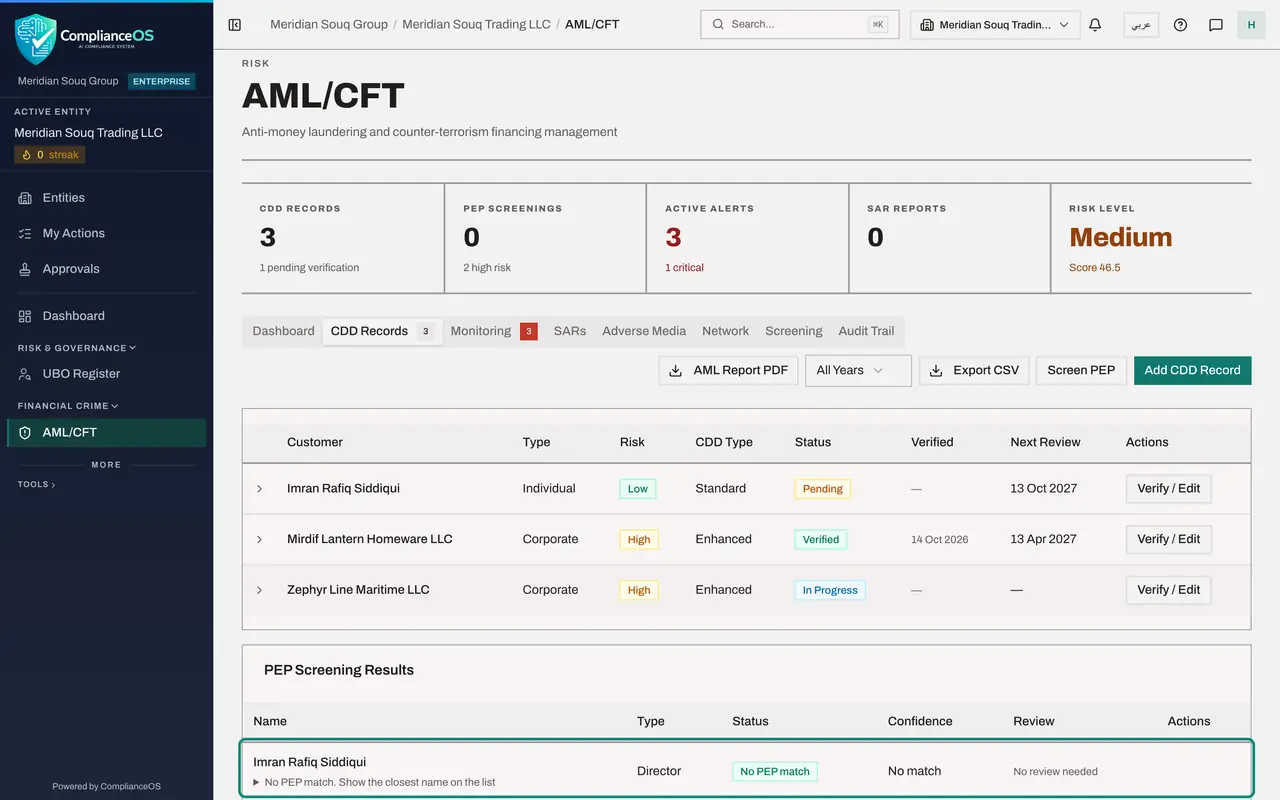
A new list, PEP Screening Results, appears under the CDD records. The manager's line says No PEP match, and under Review it says No review needed. The check is finished and kept as evidence. A small line under the name offers to show the closest name on the list; it stays closed in this training, because that name belongs to a real person who is not a match.
- 8
Screen the shareholder
Now the customer's main shareholder. Select Screen PEP again, type her name, Isolde Marguerite Fenwyck Aldaine, choose Shareholder, enter her date of birth from her passport, 2 September 1968, link the check to the same customer, and select Screen PEP.
- Select Screen PEP
- Type Subject Name *:
Isolde Marguerite Fenwyck Aldaine - Select Customer
- Choose Shareholder
- Type Date of Birth (optional):
1968-09-02 - Select — None —
- Choose Mirdif Lantern Homeware LLC
- Select Screen PEP
- 9
Read a possible match
Her line says Possible PEP, with the review state Pending. Under her name the line shows the list entry it matched: the listed person, the position, the date of birth with a note that the birth year agrees with the one you entered, the source, and how similar the names are. The source reads Training examples, fictional, and the position ends with the word fictional: this entry was made up for training.
- 10
Select Review
A line that is Pending has a Review button. Select it. The Review PEP Screening window shows the person you screened and the list entry side by side in one list, then a Review Notes box and three decisions. Clear records that this is a different person. Confirm PEP records that the person is politically exposed. Escalate passes the decision to someone more senior.
- Select Review
- 11
Write the note and select Confirm PEP
The name, the birth year and the public position all agree with what the customer told you, so this is the same person. Write what you compared in Review Notes and select Confirm PEP. A message says PEP review updated.
- Type Add review notes...:
Passport seen: same name and date of birth as the list entry. The cust… - Select Confirm PEP
- Type Add review notes...:
- 12
Check the result and the next action
Her line now says Confirmed PEP and the review state Confirmed. The Review button is gone. A confirmed PEP does not stop the business: it means the customer needs enhanced due diligence and senior approval. This customer's record already has the CDD type Enhanced; record the senior approval in it, as shown in the lessons on CDD records.
- 13
Check the list date on the Dashboard tab
Select the Dashboard tab and find PEP Database under Screening Coverage. It shows a state, the number of entries and the date the list was last updated. Up to date means checks will run. Out of date or Not loaded means checks are paused, and the box tells you to ask an organisation administrator to update the PEP list.
- Select Dashboard
How to check it worked
PEP Screening Results lists both people: the manager with No PEP match and No review needed, and the shareholder with Confirmed PEP and the review state Confirmed.
Common mistakes
- Treating Possible PEP as a finding. It means a name on the list agrees with the name you typed; a person still has to compare the details and decide.
- Leaving out the date of birth. With it, the result tells you whether the birth year agrees with the list entry, which is the quickest way to tell two people with the same name apart.
- Confirming or clearing without a note. Write what you compared; the note is the evidence of your decision.
- Treating a confirmed PEP as a reason to refuse the customer. It is a reason for enhanced due diligence and senior approval, not a ban.
Check your understanding
1. A screening comes back as Possible PEP with the review state Pending. What does that mean?
- A.The person is a confirmed PEP
- B.A name on the list agrees and a person must review it
- C.Nothing was checked
- D.The person is not a PEP
Show answer
Answer: B. A name on the list agrees and a person must review it
Possible PEP is a match on the name, not a decision. It stays Pending until someone selects Review and chooses Clear, Confirm PEP or Escalate.
2. A result says No PEP match and No review needed. What do you do next?
- A.Select Review anyway
- B.Nothing: the check is recorded and there is nothing to decide
- C.Screen again with a different spelling until a match appears
- D.Open a suspicious activity report
Show answer
Answer: B. Nothing: the check is recorded and there is nothing to decide
No PEP match is a finished result. It is kept in the list as evidence that the person was screened.