Lesson 5 of 28
What the accountant's entries send to the AML team
What you will be able to do
This lesson is for the accountant, and for the AML officer who wants to know where alerts come from. You will record one purchase and two sales in Tax Intelligence. Nothing on the accountant's screen changes, but behind it every supplier and customer name is screened against the sanctions lists and every amount is tested against the monitoring rules. The next lessons show what the AML team receives.
Before you start
- You are signed in as the accountant for the entity.
- You have the three documents to record: a supplier invoice for 78,500 dirhams, a sales invoice for 126,000 dirhams paid in cash, and a sales invoice for 18,400 dirhams to a new trade customer.
Steps
- 1
Open Tax Intelligence
In the left menu, under Tax, select Tax Intelligence. The Transactions list is where sales and purchases are recorded. Notice that the accountant's menu has no Financial Crime group: this role cannot open AML/CFT.
- Select Tax Intelligence
- 2
Select Add Transaction
Select Add Transaction above the list. A form opens for one transaction.
- Select Add Transaction
- 3
Choose Expense and type the amount
Open Type and choose Expense, which is a purchase. In Amount, excluding VAT, type 78500. The amount is in dirhams.
- Select Type
- Choose Expense
- Type AED 0.00:
78500
- 4
Enter the date and the description
In Date enter the invoice date, 5 October 2026. In Description say plainly what was bought.
- Type Date *:
2026-10-05 - Type Description *:
Bulk purchase of gift packaging and cartons for the holiday season
- Type Date *:
- 5
Type the supplier's name and the invoice number
In Vendor or Customer type the supplier's full legal name, Qasr Al Noor Packaging Supplies LLC. This is the name that will be screened. In Invoice Number type QAN-2026-0412.
- Type Vendor/Customer:
Qasr Al Noor Packaging Supplies LLC - Type Invoice Number:
QAN-2026-0412
- Type Vendor/Customer:
- 6
Select Add Transaction to save
Select Add Transaction at the bottom of the form. Saving takes a few seconds, because the name is being screened. A message says Transaction added. Nothing else is shown to the accountant.
- Select Add Transaction
- 7
Start the cash sale
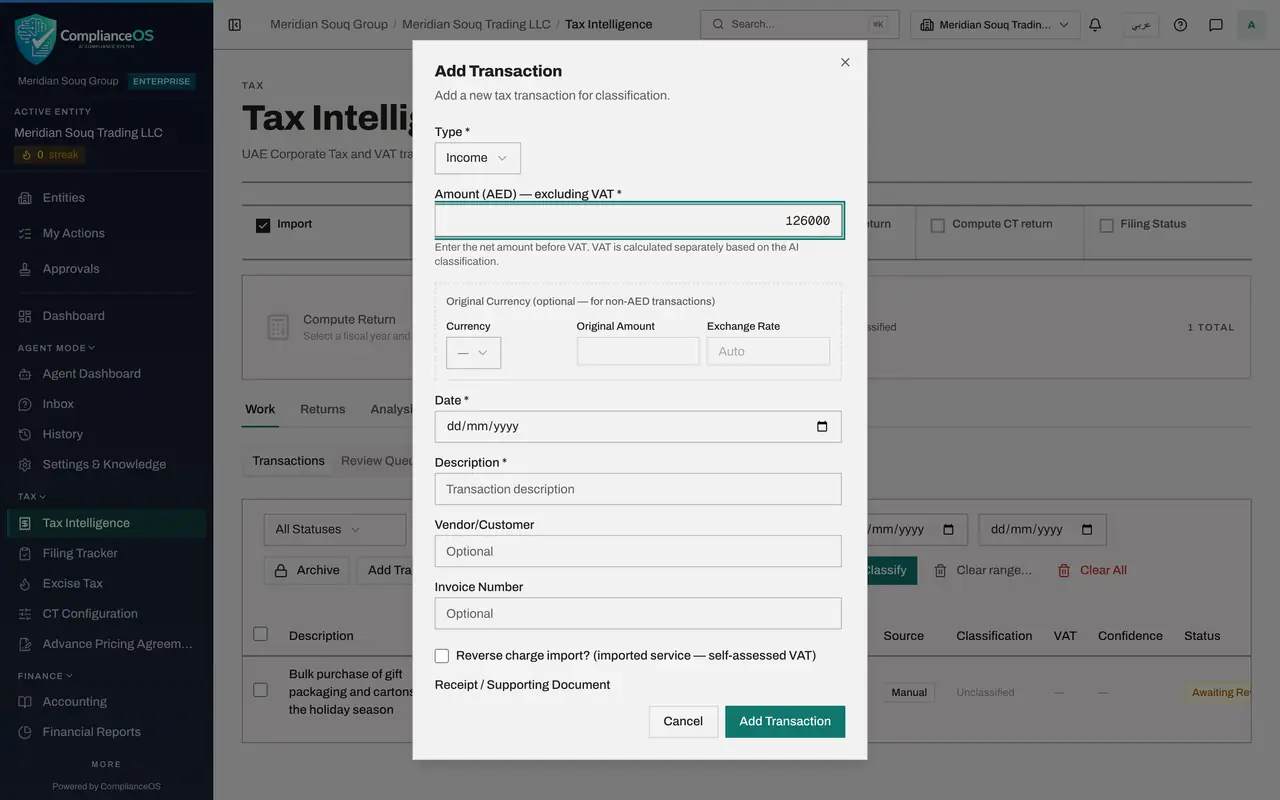
Select Add Transaction again. Choose Income, which is a sale, and type 126000 in Amount.
- Select Add Transaction
- Select Type
- Choose Income
- Type AED 0.00:
126000
- 8
Describe the sale, including how it was paid
Enter the date, 6 October 2026, and a description that says the customer paid in cash. How a large sale was paid is exactly what the AML officer needs to know.
- Type Date *:
2026-10-06 - Type Description *:
Wholesale sale of homeware to a corporate customer, paid in cash at th…
- Type Date *:
- 9
Type the customer and invoice number, then save
In Vendor or Customer type Mirdif Lantern Homeware LLC and in Invoice Number type MST-INV-8001. Select Add Transaction.
- Type Vendor/Customer:
Mirdif Lantern Homeware LLC - Type Invoice Number:
MST-INV-8001 - Select Add Transaction
- Type Vendor/Customer:
- 10
Start the sale to a new trade customer
Select Add Transaction a third time. Choose Income, type 18400 in Amount, and enter the date, 8 October 2026.
- Select Add Transaction
- Select Type
- Choose Income
- Type AED 0.00:
18400 - Type Date *:
2026-10-08
- 11
Type the description, the customer's name and the invoice number
Type the description. In Vendor or Customer type the customer's full legal name as on its trade licence, Zephyr Line Maritime LLC. In Invoice Number type MST-INV-8002.
- Type Description *:
Sale of office furniture to a new trade customer - Type Vendor/Customer:
Zephyr Line Maritime LLC - Type Invoice Number:
MST-INV-8002
- Type Description *:
- 12
Save the third transaction
Select Add Transaction. The message is the same as before: Transaction added. The accountant sees no difference, although this customer's name matches an entry on the training sanctions list. The next lesson shows what the AML officer received.
- Select Add Transaction
- 13
Check the three rows
The list now holds the three transactions with their names and invoice numbers. For tax they are waiting to be classified, which is covered in the tax course. For AML the work has already been handed over.
How to check it worked
Tax Intelligence lists three transactions with the invoice numbers QAN-2026-0412, MST-INV-8001 and MST-INV-8002, each with the supplier or customer name filled in.
Common mistakes
- Leaving Vendor or Customer empty. The field is optional for tax, but an empty name cannot be screened against the sanctions lists.
- Writing a vague description such as Invoice. Monitoring rules can look for words in the description, for example cash.
- Expecting a warning on your own screen. The accountant is not told about a possible sanctions match or a monitoring alert; they go to the AML team.
Check your understanding
1. The accountant saves a sale of 126,000 dirhams. What happens in AML/CFT?
- A.Nothing until the month is closed
- B.The customer's name is screened and, because the amount is 55,000 dirhams or more, a transaction alert is raised
- C.The sale is blocked
- D.A report is filed with the regulator
Show answer
Answer: B. The customer's name is screened and, because the amount is 55,000 dirhams or more, a transaction alert is raised
Saving a transaction screens the name and tests the amount against the monitoring rules at once. The sale itself is saved normally.
2. Why should the accountant always fill in Vendor or Customer?
- A.It changes the VAT rate
- B.It is the name that is screened against the sanctions lists and that monitoring groups transactions by
- C.The form will not save without it
- D.It is printed on the tax return
Show answer
Answer: B. It is the name that is screened against the sanctions lists and that monitoring groups transactions by
Screening and monitoring both work from the name on the transaction. Without it there is nothing to screen.