Lesson 18 of 28
Adverse media checks and the switch that controls them
What you will be able to do
This lesson is for the AML officer. An adverse media check looks for bad news about a customer or supplier. Because the check sends the name outside ComplianceOS, each entity has a switch for it. You will switch the checks off and on to see what changes, run a check on a supplier, read a flagged result, and record your review of it.
Before you start
- You are signed in as the AML officer. Changing the switch needs permission to edit AML records.
- You understand that running a check sends the name to a public news search and to the AI assistant. Use it for business parties, with the legal name.
Steps
- 1
Open Adverse Media and read the setting
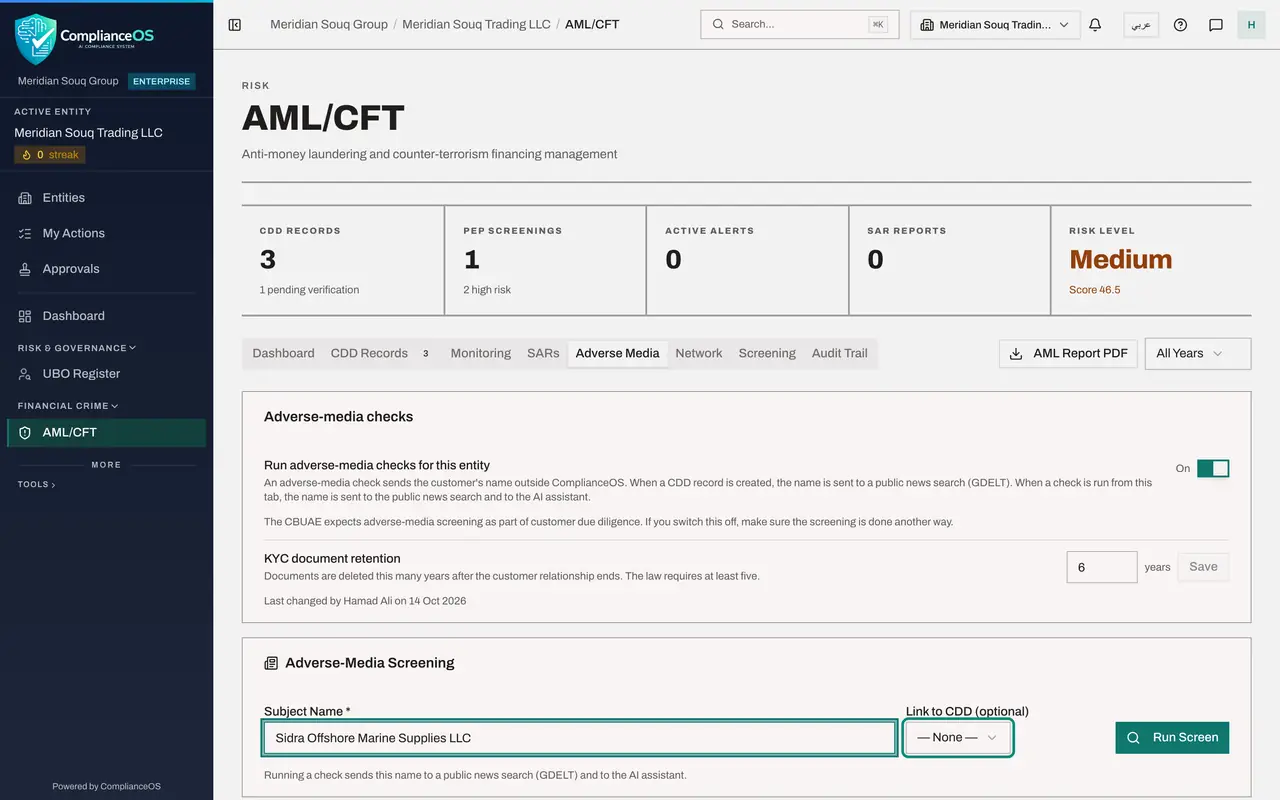
In AML/CFT select the Adverse Media tab. The first card has the switch Run adverse-media checks for this entity, now On. The text beside it says exactly what leaves the app: when a CDD record is created, the name is sent to a public news search, and when a check is run from this tab, the name is sent to the news search and to the AI assistant.
- Select Adverse Media
- 2
Switch the checks off
Select the switch. A message says Adverse-media checks switched off. The card now explains the effect: no check runs for this entity and no name is sent. Below, the Run Screen button is grey and the line under it says no check can be run.
- 3
See the notice on the CDD form
Select the CDD Records tab and then Add CDD Record. The notice at the bottom of the form now says Adverse-media checks: Off, and that the customer's name will not be sent and no check will run for the record.
- Select CDD Records3
- Select Add CDD Record
- 4
Cancel and switch the checks on again
Select Cancel, go back to the Adverse Media tab and select the switch again. A message says Adverse-media checks switched on. The line at the bottom of the card records who last changed the settings and when.
- Select Cancel
- Select Adverse Media
- 5
Type the name to check
Under Adverse-Media Screening, type the full legal name in Subject Name, here a new supplier, Sidra Offshore Marine Supplies LLC. Link to CDD ties the result to a customer's due diligence record; this supplier has none, so leave it on None. The line under the form reminds you where the name is sent.
- Type Subject Name *:
Sidra Offshore Marine Supplies LLC
- Type Subject Name *:
- 6
Select Run Screen
Select Run Screen. The check takes up to half a minute. A message says Adverse-media screening completed and the supplier appears in Adverse-Media Results with the number of findings, the keywords that were met, and a status. This one is Flagged, with the keyword offshore. The customers listed under it were checked automatically when their CDD records were created.
- Select Run Screen
- 7
Open the result
Select the line to open it. It shows the search that was made, the sources that were checked, every keyword that was met, and the findings, each with its source and a summary. Read them before deciding. Here the keyword comes from the supplier's own name.
- 8
Select Review
Select Review at the end of the line. Open Disposition: Clear, no concern closes the flag; Flagged, concern keeps it; Reviewed records that you looked without closing it. Choose Clear, no concern.
- Select Review
- Select Reviewed
- Choose Clear — no concern
- 9
Write the review note and save
In Review Notes say why, then select Save Review. A message says Adverse-media check reviewed and the status changes to Clear.
- Type Add review notes...:
The word offshore is part of the trade name: the company supplies offs… - Select Save Review
- Type Add review notes...:
- 10
Read the disposition on the result
The opened line now ends with a Disposition box holding your note, your name as the reviewer, and the date of the review.
How to check it worked
The switch shows On, and Adverse-Media Results lists the supplier with the status Clear and your review note in the opened row.
Common mistakes
- Treating Flagged as proof. A check is flagged whenever a risk word is found, even when the word is simply part of the company's name. A person must read the findings.
- Switching the checks off and forgetting. The regulator expects adverse media screening; if the switch is off, the screening must be done another way.
- Running a check on a nickname or a first name. Use the full legal name, or the results will be about someone else.
Check your understanding
1. The switch Run adverse-media checks for this entity is Off. What happens when you add a CDD record?
- A.The name is still sent to the news search
- B.No adverse media check runs and the name is not sent anywhere; the form says so
- C.The record cannot be saved
- D.The customer is flagged
Show answer
Answer: B. No adverse media check runs and the name is not sent anywhere; the form says so
With the switch off, no check runs either on saving a CDD record or from the Adverse Media tab, and the Add CDD Record form shows a notice saying the name will not be sent.
2. A supplier called Sidra Offshore Marine Supplies is flagged with the keyword offshore and no news findings. What do you record?
- A.Confirmed money laundering
- B.A review with the disposition Clear, no concern, and a note that the word is part of the trade name
- C.Nothing
- D.A suspicious activity report
Show answer
Answer: B. A review with the disposition Clear, no concern, and a note that the word is part of the trade name
The flag came from a word in the name, not from news about the supplier. Review it, say why it is not a concern, and the status changes to Clear.