Lesson 12 of 28
Store a customer's identity documents
What you will be able to do
This lesson is for the AML officer. You will store a customer's trade licence in its due diligence record, with the document type, number and dates, then open it, download it, and read the access log that records everyone who touched it. These are KYC documents; KYC means know your customer.
Before you start
- The corporate customer has a CDD record, added in an earlier lesson.
- You have a scan of the document as a PDF, PNG or JPG file of up to 10 megabytes. The file in this example is an invented specimen.
- You are signed in as the AML officer. Only people whose role includes the AML module on this entity can see these documents.
Steps
- 1
Open the customer's record
On the CDD Records tab select Verify / Edit on the customer's row and find the KYC documents section. The line under the heading says the documents are stored encrypted, are visible only to people with AML access on this entity, and that every opening and download is logged. No documents are held yet.
- Select Verify / Edit
- 2
Choose the document type
Open Document type. The list covers identity documents for people, such as passport, Emirates ID and residence visa, and documents for companies, such as trade licence and incorporation documents, as well as proof of address, bank statement and source of funds evidence. Choose Trade licence.
- Select Passport
- Choose Trade licence
- 3
Type the document number and dates
In Document number type the number printed on the licence. Enter the Issue date and the Expiry date. All three are optional, but the expiry date is what lets you see later that a document has run out.
- Type Document number:
CN-4471203 - Type Issue date:
2026-02-01 - Type Expiry date:
2027-01-31
- Type Document number:
- 4
Choose the file
Select Choose File and pick the scan from your computer, here mirdif-lantern-trade-licence.pdf. The file must be a PDF, PNG or JPG of up to 10 megabytes.
- Upload Choose a file:
mirdif-lantern-trade-licence.pdf
- Upload Choose a file:
- 5
Select Upload document
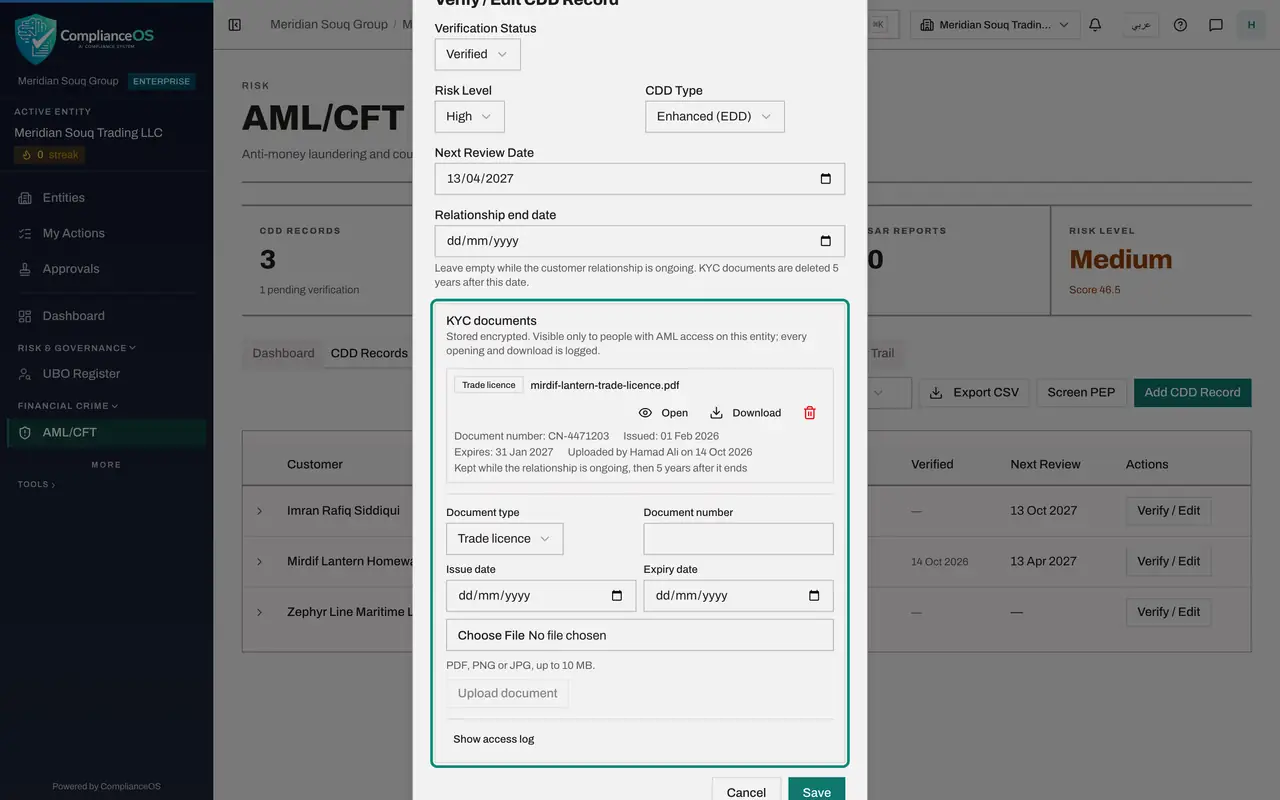
Select Upload document. A message says Document stored. The licence is now listed at the top of the section with its type, file name, number and dates, who uploaded it and when, and a line saying how long it will be kept. The window has grown taller than the screen, so its title is cut off at the top.
- Select Upload document
- 6
Select Open
Select Open beside the file name to view the document in a new browser tab. Close that tab when you have finished. The opening is recorded.
- Select Open
- 7
Select Download
Select Download to save a copy to your computer. That is recorded too. Keep downloaded copies only as long as you need them.
- Select Download
- 8
Select Show access log
Select Show access log at the bottom of the section. It lists what happened to this customer's documents, newest first: Downloaded, Opened and Uploaded, each with the file, the person and the time.
- Select Show access log
- 9
Hide the log and close the window
Select Hide access log so the buttons at the bottom come back into view, then select Cancel. Nothing is lost: the document was stored when you uploaded it. Save is only for changes to the status, risk level and dates above.
- Select Hide access log
- Select Cancel
- 10
See the document named in the record
Select the customer's row to open it. Documents collected now shows Trade licence with the file name. The file itself can only be opened from the Verify and Edit window, where the log is kept.
How to check it worked
The Verify and Edit window lists the trade licence with its number and dates, the access log shows Uploaded, Opened and Downloaded with your name, and the opened row in CDD Records names the document under Documents collected.
Common mistakes
- Keeping identity documents in email or a shared folder. Stored here they are encrypted, restricted to the AML team, and every opening is logged.
- Choosing the file and then closing the window. The document is stored only when you select Upload document and see the message Document stored.
- Entering an expiry date earlier than the issue date. The form refuses it.
Check your understanding
1. Who can see a KYC document stored in a CDD record?
- A.Everyone in the organisation
- B.Only people whose role includes the AML module on that entity
- C.Only the person who uploaded it
- D.The customer
Show answer
Answer: B. Only people whose role includes the AML module on that entity
The section says so itself: visible only to people with AML access on this entity. An accountant, for example, cannot open AML/CFT at all.
2. A colleague opened a customer's passport scan last week. How can you tell?
- A.You cannot
- B.Select Show access log in the customer's Verify and Edit window
- C.Ask the customer
- D.Look in the Screening tab
Show answer
Answer: B. Select Show access log in the customer's Verify and Edit window
Every upload, opening, download and deletion is listed in the access log with the person and the time.