Lesson 6 of 28
A possible match raised by a sale, and assigning the review
What you will be able to do
This lesson is for the AML officer. The accountant has just recorded three transactions. You will see what arrived in AML/CFT without anyone screening by hand: the names in the screening list, a possible match in the Review Queue, a critical alert, and a due diligence record opened automatically. Then you will assign the review to the compliance officer and use the Assigned to me filter.
Before you start
- The accountant has recorded the three transactions of the previous lesson.
- You are signed in as the AML officer for the entity.
Steps
- 1
Read the counters after the accountant's entries
Open AML/CFT. The counters have moved although you did nothing. Active Alerts shows 3, one of them critical, and CDD Records shows 1 pending verification. The Monitoring and CDD Records tabs carry the same counts.
- 2
Open Screening and find the names from the transactions
Select the Screening tab and scroll to All Screening Checks. The supplier and the two customers from the accountant's transactions are listed with their types, Vendor or Customer. The supplier and the corporate customer were cleared. The new trade customer is Pending.
- Select Screening
- 3
Find him in the Review Queue
Scroll up to the Review Queue. It shows the new trade customer with a match score of 100% and the list entry its name matches. The words via alias mean the customer's name agrees with another name the listed company uses. The entry is one of the training examples made up for this course, not a real record. The review is Unassigned.
- 4
Open Monitoring and read the critical alert
Select the Monitoring tab. The first alert has the type Sanctions match and the severity Critical, with no amount. Select the row to open it: the description names the customer and the list entry and says immediate review is required. It was raised by the possible match, so that the match cannot be overlooked.
- Select Monitoring3
- 5
Open CDD Records and read the record that was opened
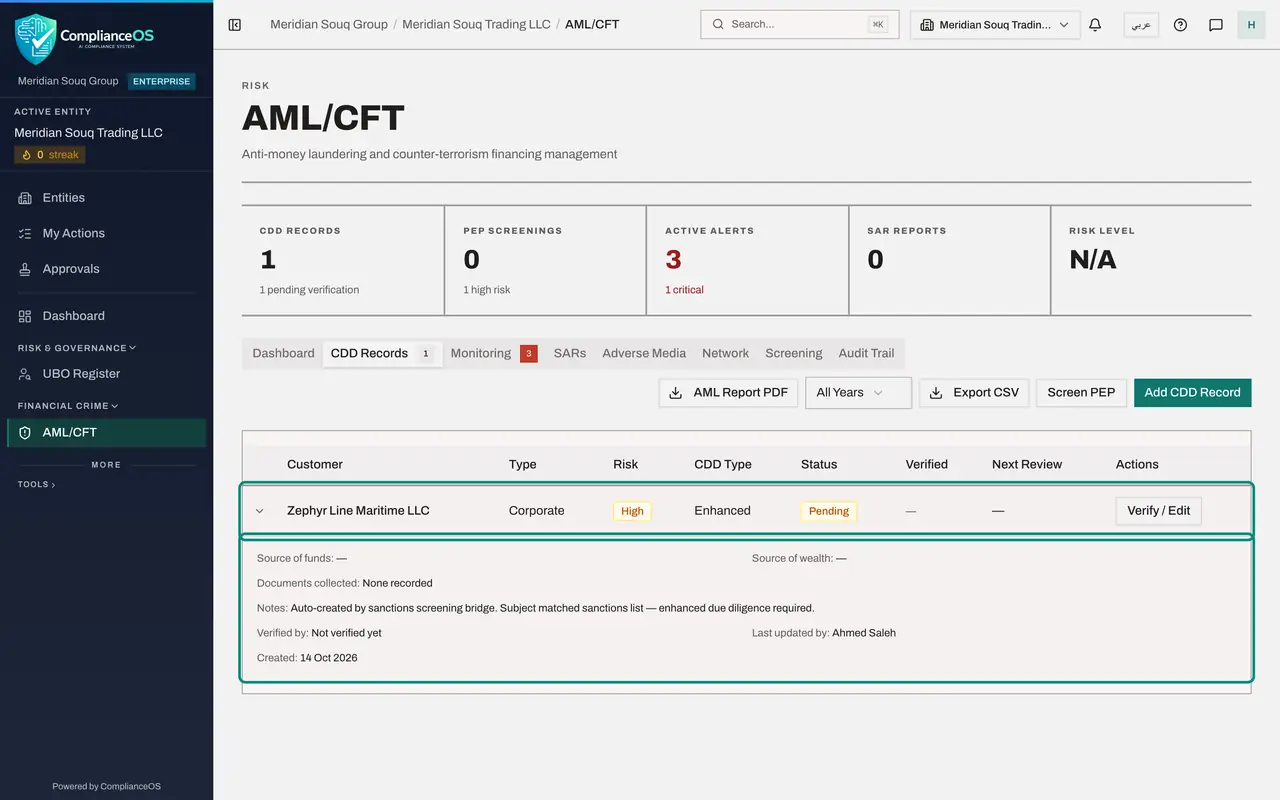
Select CDD Records. A due diligence record now exists for the customer, with High risk, the CDD type Enhanced and the status Pending. Select the row: the note says it was created automatically because of the sanctions match and that enhanced due diligence is required. The type is Corporate. A later lesson shows how records are checked and updated.
- Select CDD Records1
- 6
Go back to the Review Queue and open Assigned to
Return to the Screening tab. In the Review Queue, open the Assigned to box on the customer's row. It lists the people who can work on AML records for this entity, and Unassigned.
- Select Screening
- Select Assigned to
- 7
Choose Mariam Aziz
Choose Mariam Aziz, the compliance officer, who decides doubtful matches in this company. A message says Review assigned to Mariam Aziz, and her name stays in the column. To take an assignment away again, choose Unassigned.
- Choose Mariam Aziz
- 8
Select Assigned to me
At the top right of the Review Queue are two filters. Select Assigned to me. The queue now shows only reviews assigned to the person signed in. For you it says No pending reviews are assigned to you, because this one now belongs to Mariam.
- Select Assigned to me
- 9
Select All pending
Select All pending to see every waiting review again, whoever it is assigned to. The next lesson shows what Mariam sees.
- Select All pending
How to check it worked
The Review Queue shows the new trade customer with Mariam Aziz in the Assigned to column, and the Assigned to me filter shows that nothing is assigned to you.
Common mistakes
- Waiting for someone to tell you about a match. Nobody is notified at the counter; open the Screening tab, or My Actions, every day.
- Leaving a review unassigned. An unassigned review appears in nobody's My Actions list.
- Dismissing the critical alert on the Monitoring tab without deciding the review. The alert only points at the review; the decision is made in the Review Queue.
Check your understanding
1. Nobody screened the new trade customer by hand. Why is it in the Review Queue?
- A.The AML officer added it
- B.The app screens the name on every transaction the accountant saves
- C.It was imported from the regulator
- D.It is a mistake
Show answer
Answer: B. The app screens the name on every transaction the accountant saves
Names added in other modules are screened automatically. A possible match lands in the Review Queue whoever entered the name.
2. What does choosing a person in the Assigned to column do?
- A.It clears the match
- B.It puts the review in that person's My Actions list and under their Assigned to me filter
- C.It sends the customer an email
- D.It locks the transaction
Show answer
Answer: B. It puts the review in that person's My Actions list and under their Assigned to me filter
Assigning makes one person responsible. The decision is still open until that person clears, confirms or escalates the check.