Lesson 2 of 28
Check that the sanctions lists are up to date
What you will be able to do
This lesson is for the AML officer. Before you rely on any screening result you will check which sanctions lists are loaded, which of them are required, when each was last updated, and what the app does when a list is out of date. In this example every list is current, so the paused state is explained but not shown.
Before you start
- You are signed in as the AML officer for the entity.
- You know that a watchlist is an official list of sanctioned people and organisations, published by a government or by the United Nations.
Steps
- 1
Open the Screening tab
In AML/CFT select the Screening tab. The five boxes count the names screened so far and how many are pending, cleared, matched and escalated. On this new company they are all zero.
- Select Screening
- 2
Select Insights
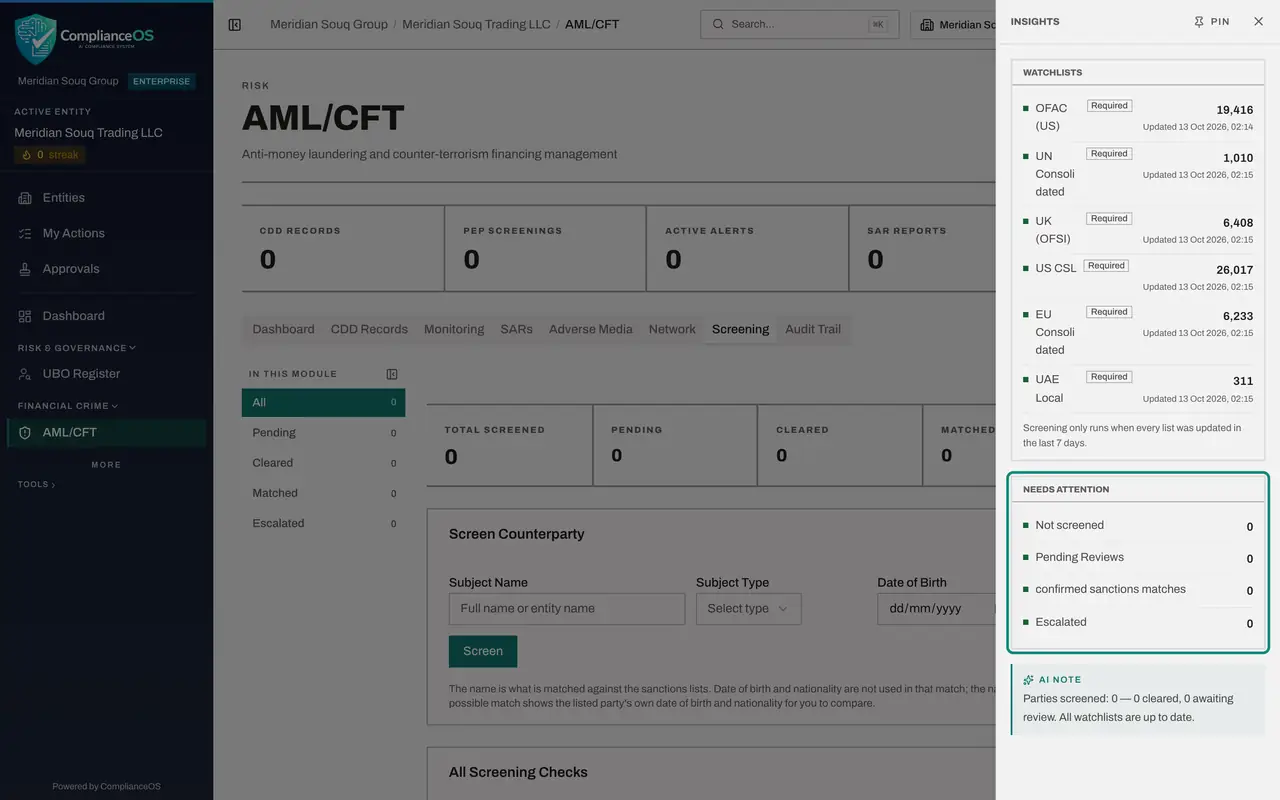
Select Insights at the right, above the boxes. A panel slides in from the right. Its first card, Watchlists, is the one to check before you trust a result.
- Select Show insights panel
- 3
Read one watchlist line
Each line is one list. On the left is its name, here the list of the United States Treasury, shown as OFAC. On the right is the number of entries loaded, with the date and time of the last successful update underneath. A green dot means the list is current. Long names are cut short in this narrow panel; the Dashboard tab shows them in full.
- 4
Read the Required and Optional badges
Beside each name is a small badge. Required means screening cannot run without this list. Optional means screening runs without the list until it loads. Hold the pointer over a badge to read this on screen. In this example all six lists are required.
- 5
Read the seven day rule
Under the lists is the rule that matters most: screening only runs when every list was updated in the last 7 days. The lists are refreshed every day by the system, so normally you only read the dates.
- 6
Read Needs Attention
The second card, Needs Attention, has four counts. Not screened is names the app could not check. Pending Reviews is possible matches waiting for a person. Confirmed sanctions matches and Escalated are the decisions already taken on possible matches. Green dots and zeros mean there is nothing to do.
- 7
Know what happens when a list is out of date
This example cannot show the paused state, because every list here is current. When a required list is out of date or was never loaded, a red notice at the top of the Screening tab says Screening is paused, and the Screen button is greyed out. Any name added in the meantime is listed in a red card called Not screened, with the reason. Those names are retried automatically every day, and the Screen now button on that card retries them at once after the lists are updated.
- 8
Read the AI Note
At the bottom, the AI Note sums up the same facts in one sentence: how many parties were screened, how many are cleared or waiting, and whether all watchlists are up to date.
- 9
Pin the panel if you want it to stay
Select Pin at the top of the panel to keep it docked beside the page while you work. Hide, above the docked panel, puts it away again.
- Select Pin insights panel to the page
- 10
Select Hide
Select Hide above the panel. The page gets its full width back, and the Insights button returns.
- Select Hide insights panel
- 11
Compare with the Dashboard tab
Select the Dashboard tab and find Screening Coverage. It shows the same six lists with their entry counts, plus the database of politically exposed persons with the date it was last refreshed. Use it for a quick look; use the Insights panel on the Screening tab for the exact update times.
- Select Dashboard
How to check it worked
In the Insights panel of the Screening tab every watchlist shows a green dot and an Updated date within the last seven days, and Not screened shows zero.
Common mistakes
- Trusting results without looking at the dates. If a required list is more than seven days old the app stops screening; it does not quietly use the old list.
- Reading Not screened as cleared. A name in the Not screened card has no result at all and still has to be checked.
- Trying to refresh the lists yourself. Refresh Lists is shown only to an organisation administrator; ask one if a list is out of date.
Check your understanding
1. A watchlist marked Required was last updated nine days ago. What happens when someone adds a new supplier?
- A.The supplier is screened against the old list
- B.The supplier is recorded as Not screened, with no result, until the list is updated
- C.The supplier is cleared automatically
- D.Nothing; suppliers are never screened
Show answer
Answer: B. The supplier is recorded as Not screened, with no result, until the list is updated
Screening only runs when every required list was updated in the last seven days. Otherwise the name is recorded as Not screened and is retried once the lists are current.
2. What is the difference between a Required and an Optional watchlist?
- A.Required lists cost money
- B.Screening cannot run without a Required list, but it runs without an Optional list until that list loads
- C.Optional lists are never used
- D.There is no difference
Show answer
Answer: B. Screening cannot run without a Required list, but it runs without an Optional list until that list loads
The badge tells you whether a missing or stale list stops screening. Hold the pointer over the badge to read the same explanation on screen.